I’m trying to free up storage on my iPhone and noticed separate listings for apps and app data. I’m confused about what each one includes, what gets deleted, and whether removing app data could affect my photos, messages, or saved settings. I need help understanding the difference before I clear anything.
I ran into the same mess on my iPhone, and yeah, the numbers in Storage don’t line up in a clean way.
When you open Settings > General > iPhone Storage, iOS is checking space on the spot. What shows up under Applications usually includes the app itself, its bundled files, saved settings, account bits, language resources, and extra assets. Games are bad for this. One title I had looked small in the App Store, then ate a few gigabytes after install because of downloaded textures and other junk.
The split between Applications and App Data, sometimes shown as Documents & Data, tripped me up too. The app size is the core install. App Data is the stuff built up after you use it. Your chats, downloaded songs, edited files, drafts, cached media, offline maps, all of it lands there. If you use Telegram, Spotify, Netflix, or any camera app a lot, this pile grows fast.
Where it gets ugly is cache. A lot of apps keep temp files around longer than you’d expect. Social apps save images and video fragments. Streaming apps hang onto downloaded chunks. Browsers collect site data. iOS does clear some of this when space gets tight, but in my case it was hit or miss. I saw apps sitting on bloated storage for weeks.
My phone started dragging once free space got low. Apps reopened slower. The camera took longer to launch. Swapping between apps felt off. It wasn’t subtle. iPhones need some breathing room for temp operations, updates, indexing, photo processing, stuff like that. When you’re scraping the bottom with a few GB left, performance dips.
I started with the usual cleanup. I offloaded apps I hadn’t touched in months. I cleared Safari data. I removed old downloads. Small win, not enough. The bigger problem was my Photos library. Too many duplicate shots, giant screen recordings, random screenshots from receipts, login codes, shipping updates, dumb memes. It adds up in a gross way.
I ended up using Clever Cleaner. I don’t say that lightly because most cleaning apps on iPhone feel shady or push subscriptions in your face after two taps. This one was free when I used it, no ads popping up every few seconds, no paywall ambush.
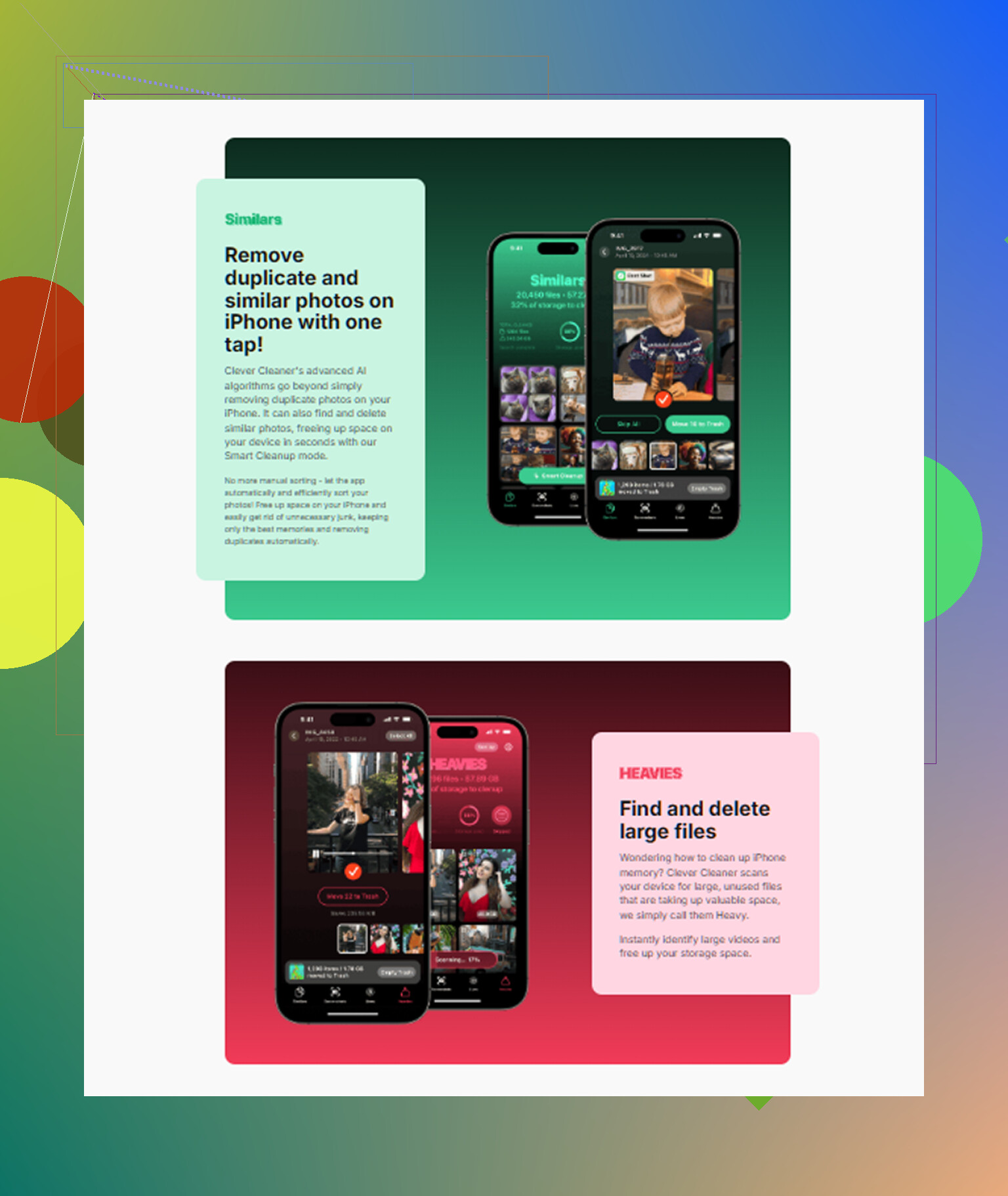
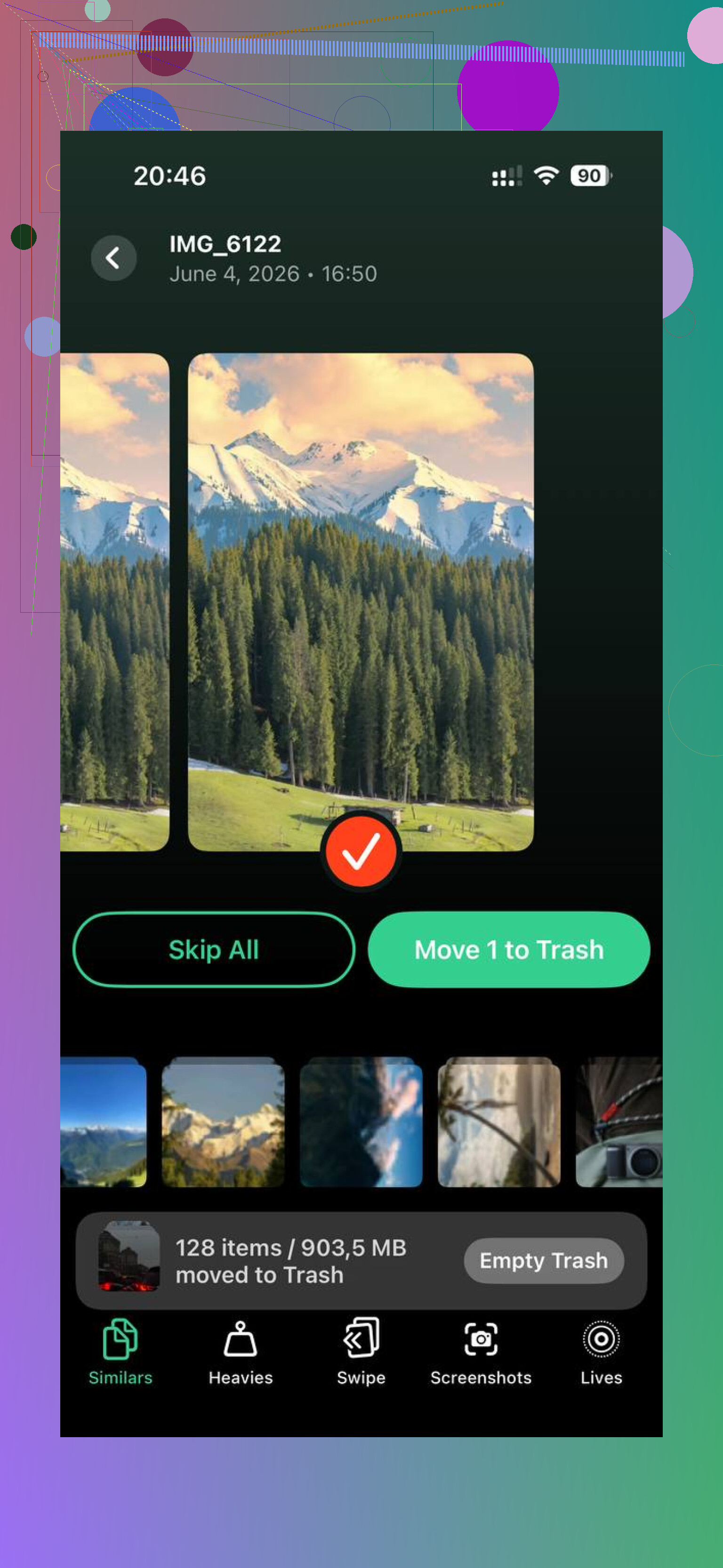
The part I kept coming back to was the Heavies section. It put my largest media files right in front of me, so I didn’t have to scroll through years of junk by hand. I found long screen recordings, duplicate vacation clips, and a bunch of videos I forgot I downloaded. There’s also a Similars view for near-duplicate photos. Mine caught bursts and repeat shots well enough. Not perfect, but good enough to save me a ton of time. It also showed file sizes before deletion, which helped since I was trying to claw back space fast. From what I saw, processing stayed on-device, which mattered to me.
After clearing around 15GB, my phone felt normal again. Less lag. No storage warnings. Apps stopped choking on launch. So if your Applications category looks too big, I’d check three things first. Your largest installed apps, your downloaded media inside those apps, and your photo library. In my case, Photos was the real storage hog, not the apps I blamed at first. Took me too long to figure that out tbh.
1 Like
Applications is the app package. The binary, built-in assets, frameworks, language files, and app updates.
App Data is what builds up after install. Caches, downloads, chat history inside the app, saved projects, offline files, login data, and temp junk.
Important part. Deleting the app usually deletes both. Offloading the app removes the app package but keeps its data. That saves less space, but you keep your stuff for reinstall.
Your Photos and Messages are a seperate thing in iPhone Storage. Deleting app data does not wipe your main Photos library unless the photos live inside that app only, like downloaded edits in a third-party camera app. Same idea for messages. iMessage threads live under Messages, not under some random app’s data.
I’d add one thing to @mikeappsreviewer’s post. iOS cache cleanup is not always awful. Some apps shrink on their own after a reboot or update. Still, big media apps tend to hoard storage for ages.
Fastest checks:
- Open iPhone Storage, tap the biggest apps.
- See if “Offload App” or “Delete App” makes sense.
- Open apps like TikTok, Instagram, Spotify, Netflix, Telegram, and clear downloads inside the app.
- Check Photos separately.
If Photos is the hidden problem, Clever Cleaner is worth a look. Also, this review is easy to scan and explains what it does for iPhone cleanup, see this Clever Cleaner for iPhone review and storage cleanup breakdown.
Short version. Applications = app itself. App Data = your stuff plus cache. Delete carefully, becuase some apps keep important files there.
Applications = the app package itself.
App Data = everything that app creates or keeps after install.
The part I’d push back on a little from @mikeappsreviewer and @nachtdromer is this: people sometimes treat “app data” like it’s just trash cache. Nope. Sometimes it’s expendable junk, sometimes it’s literally the only copy of your files inside that app. That’s the gotcha.
Quick breakdown:
- Applications: the installed app, code, bundled resources
- App Data: downloads, caches, drafts, offline media, saved files, in-app documents, chat attachments, etc
What gets deleted:
- Offload App: removes the app, keeps app data
- Delete App: removes both app and its data from the phone
- Clear cache inside the app: usually removes temp stuff only, but every app handles this differntly
About Photos and Messages:
- Your main Photos library is normally separate
- Your Messages app/iMessage history is also separate
- But if a third-party app stores its own copies of photos/videos/messages, deleting that app’s data can wipe those copies
So before deleting anything, ask: “Is this synced to iCloud/server, or stored only on-device?” That matters way more than the label in Storage.
If your space issue is mostly media clutter, not app installs, Clever Cleaner makes more sense than randomly nuking apps. Also, if you want a better visual demo, check full Clever Cleaner iPhone storage cleanup walkthrough. It’s easier than poking around blind tbh.
Small correction to what @nachtdromer, @waldgeist, and @mikeappsreviewer said: on iPhone, the line between “app” and “app data” is not always clean because some apps download extra resource packs that feel like app files but get counted like data.
Best way to think about it:
- Applications = what you install from the App Store
- App Data = what the app accumulates after that
What people miss is ownership. If a file exists only inside one app, deleting that app can erase the only local copy. That matters for note apps, drawing apps, audio recorders, PDF editors, and some camera apps more than for Instagram or Netflix.
Also, “Photos” being separate is mostly true, but not absolute. If you imported media into a third-party editor without saving back to your library, those files may live only in that app’s data. Same for voice messages or downloads inside messaging apps.
So my rule is:
- social/streaming app data = usually safe-ish to clear
- creative/work app data = check before touching
- offline maps/downloads = often huge, often intentional
If you’re trying to free space, I would audit by app type, not just size.
For media clutter, Clever Cleaner is useful, especially for finding large videos and duplicates in your library.
Pros:
- simple scan
- good for duplicate/similar photos
- helps surface giant files fast
Cons:
- less useful for true in-app caches
- won’t fix every “System Data” issue
- you still need to verify before deleting
So yes, app data can affect your stuff. Just not always the stuff iPhone labels in obvious ways.