I permanently deleted important files on my Windows 11 PC and realized too late they were not backed up. I need help figuring out if these files are still recoverable and which recovery steps or tools are safest to try without making things worse.
I’ve been in this spot before, and yeah, it sucks. You hit Shift+Delete or empty the Recycle Bin, then the file is gone and your stomach drops. The small bit of good news is this. “Permanent delete” on Windows does not always mean the data vanished right away. A lot of the time, Windows removes the file’s listing and marks its old space as free. If nothing else has written over it yet, recovery still has a shot.
First thing I’d do, stop touching the drive as much as possible. No installs. No big downloads. Don’t copy random stuff onto it. I’d even avoid using the PC for extra tasks if the deleted file lived on your main drive. Every write makes recovery harder. On SSDs, this gets worse because of TRIM. TRIM helps the SSD keep up speed by clearing deleted blocks. Once that cleanup happens, recovery odds drop hard. Sometimes to zero.
Before you scan anything, I’d check the boring places people forget about. I’ve found “lost” files there more than once.
OneDrive
File History
Previous Versions
Other cloud storage accounts
External drives
NAS backups
Any old backup tool you set up once and forgot about
Stuff turns up in those places all the time.
If none of that helps, I’d move to recovery software.
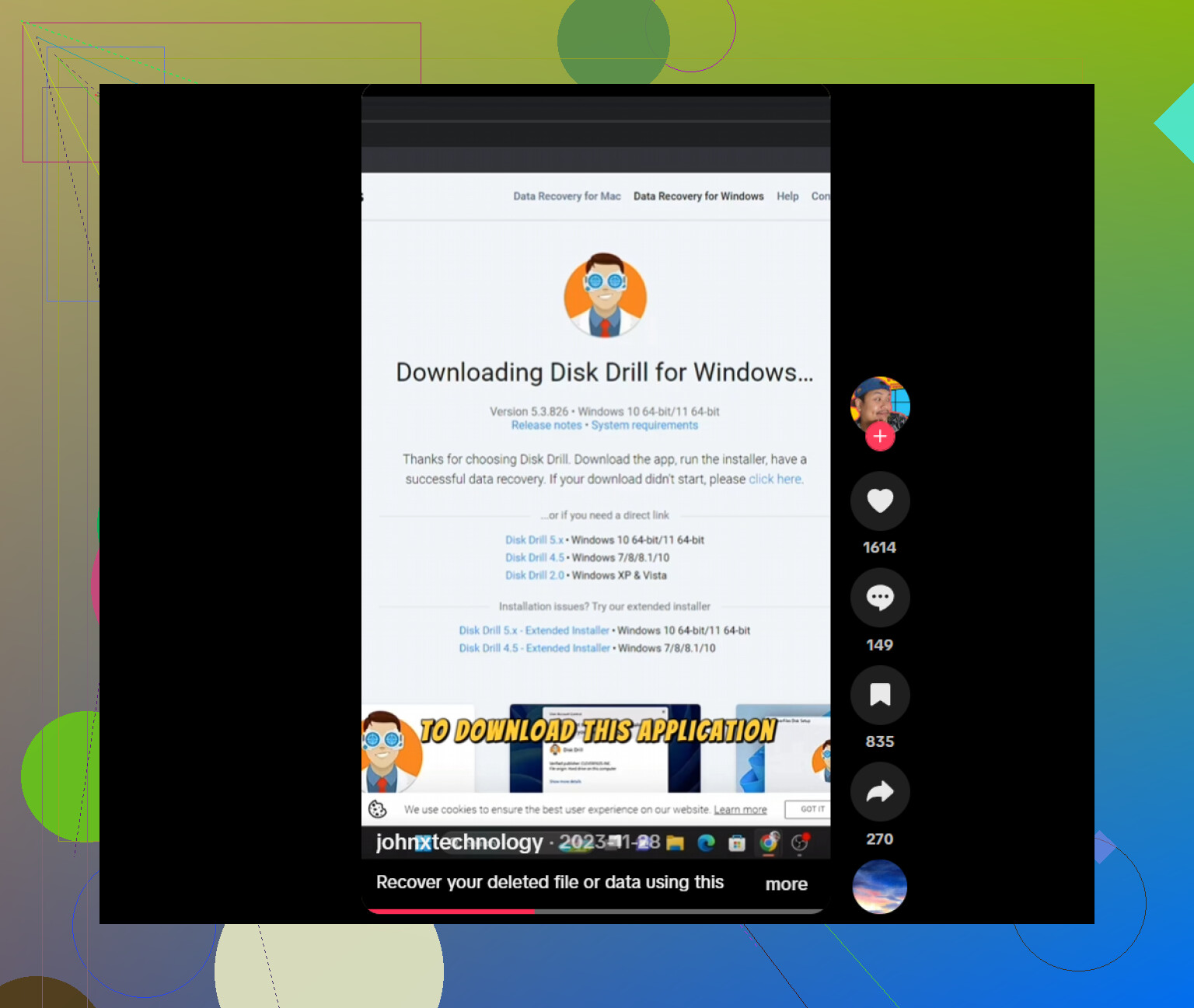
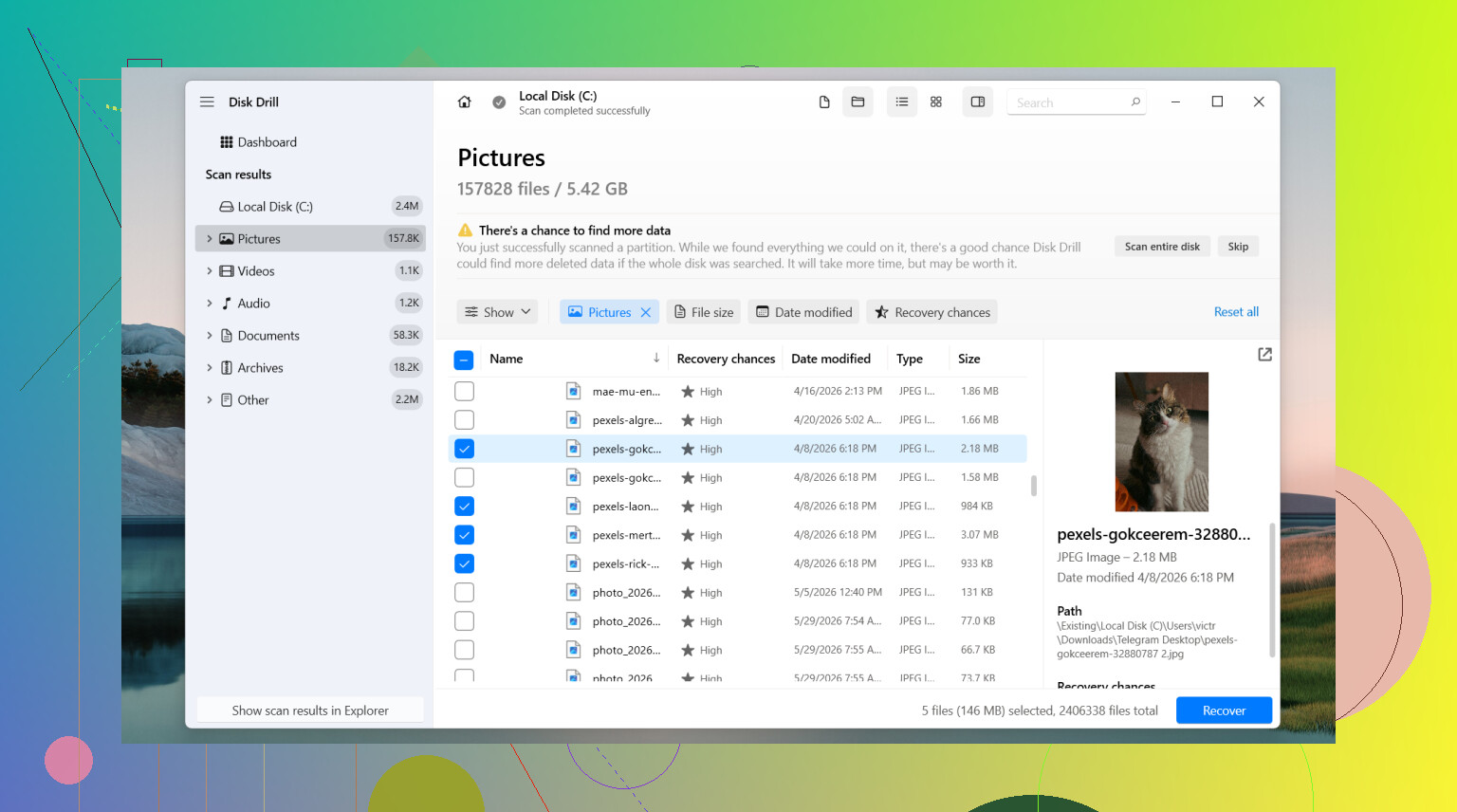
The one I’d start with is Disk Drill. I’ve had decent luck with it because it’s simple to run and it tends to keep filenames and folder paths when the file system info is still there. That matters more than people think. Sorting recovered files named things like file000213.jpg gets old fast. Preview helps too, since you can check whether you found the right file before saving it out.
What I’d do:
Install Disk Drill to a different drive if you have one.
Pick the drive where the file got deleted.
Run the scan.
Use search or filters to narrow it down.
Preview the file if preview works.
Recover it to another drive, not the same one.
On Windows, it lets you scan and preview without limits, and the free recovery cap is 100 MB.
If you want other options, these are the ones I’d keep in mind.
PhotoRec gets recommended a lot for a reason. It’s free and it pulls back a ton of files. The downside is messy output. It leans hard on file signatures, so filenames and folder structure are often gone. After a big recovery run, you might be staring at thousands of generically named files. It works, but it’s not neat. I used it once and spent way too long sorting the results. still did the job though.
DiskGenius is worth a look when the issue feels bigger than one deleted file. I’d use it more for lost partitions, damaged partitions, RAW drives, or file system problems. When Windows sees the drive in a weird state, this one sometimes finds data simpler tools miss.
One more thing. Software is not the move if the drive is making clicking noises, dropping in and out of Windows, throwing hardware errors, or holding data you can’t risk losing. In those cases, I’d stop and look at a professional data recovery service. If the drive has physical trouble, home software tends to make a bad mess worse.
If this was a plain delete and the drive hasn’t been used much since, recovery odds are often decent. Move fast, keep writes to a minimum, and recover anything you find onto a different disk. That part matters a lot.
1 Like
If the files were deleted from a hard drive, your odds are better. If they were on an SSD, odds drop fast because of TRIM. I agree with @mikeappsreviewer on stopping use of the drive. I disagree a bit on waiting too long to test recovery tools though. If the file matters, you want answers fast, with the fewest writes possble.
My order would be:
- Check Windows File Recovery from Microsoft first. It is free, CLI only, and safer than a lot of random junk tools pushed in search ads. Use it from another drive if you can.
- If you want an easier UI, Disk Drill is one of the cleaner options on Windows 11. It is easy to search by file type and date, which helps when you know roughly what was lost.
- Save recovered files to a different disk, USB, or external SSD. Same-drive recovery is a bad idea.
A few things people skip:
- Look in C:\Users\YourName\AppData for app-specific autosaves
- Check Office temp files and Adobe recovery folders
- If it was a photo or doc, search by extension and modified date, not only filename
- If it was deleted from a phone synced to the PC, check the phone too
Avoid tools like Recuva on trimmed SSD cases. It still works in some situations, but results on modern systems are hit or miss imo.
If you want a simple Windows 11 file recovery guide, this easy Windows file recovery walkthrough covers the basics in a beginner-friendly way.
If the drive is clicking, freezing, or vanishing from BIOS, stop. Software won’t fix tht.
You still have a chance, but I’d judge it by where the files were stored before I did anything else.
If the deleted files were on a secondary HDD, recovery odds can be pretty solid. If they were on the Windows 11 system SSD, I slightly disagree with @mikeappsreviewer and @techchizkid on one thing: I would not keep “trying stuff” on that machine for long. Even normal Windows background activity writes to disk. That alone can wreck recoverability.
What I’d do that hasn’t been stressed enough:
- Shut the PC down
- If possible, remove the drive and connect it to another computer as a secondary drive
- Run recovery from the other computer
- If the files are truly critical, make a sector-by-sector image of the drive first, then scan the image instead of the original
That imaging step is huge. People skip it, then wonder why attempt #3 finds less than attempt #1. Every scan and every boot can change things a bit.
For software, Disk Drill is still a reasonable pick on Windows 11 because it’s easy to sort by original folder path, type, and date. That matters when you are recovering more than one file and don’t want a giant pile of renamed junk. I just wouldn’t install it onto the same drive you’re trying to recover from. That part gets ignored allll the time.
A few extra places worth checking before deep recovery:
- Email attachments you sent before
- Discord/Slack/Teams uploads
- Browser download history
- App cache folders for the program that created the file
- Printer spool / recent files lists in the app itself
Also, if the recovered file opens but looks corrupted, don’t assume it’s useless. Sometimes you can repair docs, ZIPs, PSDs, or videos with separate repair tools.
If the drive has bad sectors, SMART warnings, or disappears randomly, stop DIY. That’s pro recovery territory.
For more discussion around Windows 11 deleted file recovery, this thread is useful: best ways to recover permanently deleted files on Windows 11.
Short version: recoverable maybe, but every minute of normal use lowers the odds. If it’s important stuff, image first, scan second, save elsewhere. Thats the safest play.
One thing I’d add to what @techchizkid, @kakeru, and @mikeappsreviewer already covered is this: sometimes the file is not really “recoverable” in the classic sense because Windows or the app already left a shadow copy elsewhere. I’d check Recent files inside the original app, temp export folders, and even %temp% before doing a full undelete sweep. Creative apps and Office apps are especially messy in a good way.
I also slightly disagree with the “scan ASAP no matter what” angle if the file was on the system SSD. On Windows 11, background writes happen constantly, so if the data is truly valuable, the cleaner move is often to stop booting that drive and work from another machine or from a bootable environment.
My practical take:
- HDD: decent chance if not overwritten
- SSD with TRIM: possible, but odds drop brutally fast
- External drive / SD card: often better recovery prospects than internal SSDs
About Disk Drill since it keeps coming up:
Pros
- Easy to use
- Good filtering by type/date
- Preview is useful
- Better organization than a lot of free tools
Cons
- Free recovery limit on Windows is small
- Deep scans can return lots of junk
- Paid license may not be worth it for one tiny file if Microsoft’s tool finds it first
So yes, Disk Drill is a sensible GUI option, but I’d still treat it as a second step after checking backups, sync folders, autosaves, and app temp locations. If the drive shows SMART errors or weird noises, stop doing software recovery entirely.