I accidentally deleted important files from my hard drive while doing a cleanup and didn’t realize they were still needed until afterward. I’m looking for help with hard drive file recovery, including the safest steps to take now and whether deleted files can still be restored without causing more data loss.
I’ve been through this once, and yeah, it feels awful. The good part is this, deleted files on a hard drive are often still sitting there for a while. You need to be careful from this point forward.
First step, stop using the drive right now. Don’t copy stuff to it. Don’t install anything on it. Don’t keep running the system from it if you can avoid it. When a file gets deleted, the drive usually doesn’t erase it on the spot. Your system marks the space as available, then new data starts taking it over. Once that happens, recovery drops off fast.
If the missing files were on a second internal drive or an external drive, unplug it and hook it up to another computer for recovery. That’s the safest route. If the lost files were on your Windows or macOS boot drive, I’d avoid loading into it over and over. Use a USB boot disk or a different machine if you have one. Less write activity matters here.
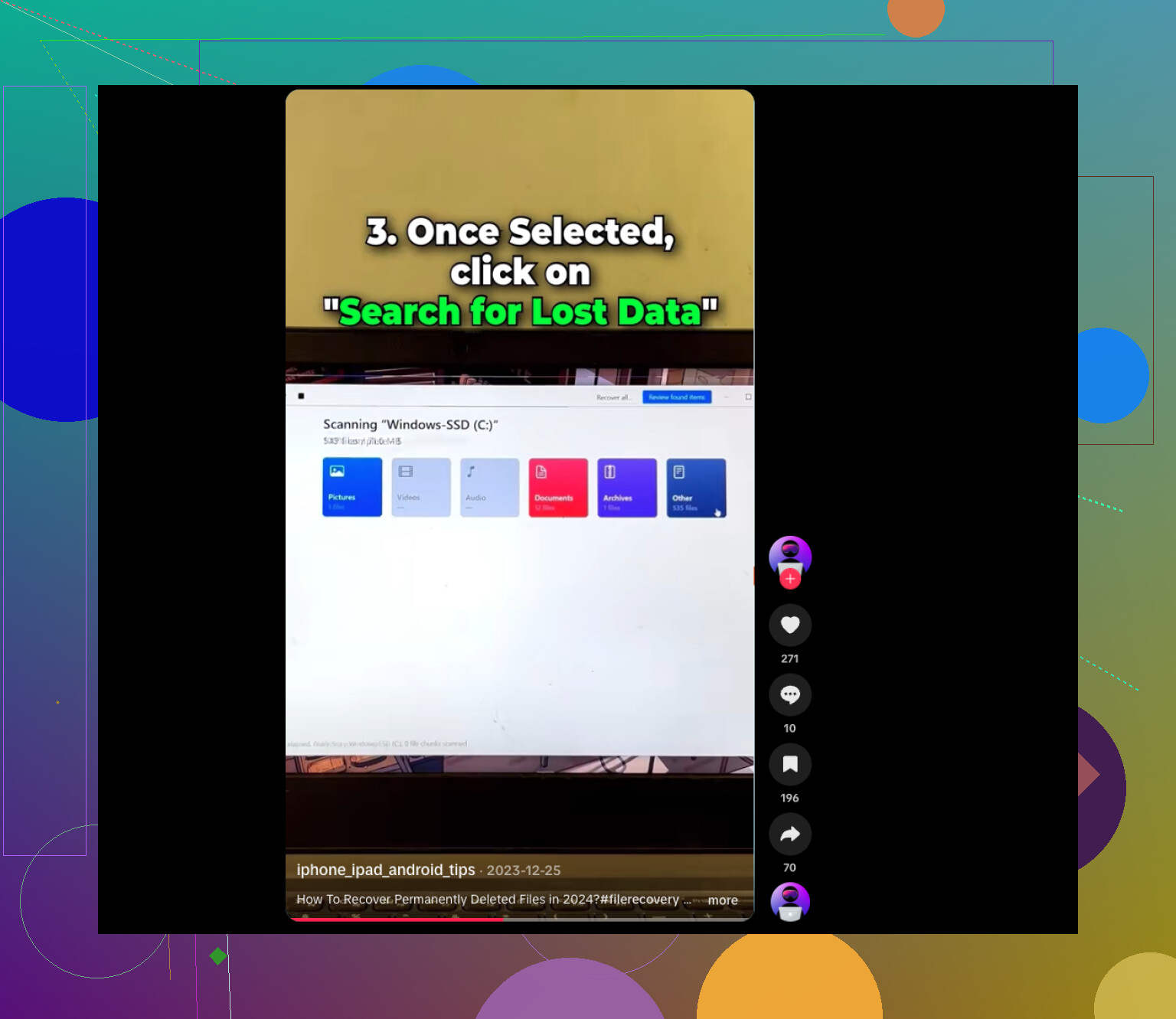
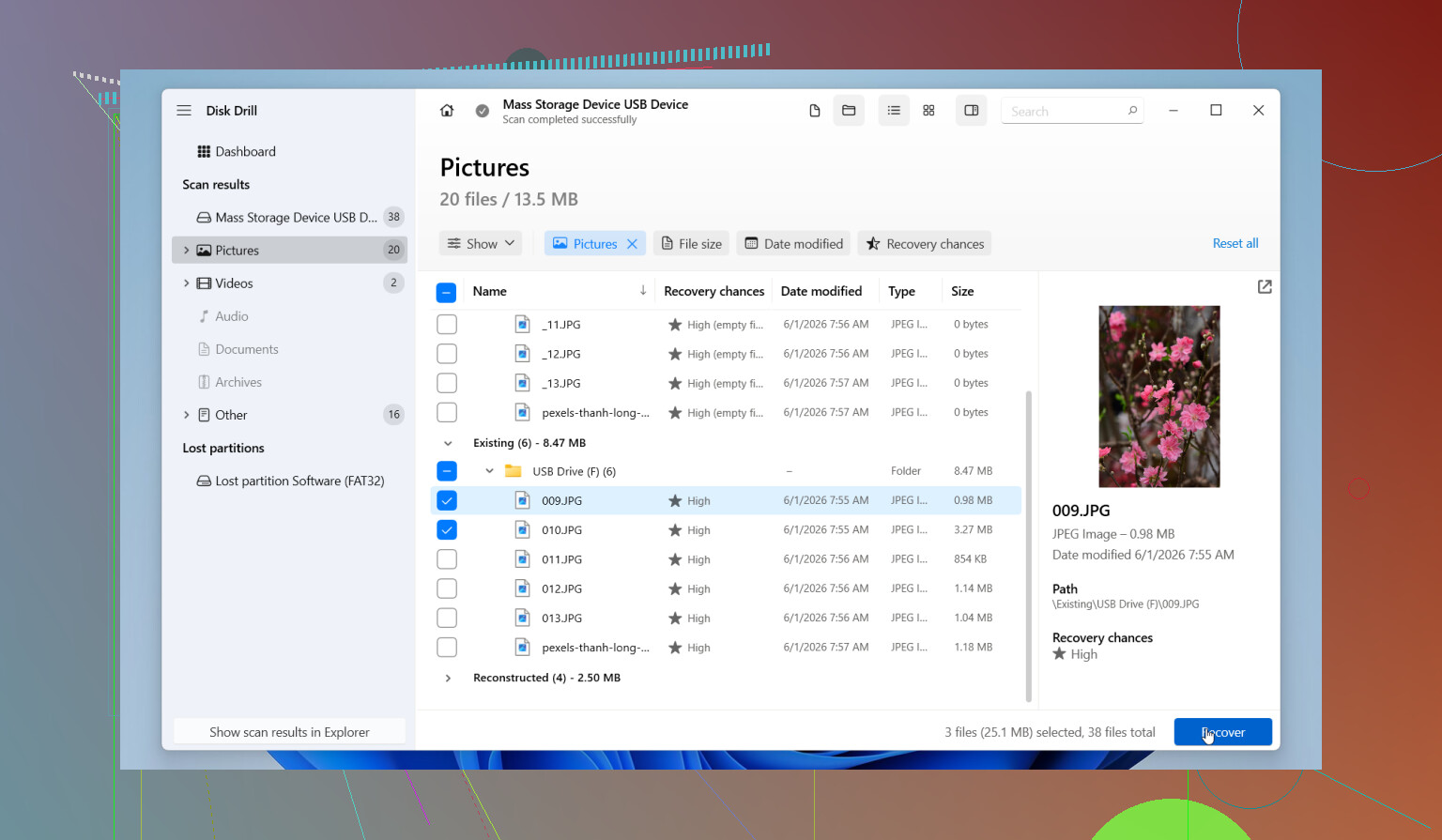
What worked best for me was Disk Drill, but the install location matters a lot. Put it on a different drive, never on the one you're trying to recover from. One reason I liked it is the byte-for-byte image backup option. I did the scan from the copy first, which felt a lot safer than poking at the original disk and hoping for the best. It also shows file previews before recovery, so you can check whether the files are usable before you save anything back. There’s a free version for scanning and previewing, then you decide later if you want to recover.
A few things I’d keep in mind:
- Hard drives usually give you a better shot than SSDs. Still, don’t drag your feet. Some newer hard drives support TRIM too, so waiting is a bad bet.
- If you hear clicking, grinding, or repeated spin-up noises, stop. Shut it down. Software won’t fix failing hardware. At that point, a recovery lab is the safer move.
- Run one deep scan and stick with it. Repeating the same scan over and over didn’t help when I tested this stuff, and it only puts more wear on the disk.
If Disk Drill doesn’t get the job done, I’d try a second tool before giving up. Recuva is easier and lighter, good for simple deletions. DiskGenius is more useful when partitions or file systems are messed up. Data Rescue is worth a look if you’re on a Mac. I still had better luck with Disk Drill for the mix of depth and ease, though your results depend on how much data got overwritten.
Move fast. Stay calm if you can. If the drive hasn’t been written to much since the deletion, your odds are still decent.

3 Likes
If you deleted the files during cleanup, your next move matters more than the tool you pick.
I agree with @mikeappsreviewer on stopping writes to the drive. I disagree a bit on doing only one deep scan no matter what. A fast file system scan first is often smarter. It finds recently deleted entries with less stress and less time. If it fails, then run the deep scan.
My order would be:
- Check Trash or Recycle Bin first.
- Check cloud sync trash, OneDrive, iCloud, Google Drive, Dropbox.
- Check File History, Previous Versions, Time Machine, Windows Backup.
- If nothing shows up, connect the drive to another computer.
- Make a full image of the drive first, then scan the image.
Imaging first is the safest step if the files matter. Recovery software reads a lot of sectors. If the drive is weak, you want one controlled pass, not repeated scans on the original. HDDs often recover better than SSDs. SSD trim can wipe deleted data fast, sometimes within minutes or hours.
For software, Disk Drill is a solid pick for hard drive file recovery because it handles both quick scans and deep scans, and it lets you sort by file type and preview results. Save recovered files to a different drive. Not the same one. People mess this up all the time.
If the files are office docs, photos, or videos, check the preview before recovering everything. A file name returning does not mean the data is intact. Been there, lol.
If the drive makes noises, freezes, vanishes from BIOS, or shows SMART errors, stop software recovery. Lab time. Expensive, yeah, but writing and rescanning a dying disk is how small mistakes turn into permanent loss.
For anyone searching, this is a clean guide for recovering permanently deleted files from a hard drive after accidental cleanup mistakes: easy steps to recover permanently deleted files.
Short version, stop using the drive, image it first, try backups, then scan with Disk Drill from another disk. That gives you the best shot, imo.
One thing I’d add to what @mikeappsreviewer and @sterrenkijker said: figure out how the cleanup deleted them. That matters more than people think.
If this was just normal delete or emptying Recycle Bin, recovery odds are decent on an HDD. If you used something like Storage Sense, CCleaner secure wipe, shredder tools, or a “zero free space” cleanup option, then software recovery may be close to useless. People skip that detail and waste hours scanning for files that were actually overwritten on purpose.
Also, I slightly disagree with the “always image first” advice in every case. If the drive is healthy and the deletion was recent, a quick read-only scan for directory entries can be fine before making a giant image, especially if the missing files are just a few docs. But if the drive is acting weird at all, then yeah, image first, no arguement there.
A few extra places to check that get missed:
- app-specific recovery folders like Word, Excel, Photoshop, Lightroom
- temp/export folders
- email attachments cache
- hidden user profile folders
- NAS or router-attached backup shares
For actual hard drive file recovery, Disk Drill is a solid choice because it can do both quick and deep scans and lets you preview before restoring. Just recover to another drive, not the same one. Seriously. That mistake kills recoveries.
If the data is super important, stop DIY pretty fast and go to a lab before turning a recoverable problem into a dead one.
Also, this was a decent read on external hard drive data recovery success story and practical recovery tips.
One angle missing from @sterrenkijker, @waldgeist, and @mikeappsreviewer: check whether your “cleanup” was just deletion or also metadata cleanup. Some optimizer tools wipe thumbnails, recent-file lists, temp saves, and even journal records. That can make recovery software find raw files but lose original names and folders. If names matter, prioritize tools that rebuild filesystem structure, not just file carving.
I’d also avoid mounting the drive read-write if you can. On Windows, even opening File Explorer can trigger indexing and thumbnail writes. Better to attach it through a write blocker, or at least use another machine and disable auto-indexing first.
Disk Drill is reasonable here.
Pros:
- good at quick scan plus signature-based deep scan
- previews help weed out junk results
- can recover from disk images
- friendly if you are not doing forensic-level recovery
Cons:
- deep scans can return tons of unnamed files
- less ideal than specialist tools for damaged RAID or exotic filesystems
- paid recovery tier may not be worth it for tiny losses
If Disk Drill comes up short, R-Studio or UFS Explorer are stronger for complex filesystem reconstruction, though less beginner-friendly.
One small disagreement: not every case needs a giant first response. If the files are low value and the drive is healthy, a targeted scan for the deleted folder can be faster and safer than a full hunt across the whole disk. But if this is irreplaceable data, go straight to image-first discipline.