My external hard drive suddenly shows up as RAW instead of NTFS, and now I can’t open it or access my files. It has important photos and documents on it, so I’m trying to figure out if there’s a way to convert the drive back to NTFS without losing data. I’d really appreciate advice on safe recovery steps, repair tools, or what to avoid before I make things worse.
If the drive flipped to RAW, I would not jump straight to formatting, at least not if you care about what’s on it.
RAW is different from FAT32 in one annoying way. Windows no longer sees a valid file system there, so there’s no clean path where you “convert” it to NTFS and move on. What I’d do is recover the data first, then rebuild the partition as NTFS after the important stuff is off the drive.
Here’s the order I’d follow.
First, stop writing to the drive
I wouldn’t format it yet. I also wouldn’t run CHKDSK or start firing off DiskPart repair commands. Those tools write changes to the disk. If the file system is already damaged, extra writes sometimes make recovery worse. I’ve seen people turn a recoverable mess into a dead end by trying fixes too early.
Next, pull the files off
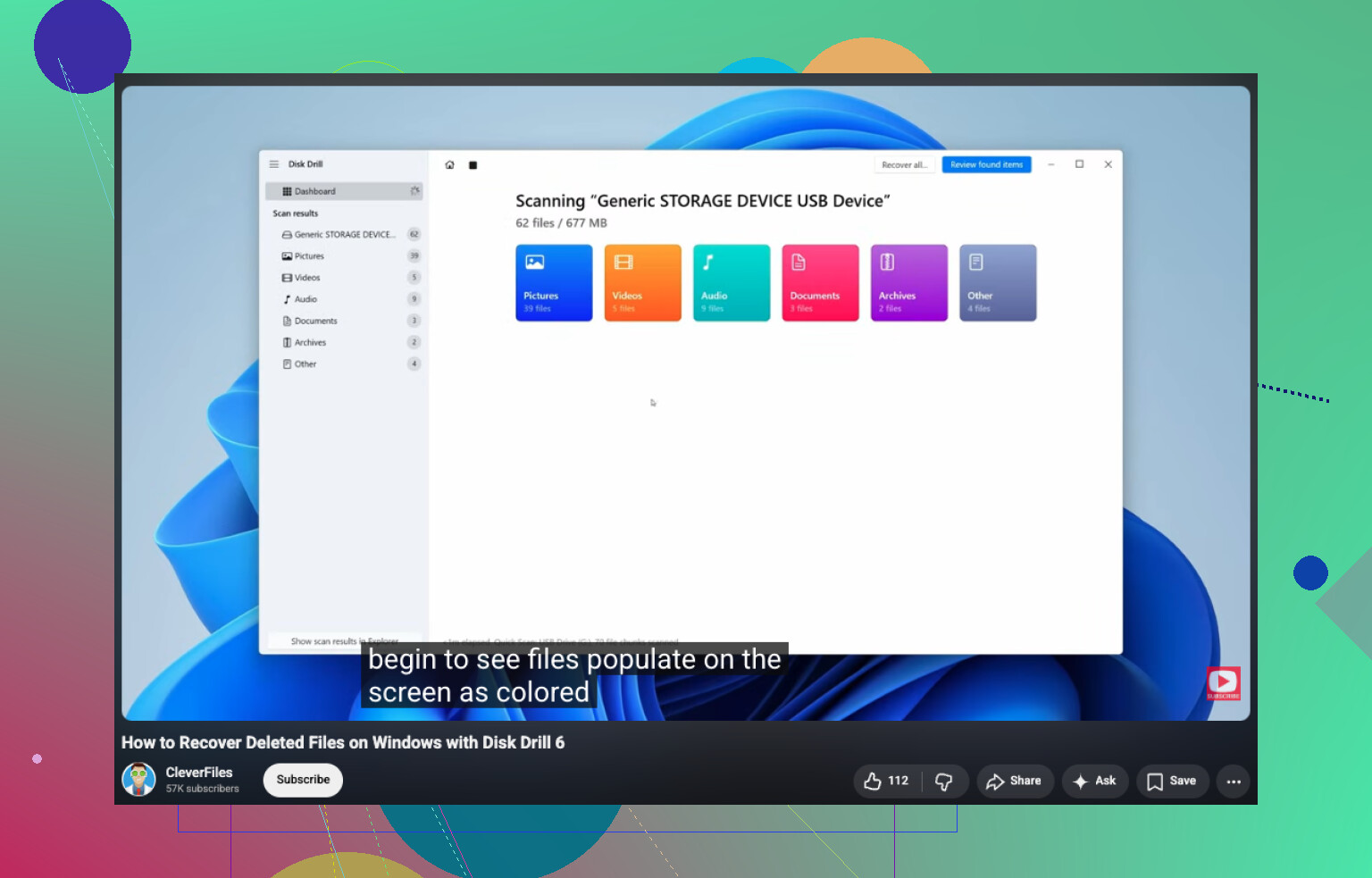
If the drive still shows up in Disk Management with the right size, I’d start there and try recovery software before anything else. My first pick would be Disk Drill .
What I’d do:
- Install it on a different drive, not the RAW one.
- Plug in the RAW USB drive, SSD, or external hard drive.
- Pick the RAW device and run Search for Lost Data.
- Let the scan finish. Don’t stop halfway unless the drive starts dropping out.
- Sort through the results by folder, file type, or file name.
- Preview the files you care about.
- Recover them to another storage device.
One thing I liked here, at least on Windows, is the free recovery limit up to 100 MB. More useful than that, scans and previews aren’t blocked, so you get to see what’s recoverable before spending money.
The preview part matters more than people think. If a document, PDF, photo, video, archive, audio file, or camera RAW image opens properly in preview, I’d treat it as a decent sign the recovered copy will be usable. Not perfect, but a good sign.
Why this tool tends to do okay with RAW drives is pretty simple. It does not need Windows to fully read the NTFS structure first. If some NTFS metadata is still there, it tries to use it. If the file system is too far gone, it also looks for known file signatures and pulls data that way. Sometimes you lose folder names or original structure with signature-based recovery, but getting the file back is still better than nothing.
If the first scan misses stuff, I wouldn’t stop there. I’ve had different tools show different results on the same busted disk. UFS Explorer and DiskGenius are both worth a second pass. Annoying, yeah, but sometimes one finds folders the other skipped.
After recovery, rebuild it as NTFS
Once your important files are copied somewhere safe, then I’d wipe the RAW setup and put NTFS back on it.
The easy route:
- Open Disk Management.
- Right-click the RAW partition.
- Hit Format.
- Choose NTFS.
- Leave Quick Format on.
- Click OK.
If Format is grayed out or missing, delete the RAW partition first, make a new partition, then format the new one as NTFS.
Last thing, and this part matters
If the drive is an SSD, or it keeps disconnecting, throws read errors, or gets slower every time you touch it, I would move fast on recovery. Those are bad signs. If it turns RAW again after you already formatted it once and it seemed fine for a bit, I’d stop trusting it. At that point I’d replace the drive and not keep anything important on it. I learned this one the hard way. One drive came back once, then died for good two days later.
1 Like
You do not convert RAW to NTFS without data loss in the normal sense. RAW means Windows no longer sees a valid file system. If you format it to NTFS first, your files stay at risk.
I agree with @mikeappsreviewer on one big point. Skip CHKDSK at the start. I disagree a bit on one thing though. Before paying for recovery software, try a safer read-only check. Use a SMART tool like CrystalDiskInfo and look at the drive health. If health is bad, or the drive clicks, disconnects, or freezes Explorer, stop messing with it and clone it first with something like HDDSuperClone or ddrescue. Recovery from the clone is safer.
My order would be:
- Test a different USB cable and port.
- Check Disk Management. Confirm the full size appears.
- Check SMART health.
- If unstable, clone first.
- Scan the clone or the original in read-only mode with Disk Drill.
- Save recovered files to a different drive.
- Only after data is safe, delete the RAW partition and format NTFS.
Why cloning matters. Failing drives often get worse after each scan. One long scan on a weak disk sometmes pushes it over the edge.
If you want a simple guide for file recovery on Windows, this helps: watch this Windows file recovery walkthrough
Also, if the drive turned RAW after unsafe removal or a power cut, TestDisk is worth a look. It does not fit every case, but it sometimes rebuilds a lost partition table without a full file-by-file recovery. More technical, less friendly. Worth trying if you know what you’re doing.
After you recover stuff, reformat to NTFS and do a full surface test. If errors show up again, toss the drive. No joke, don’t trust it agian.
RAW is basically Windows saying, “I can see the device, but the file system looks broken or missing.” So no, there usually isn’t a safe magic “convert RAW to NTFS without losing data” button. On that part, @mikeappsreviewer and @byteguru are right.
Where I’d push it a bit further is this: before doing any deep scan, check whether the problem is the enclosure and not the disk itself. I’ve seen external drives show as RAW because the USB bridge/enclosure was acting stupid. If it’s a 2.5’ or 3.5’ drive inside a removable case, try another enclosure or connect it directly to SATA if possible. Sounds annoyngly old-school, but it can save hours.
Also, don’t assume formatting is the “repair.” Formatting to NTFS mostly just makes the drive usable again, it does not preserve the old files in any reliable way.
What I’d do:
- Stop using the drive.
- Try another cable, port, and if possible another PC.
- Check if the enclosure is the issue.
- If the disk is readable enough, use Disk Drill to scan and recover files to a different drive.
- If file names/folders matter a lot, try TestDisk before formatting. It can sometimes restore partition structure instead of doing raw recovery.
- After the files are safe, then recreate the partition and format NTFS.
One thing I slightly disagree with: people jump to SMART checks like they’re gospel. On USB externals, SMART data is sometimes hidden or badly reported, so don’t base everything on that alone.
If you want a simple visual on recovering files from a corrupted external hard drive, that’s worth a look too.
If this drive has family photos or anything irreplaceable, don’t keep “testing fixes” on the original disk. That’s how ppl turn a bad day into a worse one.
No safe “RAW to NTFS without losing data” button exists. I mostly agree with @byteguru, @waldgeist, and @mikeappsreviewer on that part. Where I differ a bit: before any heavy scan, check whether the partition type itself got scrambled rather than the whole file system dying.
A couple things people skip:
-
Look in Disk Management for Unallocated vs RAW.
If it suddenly shows as the wrong size or weird unallocated chunks, that points more to partition damage. -
Check the drive in a Linux live USB.
Sometimes Windows calls it RAW while Linux can still mount it read-only enough to copy files off. -
If the data is truly irreplaceable, avoid “trying everything.”
Every extra reconnect, scan, and power cycle can make a shaky drive worse.
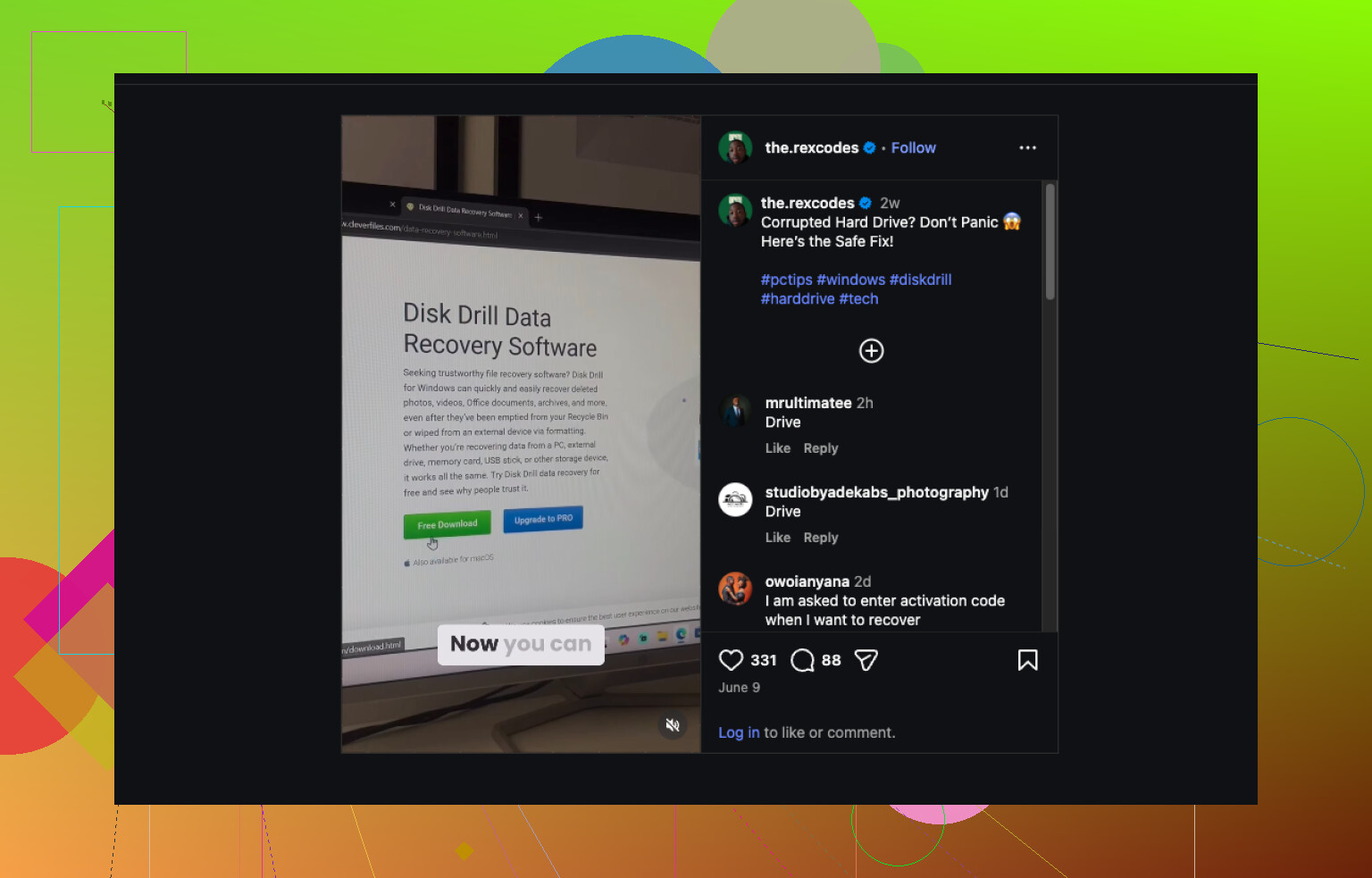
About Disk Drill specifically:
Pros
- easy to use
- good previews
- can find files even when Windows sees RAW
- decent for photos/docs on damaged externals
Cons
- deep scans can take forever
- recovered folder structure is not always perfect
- full recovery usually means paying
- not my first choice if the disk is physically failing hard
So my angle is: test whether another OS can read it, then use Disk Drill only if direct copying fails. Recover to a different drive, verify the files open, then wipe and format NTFS. If the drive turns RAW again later, retire it. That’s not a conversion problem, that’s a trust problem.