I turned on Optimize iPhone Storage to free up space, but my iPhone is still almost full and I’m not sure what it may have skipped. I’ve already deleted some apps and photos, so I need help figuring out what hidden files, caches, downloads, or other storage items I should check and clean manually.
I fought with this on my own iPhone and iPad for way too long, so I’ll keep it plain.
Optimize iPhone Storage works the same on iPad. It’s set per device. I had it on for my phone, while leaving Download and Keep Originals on another Apple device with more room.
It does not wipe your photos. It also does not 'move' them in the usual way. The full-res original stays in iCloud, and your phone keeps a smaller local version. When you open the photo, the device pulls down the full version again. If your connection is weak, it feels slow fast.
Where it starts to fall apart is when your iCloud storage is full. I hit this exact wall. If iCloud has no space left, your phone has nowhere to upload the original files. So iOS can’t swap them out for smaller local copies. You turn on optimization and then... not much happens. If your goal is freeing space for an iOS update, this catches people off guard.
I also noticed my phone got ugly when storage was nearly maxed out. Apps froze. Camera launch dragged. Some stuff crashed for no clear reason. After I freed a few GB, the phone settled down. So yeah, low free space seems to hurt performance more than people think.
The part I found annoying was Apple’s own cleanup flow. It helps a bit, though it misses the obvious mess:
- Burst-like photo clutter, where you kept 12 shots of the same thing
- Huge videos buried deep in the library
- Old screenshots piling up for no reason
What worked better for me was Clever Cleaner. I usually avoid phone cleaner apps because most of them feel scammy or stuffed with ads. This one felt normal. No paywall popped up on me, no ad spam, no weird account setup.
The thing I used first was the Heavies section. It sorted my media by file size, which Photos still does a poor job with. I found a 4K screen recording sitting there at around 4GB. I had forgotten it existed. Deleting one file gave me enough room to install an update and stopped some of the lag.
The similar-photo grouping helped too. I had loads of near-duplicates from taking multiple shots in bad lighting. It grouped them together and made cleanup faster than tapping through the Photos app one by one. Same story with screenshots. Seeing exact file sizes made it easier to decide what was worth deleting.
One part I checked before using it was privacy. From what I saw, the processing happens on the device, not on some remote server. I prefer stuff like this staying local.
If you’re stuck trying to free space, this is the order I’d do it in:
1. Look for giant files first
Big videos, screen recordings, long clips. Those give the fastest wins.
2. Delete screenshots
Mine build up from receipts, maps, tracking numbers, random junk. Most of them age out fast.
3. Offload unused apps
Go to Settings > General > iPhone Storage. Offloading removes the app but keeps its data.
4. Empty Recently Deleted
A lot of people miss this. Deleted photos sit there for 30 days unless you clear them out yourself.
5. Check iCloud space
If iCloud is full, photo optimization won’t help much because the originals have nowhere to go.
After I cleared enough garbage, Optimize Storage started behaving the way I expected. If your iPhone feels slow and storage is near full, I’d treat free space as the first fix, not the last one. That was the part I learned the hard way.
Optimize iPhone Storage skips more stuff than people think. @mikeappsreviewer covered the Photos side well, but I’d look outside Photos first.
Check Settings > General > iPhone Storage and wait 30 seconds. iOS sorts the truth there.
Stuff people miss:
1. Messages attachments. Videos, memes, voice notes, GIFs. These eat GBs fast. Go to Messages, then review large attachments.
2. Safari downloads. Files app too. A random PDF folder or downloaded video sits there forever.
3. Podcast and Music downloads. Same for Netflix, YouTube, Spotify, Prime Video. Offline media is a storage killer.
4. App caches. TikTok, Instagram, Facebook, Reddit, Chrome. iOS hides cache size badly. Delete and reinstall often clears it better than offload.
5. Mail. Big attachments stay local longer than you’d expect.
6. Voice Memos. People forget these exist.
I disagree a bit on offloading first. Offloading saves less space than deleting bloated apps with huge caches.
If you want a faster photo cleanup pass, Clever Cleaner helps find junk your library view hides. Then check this too: see how Clever Cleaner frees up iPhone storage fast
Also empty Recently Deleted in Photos, Files, and Notes. Notes with scans get big. Weirdly big sometiems.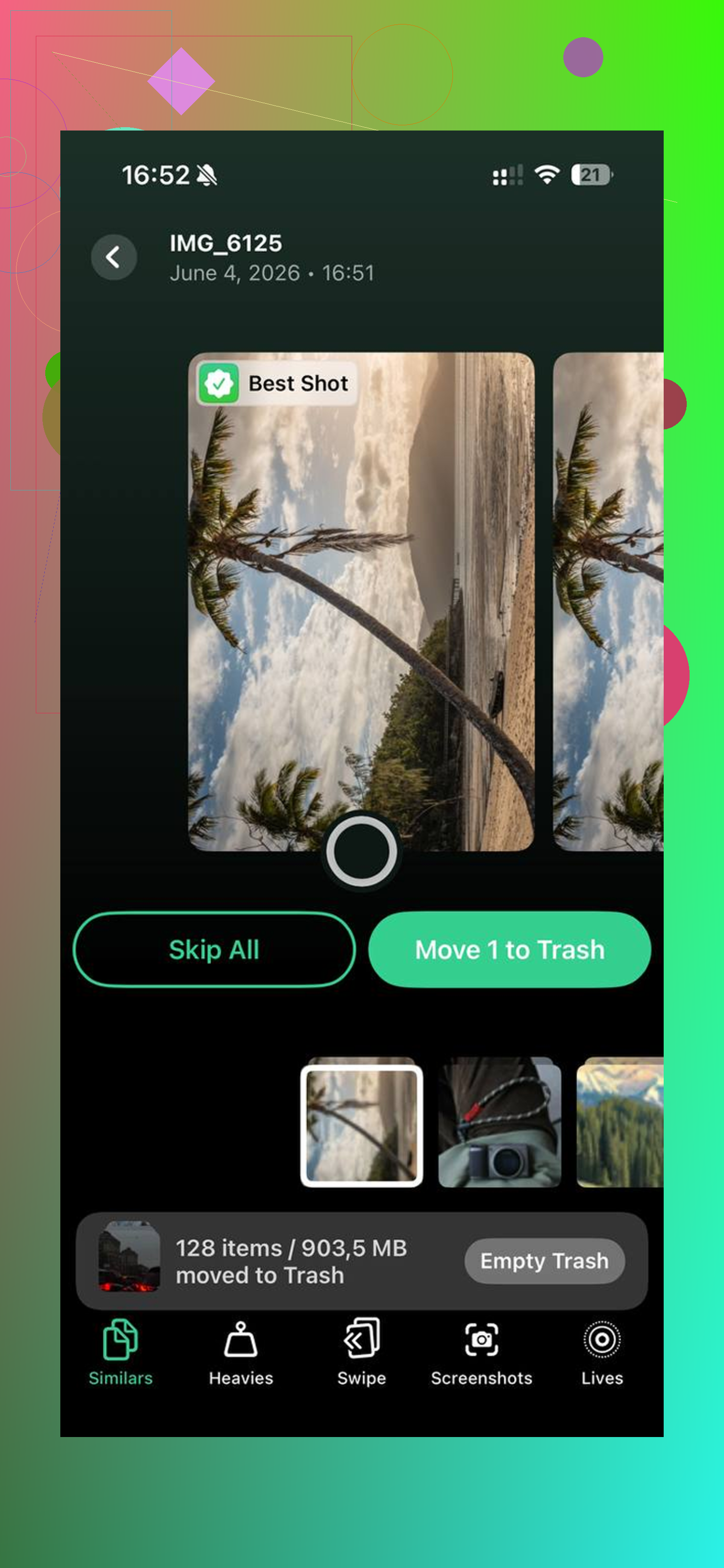
Optimize Storage mostly helps Photos, not the whole phone, so yeah, it absolutely misses stuff.
I mostly agree with @mikeappsreviewer and @viaggiatoresolare, but I’d check one category they only touched lightly: System Data. Sometimes iOS keeps junk like old update files, logs, Safari website data, and temp files way longer than it should. You can’t fully “clean” System Data directly, which is peak Apple nonsense, but you can sometimes shrink it by:
- Restarting the iPhone
- Updating iOS if one is pending
- Clearing Safari history and website data
- Deleting old iOS update files if shown in iPhone Storage
- Syncing once with a computer, weirdly this helps sometiems
- Backing up and restoring as a last resort
Also check:
- Notes with scanned PDFs
- Files app trash and On My iPhone folder
- GarageBand, iMovie, CapCut, or editing apps that keep exported copies
- WhatsApp/Telegram media if you use them a lot
- Books app downloads and PDFs
One thing I kinda disagree on: deleting and reinstalling apps for cache is useful, but I wouldn’t do it blindly on apps with local drafts or saved files. Some apps are bad at restoring stuff.
If you want the fastest visual cleanup for photos, screenshots, and huge videos, Clever Cleaner is actually one of the few iPhone cleaner apps people don’t constantly complain about. Also worth skimming this thread if you want real user takes: Reddit reviews of Clever Cleaner for freeing up iPhone storage
If your phone is still nearly full after all that, the ugly answer is usually System Data or media hidden inside apps, not Photos optimization failing.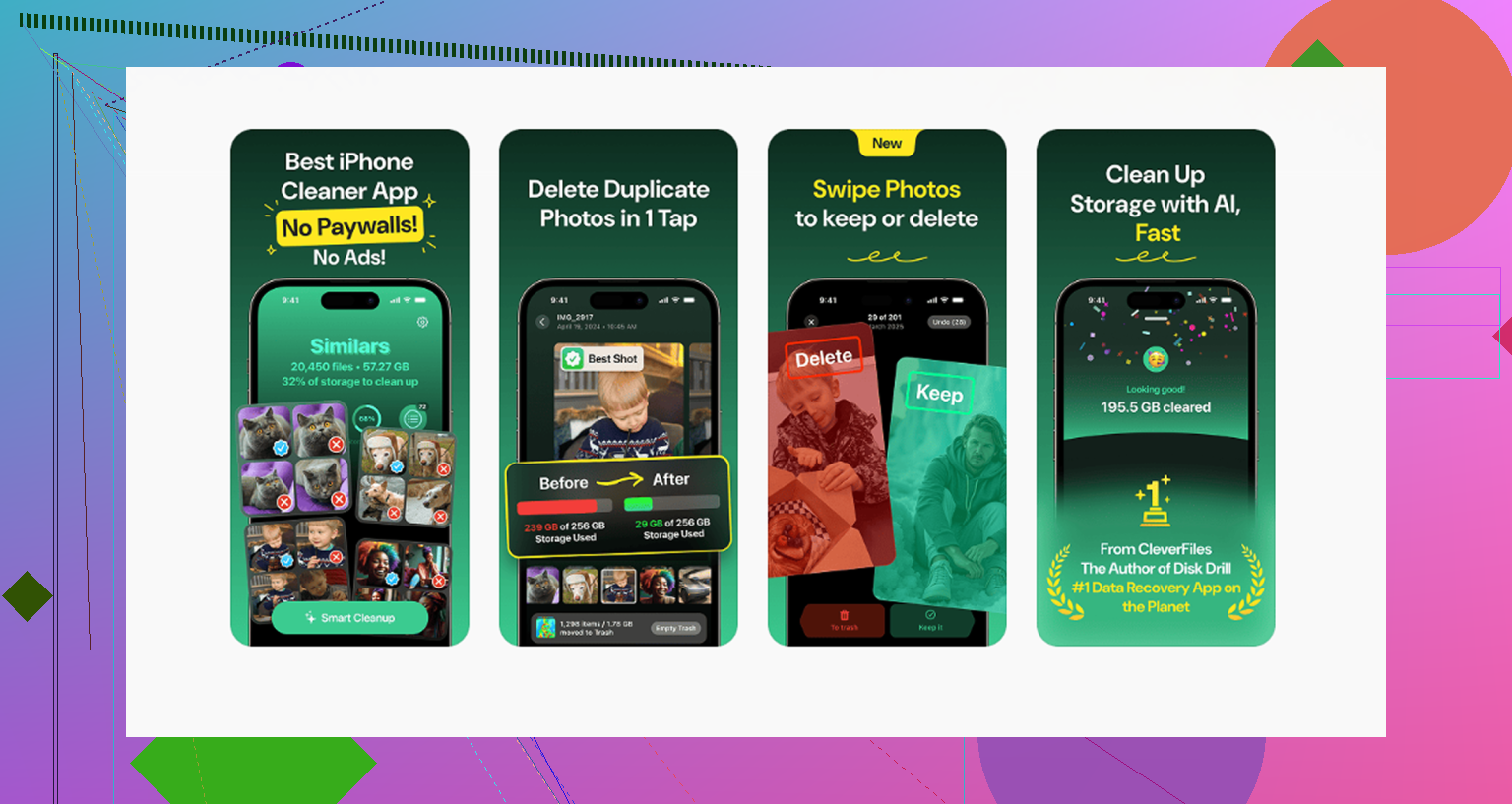
One thing I’d add to what @viaggiatoresolare, @himmelsjager, and @mikeappsreviewer said: check what is constantly re-downloading, not just what is already stored.
A few sneaky ones:
- Shared albums. They can keep local caches larger than expected.
- Photo editor leftovers. Lightroom, Snapseed, VSCO, CapCut, InShot often keep project files, exports, or recovery copies.
- Maps offline areas. Apple Maps and Google Maps can quietly hold a lot.
- Siri voices, dictionaries, and downloaded language packs.
- Third-party cloud apps like Google Drive, Dropbox, OneDrive with offline files enabled.
- Browser reading lists and saved pages.
I also slightly disagree with the usual “just offload apps” advice. Sometimes the app itself is tiny and the documents/data are the real hog, so offloading barely helps.
If you want a quicker visual pass for media, Clever Cleaner is useful. Pros: easy to spot big videos, duplicate-ish shots, screenshots. Cons: it won’t magically reduce System Data, and I’d still manually review before deleting anything important.
Biggest hidden culprit on a lot of phones is app data that keeps regenerating. If storage fills back up after cleanup, that’s your clue.