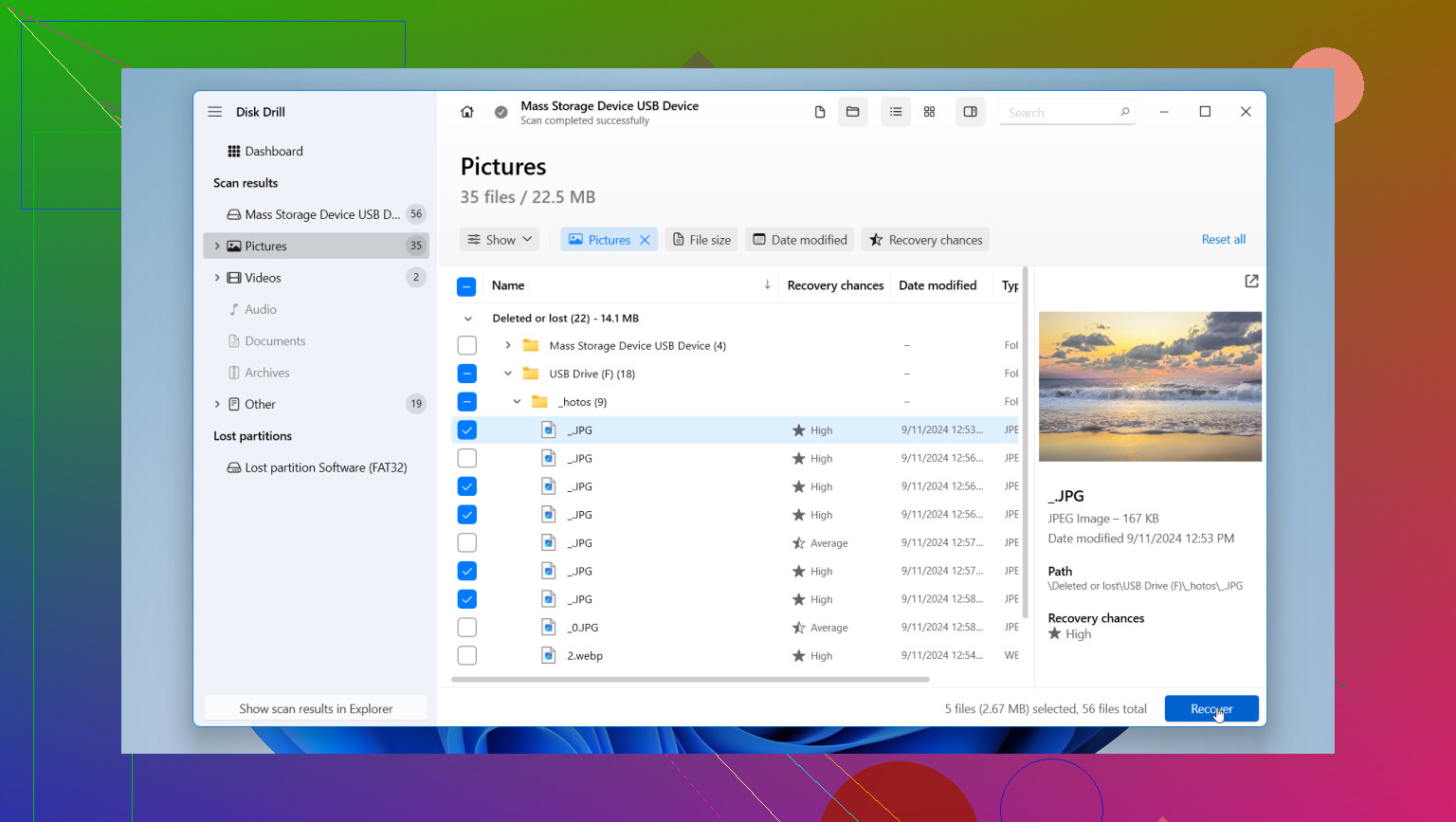
I accidentally deleted important files from my USB drive and didn’t realize it until after I saved other documents to it. I’m trying to recover photos and work files, but I’m not sure which USB file recovery method is safest or if the deleted data can still be restored. I need help figuring out the best way to recover deleted files from a USB without making things worse.
I learned this the hard way, so first things first. If your USB stick is making clicking noises, drops off and reconnects by itself, or feels hot in your hand, unplug it now. Don’t keep testing it. Don’t run repair tools. Get it to a data recovery shop.
One more thing people mess up all the time, CHKDSK is a bad move at this stage. It tries to rebuild the drive so Windows can use it again. Sounds good, but if your goal is file recovery, it can rewrite parts of the file system and leave your old files chopped up or gone for good.
If the easy checks didn’t bring your files back, I’d assume one of two things happened. The file table is damaged, or the files were deleted for real. At that point, I stopped wasting time with built-in fixes and used recovery software instead.
You’ll see a lot of posts pushing PhotoRec, TestDisk, and Windows File Recovery. I tried them. They are fine if you live in Terminal and don’t mind cleanup work for hours after. For most people, they’re rough. PhotoRec in particular gave me a pile of files with names like f123456.jpg, no folders, no structure, and no clue what belonged where. If you’ve got years of photos or work docs, sorting that mess is brutal.
What worked better for me was Disk Drill. I’m not saying it fixes dead hardware, it doesn’t. But for a USB drive with file system damage or deleted data, I had a much easier time with it than with the free terminal tools.
Here’s why I stuck with it:
1. It lets you image the USB first.
This part matters more than people think. You make a full byte-for-byte copy of the failing drive, then scan the copy instead of hammering the original device again and again. If your flash drive is unstable, this lowers the risk of pushing it over the edge.
2. You get previews before recovery.
I liked this a lot. I could open found photos, videos, and documents before recovering them, so I wasn’t guessing. Saves time, and you know whether the files are intact.
3. Folder layout and filenames tend to survive better.
This was the big one for me. Compared with command-line tools, it did a better job keeping directory structure and recognizing a wide range of file types. It also works with BitLocker-encrypted drives, which helped on one office USB I had to deal with.
When you recover files, save them to your computer’s internal drive, not back onto the USB stick you’re trying to rescue. I know this sounds obvious, but people do it. Writing recovered data onto the same device can overwrite the exact files you’re trying to pull out. Then you’re cooked.
After you’ve copied everything over and checked your files, wipe and reformat the USB if you still trust it. Me, if a stick started acting weird once, I usually retired it. Storage is cheap. Lost files aren’t.
That’s the route I’d take. Slow down, don’t write anything new to the USB, and recover to a different drive.
2 Likes
Stop using the USB right now. Every new save lowers your odds. Since you already wrote new files to it, some deleted data is gone for good. What survives depends on what got overwritten.
I agree with @mikeappsreviewer on one big point, don’t run CHKDSK first. I disagree a bit on the command line stuff being useless though. If you are patient, Windows File Recovery is worth one pass because it’s free and made for deleted files. Use Recovery mode for documents and photos, and recover to your PC, not the USB.
If you want the faster route, Disk Drill is easier to sort through. Better previews, better filtering, less mess after the scan. For mixed file types on a USB drive, it saves time. If the stick disconnects or throws read errors, stop messing with it and work from another copy if possble.
Quick order I’d use:
- Stop writing to the USB.
- Plug it into a stable PC, no hubs.
- Try Windows File Recovery first.
- If results are messy or incomplete, scan with Disk Drill.
- Save recovered files to your internal drive.
If you want a decent overview of top USB recovery tools, this helps:
watch a simple guide to the best data recovery software for 2026
Main thing is speed. The more you use the drive, the worse your chances get.

Since you already saved new stuff to the USB, some of the deleted files may be partially or fully overwritten. That part sucks, but it does not automatically mean everything is gone.
I mostly agree with @mikeappsreviewer and @vrijheidsvogel about not writing anything else and not recovering back onto the same stick. Where I slightly disagree is the “try every free tool first” mindset. Sometimes that just burns time while the drive keeps getting stressed. If the USB is stable and mounts normally, I’d skip straight to making an image of it, then work from the image. That’s the safer play imo.
For photos and work docs, I’d want a tool that can show previews and sort by file type fast. That’s where Disk Drill is actually useful, especially for USB file recovery after accidental deletion. Not magic, just easier to verify what’s recoverable before you dump hundreds of junk files onto your PC. If the original folder structure still exists in metadata, it may pull some of that too, which is huge.
One extra thing nobody mentioned much: check whether the files were copied, not moved. Sometimes people think they deleted from USB, but the real copies are still in Recent, cloud sync folders, email attachments, temp export folders, or app-specific autosave locations. Office and Adobe apps can be sneaky like that.
Also, if the USB is cheap/generic, don’t trust it after this even if recovery works. Flash drives fail in dumb ways all the time. Been there, lost a semester project, felt real smart lol.
If you want more opinions and tool comparisons, this thread is pretty solid:
best ways to recover deleted files from a faulty USB drive
Short version:
- Stop using the USB
- Make an image if possible
- Scan the image with Disk Drill
- Recover to your computer, not the USB
- Replace the drive after
If the stick is disconnecting, freezing Explorer, or getting weird read errors, stop DIY stuff and consider a pro before it gets worse.