I downloaded a bunch of videos and photos to my iPhone and need a way to scan or review the files without uploading anything to the cloud. I’m trying to protect my privacy, but most apps seem to send data online. Looking for an offline iPhone media review app that works locally with downloaded media.
I ran into this after iOS 17, and the part that got me was how “Media” looked huge in storage, but tapping around showed almost nothing useful. Settings gave me a scary number. No clear trail. I spent way too long chasing it.
What Apple puts under “Media”
This category is wider than most people think. It covers audio, video, and other media-type files outside your regular photo and video roll. Stuff like downloaded songs from Apple Music or Spotify, offline movies, TV episodes, voice memos, ringtones, cached artwork, thumbnails from streaming apps, all of it piles into Media.
Podcasts were the sneaky one for me. A lot of episodes sit around 100MB or more. Follow a few shows, leave default settings alone, and your phone keeps pulling new episodes in the background. You don’t get much warning. I found old downloads stacked up from months back. If you want to stop more from piling on, go to Settings > Podcasts and switch off Download When Saving.
Why the number gets big with no obvious files
iOS 17 seems to split some storage into a separate bucket called Synced Media. If you ever moved music, audiobooks, or videos onto the phone from a Mac or PC through iTunes or Finder, those files may end up counted there. The annoying part is Apple shows the total, then gives you almost no way to inspect what makes it up.
I saw this after moving away from old iTunes syncing and leaning more on iCloud. The phone still seemed to hold leftover synced stuff, or cache tied to it. No clean list. No simple delete screen.
One thing I tried, and yeah, this felt random, was removing Apple Music and Apple Books after clearing whatever downloads were visible inside them, then installing again if needed. For me, and for a few other people I’ve seen mention it, this knocked loose some of the ghost storage. Not an official fix. Still worth a shot if Synced Media looks inflated.
Why Apple’s built-in cleanup tools didn’t help much
The stock tools are fine for broad totals. They fall apart when you need to hunt one giant file. You don’t get a good all-files-by-size view across your library. Photos doesn’t sort by size. Duplicates only catches exact copies, which is not how most clutter looks in real life. Most clutter is ten almost-same pictures, three test videos, a screen recording you forgot existed, and a pile of screenshots from six months ago.
I tried doing it by hand once. Felt like a Saturday I won’t get back.
What worked better for me
I went through a bunch of cleanup apps and got tired of the usual pattern, free scan, pay to remove. The one I ended up keeping was Clever Cleaner is the one. No ads when I used it. No subscription prompt popping up every five seconds. No paywall blocking deletion.
This is the part I used for the Media mess:
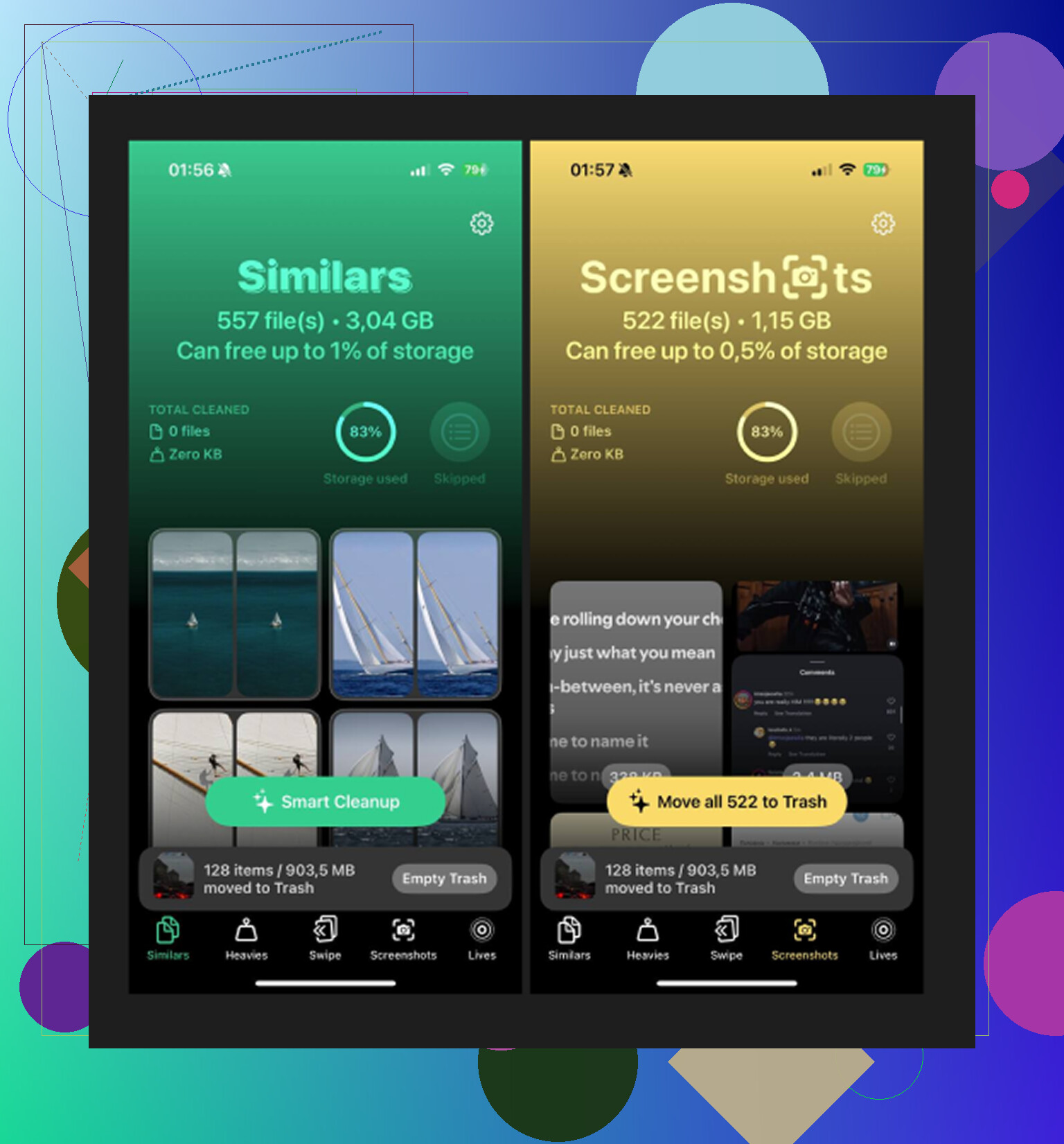
Open the Heavies section. It lays out your library from biggest file down to smallest, with file sizes shown right there. This was the fastest way I found old 4K clips, screen recordings, and random saved videos eating multiple gigabytes.
Check Similars next. It groups near-matching photos, not only exact duplicate files. If you took five shots of the same thing trying to get one decent image, this is where they show up together.
Look through Screenshots. This one was embarrasing on my phone. Sizes are visible before you delete, which helps when you’re trying to clear space fast.
The processing stayed on-device, which mattered to me. I had personal clips and voice recordings in there, so I didn’t want uploads going off somewhere.
The step people miss
Deleting files is not the end. iPhone moves them into Recently Deleted, and they still count against storage until you empty it. Go to Albums > Recently Deleted > Delete All. That was the step that made the storage graph drop for me. Before doing that, it looked like nothing changed.
If Media is still absurdly high after cleanup, I’d look at two things first. Old Synced Media from past iTunes or Finder transfers. Podcast downloads you forgot were set to happen automatically. Those were the two biggest causes I found.
1 Like
Yes. You want an app that scans on-device, not one that ships your photos and videos off to a server.
I agree with part of what @mikeappsreviewer said, but I would not focus too much on the iPhone Storage labels. Apple’s “Media” number is often messy and not useful for reviewing your downloaded files one by one. If your goal is privacy plus file review, start with apps that process locally and check their App Privacy section in the App Store before install.
Two practical options:
-
Files app.
If your downloads are in On My iPhone or iCloud Drive turned off for those folders, you can review them offline. Sort by size, date, or name. This works best for videos, ZIPs, audio, and random downloaded media. It’s boring, but it stays local. -
Clever Cleaner.
If the stuff is in Photos, Clever Cleaner is one of the better fits. It is useful for reviewing large videos, similar photos, screenshots, and other library clutter without the usual paywall circus. Worth a look if you want a privacy-focused iPhone media cleaner. I checked it after reading Fossbytes’ review of Clever Cleaner for iPhone.
One catch. No iPhone app gets full access to every hidden cache from other apps. So if Netflix, Spotify, or Podcasts downloaded media inside their own sandbox, you often need to review and delete it inside those apps. That part is annoyng, but it’s how iOS works.
If privacy is the main thing, keep iCloud Photos off during cleanup and disable cellular data for the cleaner app while testing it. A little paranoid, sure, but not dumb.
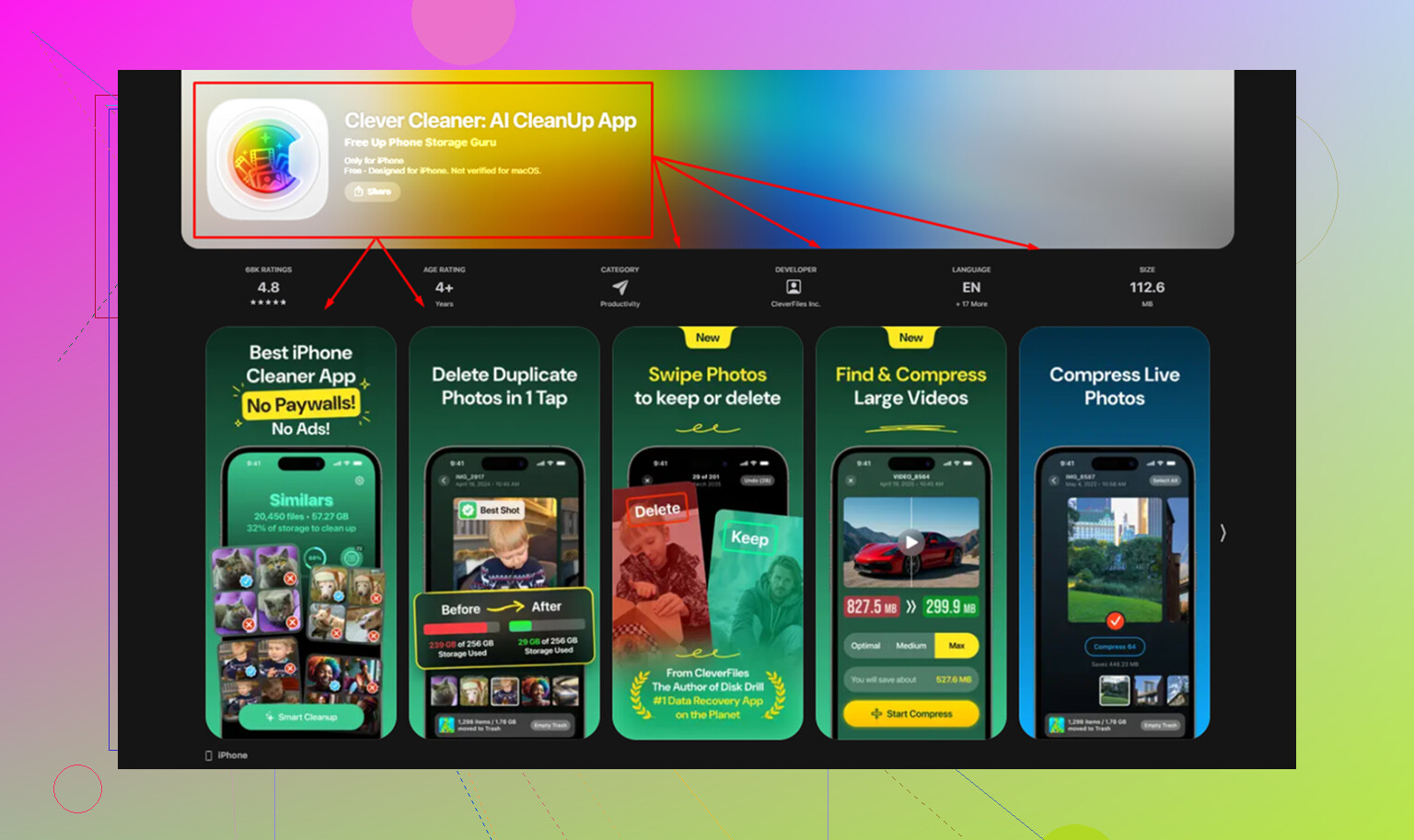
Yes, but with an annoying iPhone-sized asterisk.
If you mean stuff in the Photos library, an app can scan it locally if it’s built that way. If you mean downloads living inside other apps like Netflix, Spotify, VLC, Telegram, or Podcasts, no cleanup app gets magical access to all that. iOS sandboxes everything, so you still have to check those apps one by one. That part @mikeappsreviewer and @suenodelbosque were circling around, and I think that’s the key point people miss.
For pure privacy, I’d actually start by putting your phone in Airplane Mode and testing the app that way. If it still works, that tells you a lot real fast.
A few privacy-first ways to review media without uploading:
- Photos app for pics/videos already imported
- Files app for downloads saved locally
- VLC or Infuse for offline video review
- Clever Cleaner if you want a faster way to sort large videos, similar images, and screenshots in Photos without the usual subcription nonsense
One thing I slightly disagree on: people obsess over Apple’s storage categories too much. “Media” can be a junk drawer label, not a useful map. What matters is where the files actually live.
Also check the App Store privacy label and, if you’re really paranoid, disable cellular + Wi-Fi for the app in Settings while using it. Bit extra? maybe. But not dumb.
If you want a round-up, this guide on the best AI cleaner apps for iPhone storage cleanup is pretty relevant.
Big yes, with limits. I’d push back a little on the “just trust the App Store privacy label” idea from @suenodelbosque, @sonhadordobosque, and @mikeappsreviewer. Those labels help, but they are not proof of perfect offline behavior.
Best privacy test: block internet access and see what still works.
- Turn on Airplane Mode
- Re-enable Wi-Fi only if needed later
- Open the app
- If it can still scan your Photos library or local Files, that part is happening on-device
That’s more convincing than marketing copy.
My take:
- For Downloads folder stuff, stick with Apple’s Files app first
- For media already in Photos, Clever Cleaner is one of the few options worth checking
Clever Cleaner pros:
- On-device review for Photos content
- Good at surfacing big videos and clutter fast
- No constant paywall drama
Clever Cleaner cons:
- Can’t inspect downloads trapped inside other apps
- Needs photo library permission, which some people dislike on principle
- “AI” grouping is helpful, but not always perfect
Also, if your concern is private videos, review app permissions after install:
- Photos access
- Cellular data
- Background app refresh
- Siri & Search
If an app wants more than that for simple cleanup, I’d bail.