I accidentally formatted my USB drive and lost important files I still need for work and personal use. I stopped using the drive right away, and I’m looking for the best way to recover data from a formatted USB without making things worse. Any help with safe USB data recovery steps or reliable recovery tools would really help.
I did this once with a USB stick full of family photos, and yeah, my stomach dropped. A format is bad news, but it does not always wipe the files for good.
The first thing I’d figure out is what kind of format happened.
Quick format usually finishes fast, sometimes in seconds. In my case, that meant the drive’s file index got cleared, while the old files were still sitting there until new data replaced them.
Full format is rougher. It takes longer and does more damage to recovery odds. If your format wrapped up in under a minute, I’d bet it was quick format.
Stop using the drive right now.
- Do not format it again
- Do not run CHKDSK or any repair app
- Do not copy test files onto it
Every write to the USB risks overwriting old data.
Before you spend time scanning, do one boring check I skipped the first time. Look for copies elsewhere.
- Google Drive, OneDrive, iCloud, Dropbox
- Old Desktop, Downloads, or Documents folders
- Email attachments, chat uploads, shared folders
I say this because I once went halfway through recovery before noticing some of the files were already sitting in an old sync folder. Felt dumb, but it saved time.
If you do need recovery software, that’s the route I took. I used Disk Drill, and it got back most of what I lost. Here’s the process I followed.
- Install it on your computer, not on the USB drive
- Connect the USB and launch Disk Drill
- Pick the USB from the list of devices
- Click Search for Lost Data
- Choose Universal Scan for a formatted drive
- Let the scan finish fully, even if results show up early
- Preview files first, if a file opens in preview, your odds are good
- Recover the files to another drive, never back onto the same USB
If the USB is acting off, slow reads, disconnects, error popups, stop pushing it. I learned this one the hard way. In Disk Drill, there’s an option to create a full byte-for-byte image first. Scan the image instead of the original drive. Safer move if the hardware is starting to fail.
If software finds nothing and the files matter, like personal photos or work you can’t replace, a recovery shop might still have a shot. They sometimes pull data software misses.
So yeah, I would not write it off yet. A quick format often looks worse than it is. Keep the drive untouched, scan from another machine, and recover to a different disk.
1 Like
You did the right thing by stopping use imediately.
I agree with @mikeappsreviewer on the big point, don’t write anything to the USB. I’d push one extra step first. Check the file system change. If the drive was FAT32 before and got formatted to exFAT or NTFS, recovery gets messier because the old directory structure is often gone. File carving still works, but filenames and folders often come back broken.
What I’d do:
- Plug the USB into a stable Windows PC.
- Check Disk Management and confirm the drive size looks normal.
- If it asks to scan or fix the drive, decline.
- Make an image of the USB first if the stick is old or flaky.
- Scan the image, not the live USB, if possble.
I don’t fully agree with the “full format means no hope” angle people repeat. On modern Windows, full format usually wipes metadata and checks sectors, but recovery odds still depend on whether new data overwrote old sectors. On flash drives, TRIM support matters too. If TRIM fired after format, chances drop fast.
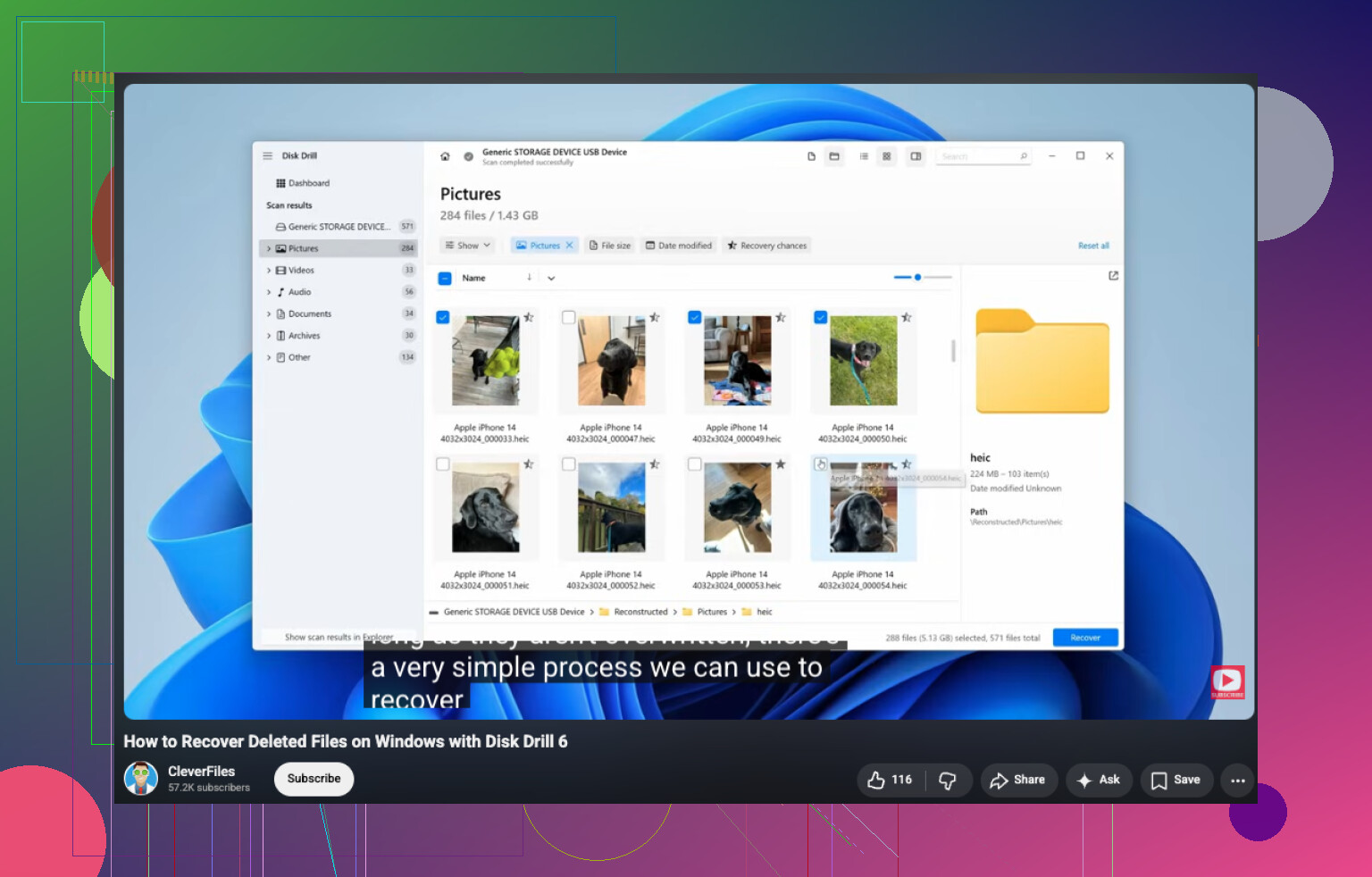
For software, Disk Drill is a solid first pass for formatted USB recovery because it handles both file system traces and raw signature scans. If Disk Drill finds files with preview, save them to your internal drive or another external disk.
Also, sort results by file type first. Docs, JPG, MP4, PSD. Faster triage, less time wasted.
If the USB shows 0 bytes, disconnects, or gets hot, stop there. That’s no longer a normal format problem.
For formatted USB data recovery help, this video is worth a quick watch:
watch how to recover files from a formatted USB drive
You already did the most important part, which is stopping use of the USB. That alone gives you a real shot.
I mostly agree with @mikeappsreviewer and @codecrafter, but I’d add one thing people skip a lot: before chasing recovery software, check whether the format was done on the same operating system the USB normally used. If you formatted a Windows USB on a Mac, or the other way around, sometimes the partition map gets changed in a way that makes the drive look way more destroyed than it really is. In that case, a tool that scans the whole device instead of relying on the current file system matters a lot.
Also, I would not spend much time trying random “repair” tools. That’s where people make it worse. CHKDSK, First Aid, auto-fix prompts, all that stuff can scramble what’s left of the old metadata. Kinda brutal.
What I’d do in your case:
- check if the USB is detected with the correct capacity
- if it is, recover first and troubleshoot later
- if it shows weird size, 0 bytes, or disconnects, stop messing with it
One small disagreement with the usual advice: people focus too much on whether it was quick or full format, but on a flash drive the bigger issue can be TRIM and the USB controller behavior. Sometimes even a “simple” format tanks recovery odds fast. Sometimes a full format still leaves recoverable chunks. So don’t assume based only on how long it took.
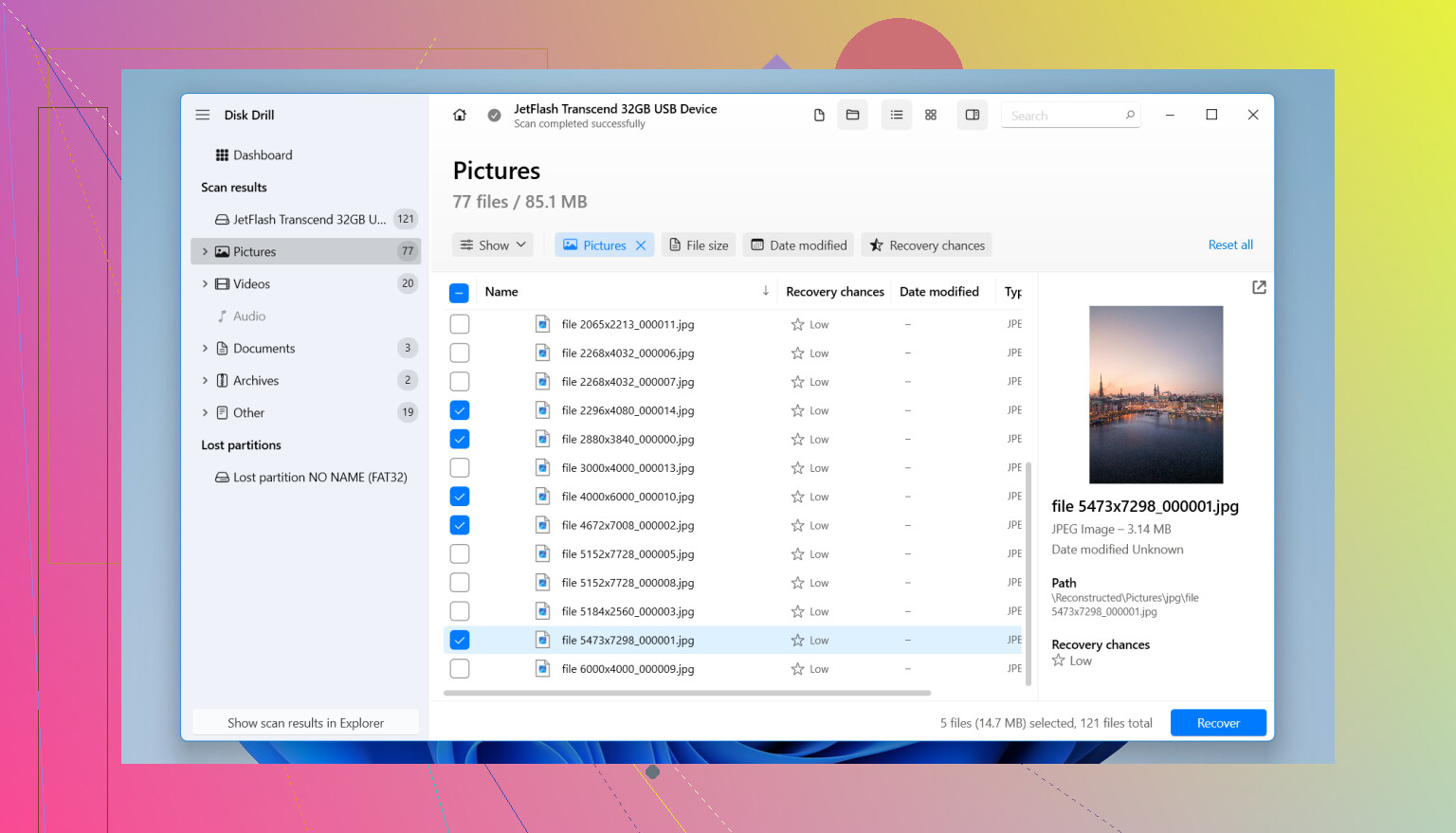
For actual recovery, Disk Drill is a solid option because it does both deep scanning and file signature recovery on formatted USB drives. If the file system records are gone, you may still get documents, photos, videos, and PDFs back, just maybe with messed up names/folders. Recover everything to your computer or another drive, not back to the USB. Sounds obvious, but ppl still do it.
One more useful resource if you want extra community advice: real Reddit tips for recovering files from a formatted USB flash drive
If Disk Drill or similar software shows previews of your files, that’s usually a pretty decent sign. If it finds nothing and the files are bussiness-critical, then it may be worth a pro lab before trying anything else.
One thing I’d add to what @codecrafter, @nachtschatten, and @mikeappsreviewer said: check the USB on a second machine before scanning. Not to use it, just to verify it mounts with the same size and label. I’ve seen Windows misreport a freshly formatted stick while another PC reads it normally enough for recovery software to get better results.
I also slightly disagree with the usual “scan forever on the original device if it still reads” advice. If the USB is cheap, old, or randomly drops connection, long scans can be the thing that finishes it off. In that case, imaging first is not optional.
About Disk Drill specifically:
Pros
- good at finding files after format
- previews help separate real recoverable files from junk
- supports image scans, which is safer for unstable USB drives
- simple enough if you do not want to mess with forensic tools
Cons
- deep scans can return lots of files with broken names/folders
- not every found file is actually usable
- if TRIM already cleared blocks, Disk Drill cannot magically rebuild them
- full version needed for actual recovery beyond scanning
If Disk Drill shows mostly “reconstructed” files by type only, recover the important document formats first before media. Office files and PDFs are easier to validate quickly than hundreds of photos/video clips. That saves time.
Also, skip one common mistake: do not judge the result by the first scan alone. Try a second pass with different scan settings or from a disk image. Formatted USB recovery can vary a lot between passes.