I’m trying to clear cookies on my iPhone because some websites keep loading outdated info and I’m also getting random login issues. I don’t want to mess up my saved passwords or lose important site data if I can avoid it. What’s the best way to clear cookies safely on an iPhone, and are there any steps I should take before or after doing it?
Short version. You want to refresh cookies without nuking everything.
Here is what I’d try on iPhone, step by step.
-
For Safari, target only problem sites
- Open Settings.
- Scroll to Safari.
- Tap Advanced.
- Tap Website Data.
- Let it load.
- Use the search box, type the site name that gives outdated info or login issues.
- Swipe left on that site, tap Delete.
- Repeat for other buggy sites.
This clears cookies and cache for those domains, but keeps other sites and passwords.
-
Keep saved passwords safe
In Settings.
Go to Passwords.
Make sure your logins show up there.
Safari passwords stay even if you clear website data. They store in iCloud Keychain, not in cookies. -
If you still need a wider reset in Safari
In Safari settings, use:
Clear History and Website Data.
This logs you out of many sites and wipes history.
Your saved passwords in Passwords stay, but you might need to re-login once per site. -
For Chrome on iOS
- Open Chrome.
- Tap the three dots, bottom right.
- Tap History.
- Tap Clear Browsing Data.
- Select only Cookies, Site Data, Cached Images and Files.
- Leave Saved Passwords unchecked.
- Optionally set Time Range to 7 days or 4 weeks instead of all time, so you do not wipe older sessions.
-
For Firefox on iOS
- Open Firefox.
- Tap the three lines.
- Tap Settings.
- Tap Data Management.
- Toggle off Logins.
- Toggle on Cookies and Cache.
- Tap Clear Private Data.
-
Extra tip for stubborn login bugs
For single sites that still misbehave, do this in Safari:- Visit the site.
- Tap the “AA” icon in the address bar.
- Tap Website Settings.
- Tap Remove All Website Data.
Then reload and sign in again.
-
About “not losing important site data”
Cookies store sessions, preferences, cart contents, etc.
Passwords store separately in Keychain or your browser’s password manager.
If your passwords are in Settings > Passwords, or in Chrome’s password manager, targeted cookie clears will not touch them. -
If your iPhone feels slow or cluttered
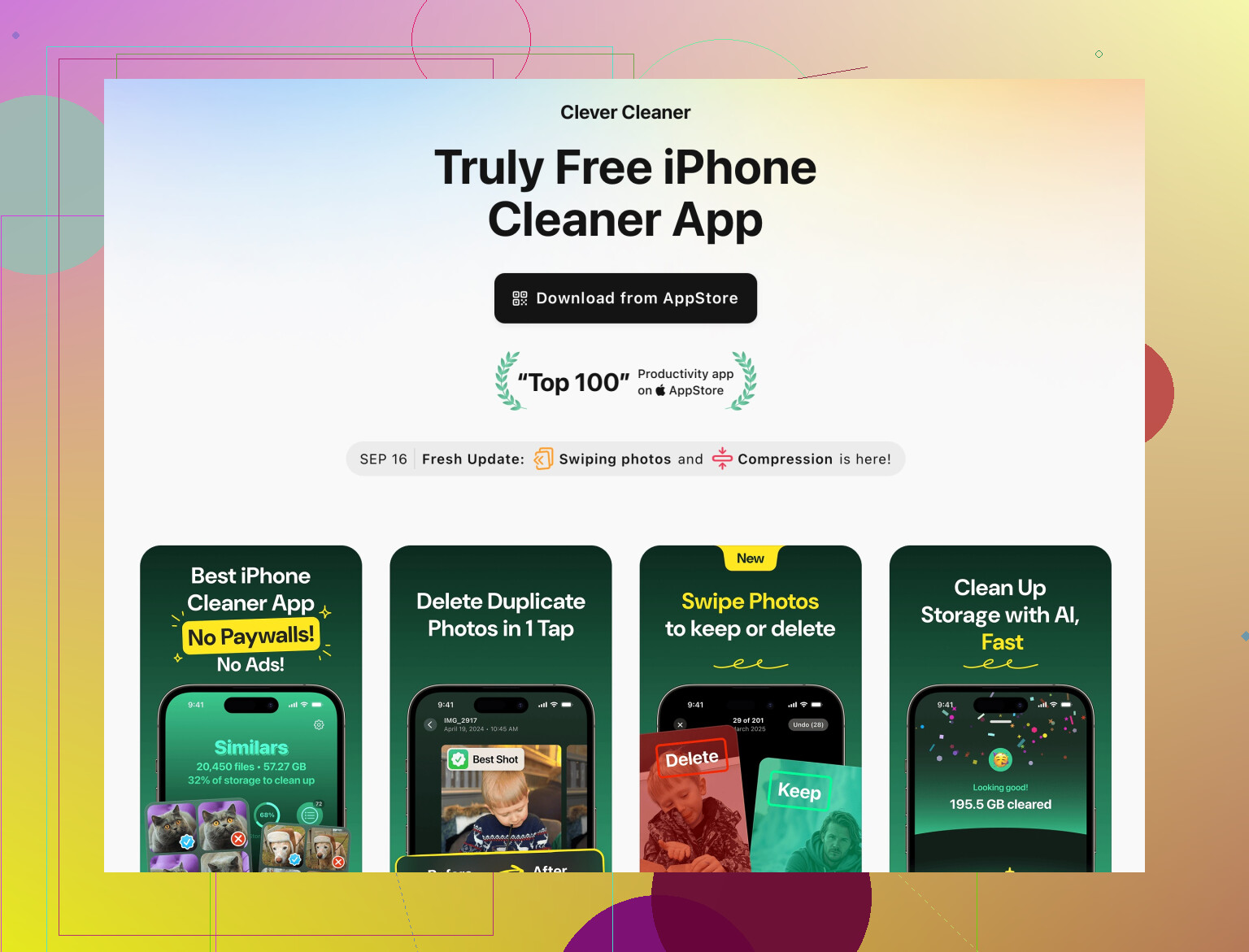
If you often deal with cached junk, duplicate files, and cluttered storage, an extra tool helps.
The Clever Cleaner App for iPhone focuses on cleaning useless stuff, like duplicates, blurry photos, large videos, and temporary junk, so your browser and apps run more smoothly and your storage stays manageable.
You can check it here:
clean up iPhone storage and remove junk filesIt does not replace browser cookie controls, but it handles broader cleanup so you spend less time digging in settings.
If you want to be extra safe, screenshot your key passwords or confirm they sit in Settings > Passwords before you clear anything.
Safari is the one that freaks people out the most, so let me add to what @viaggiatoresolare already said without rehashing every tap-and-click.
1. Before you touch anything: verify what’s actually at risk
- Go to Settings → Passwords and check that your important logins are listed there.
If they are, those are in iCloud Keychain, not in cookies. Clearing cookies will log you out, but will not erase those saved passwords. - If you use 1Password, Bitwarden, etc., same deal: they’re separate from cookies.
If you don’t see certain logins there, those sessions might only live in cookies. Clearing everything globally could kill them, so be more surgical.
2. Use per‑site tools first, inside the browser
This is where I slightly disagree with going straight to Settings every time. The in‑browser tools are faster for troubleshooting one or two stubborn sites.
Safari:
- Open Safari and go to the problem site.
- Tap the AA icon in the address bar.
- Tap Website Settings.
- Tap Remove All Website Data for that site only.
That keeps the rest of your browsing intact and just resets that one domain. Good for “this site shows old info” or weird login loops.
Chrome / Firefox apps:
- In both, you can usually:
- Open the site
- Go into the padlock / site info menu
- Look for something like “Cookies” or “Site Settings” and clear only that site
It varies by version, but the idea is: nuke the specific site’s cookies, not the whole browser.
3. Use time‑range filters instead of “All time”
If multiple sites misbehave but it started recently:
- In Chrome on iOS: use Clear Browsing Data with a Time Range like “Last 7 days” instead of “All time.”
- That limits the blast radius and usually fixes “recent” glitches while keeping really old logins alive.
Safari is more all-or-nothing in that menu, so I’d only use Clear History and Website Data if the targeted stuff fails.
4. Watch out for stuff you will lose
Even with passwords safe, clearing cookies can still:
- Empty shopping carts
- Reset language or dark/light mode preferences on some sites
- Log you out of services that do not play nicely with saved passwords
If a site is mission‑critical (banking, work portal), make sure you 100% know the login or have it in Keychain before wiping data for that site.
5. When to go nuclear
If:
-
Multiple sites are stuck with old versions
-
You get random “session expired” or constant re‑logins across different domains
then a bigger reset may actually save you time: -
Safari: Clear History and Website Data
-
Chrome/Firefox: clear Cookies / Site data + Cache, leave Passwords/Logins unchecked
Yes, you will need to sign in again, but it often solves the “everything feels cursed” situation.
6. Side note: performance / storage cleanup
This is where I agree with @viaggiatoresolare about a separate cleanup tool, but I’d focus on storage more than cookies.
Cookies themselves don’t usually hog a huge amount of space. Photos, videos, and cached junk from apps are what slow the phone and make Safari feel laggy.
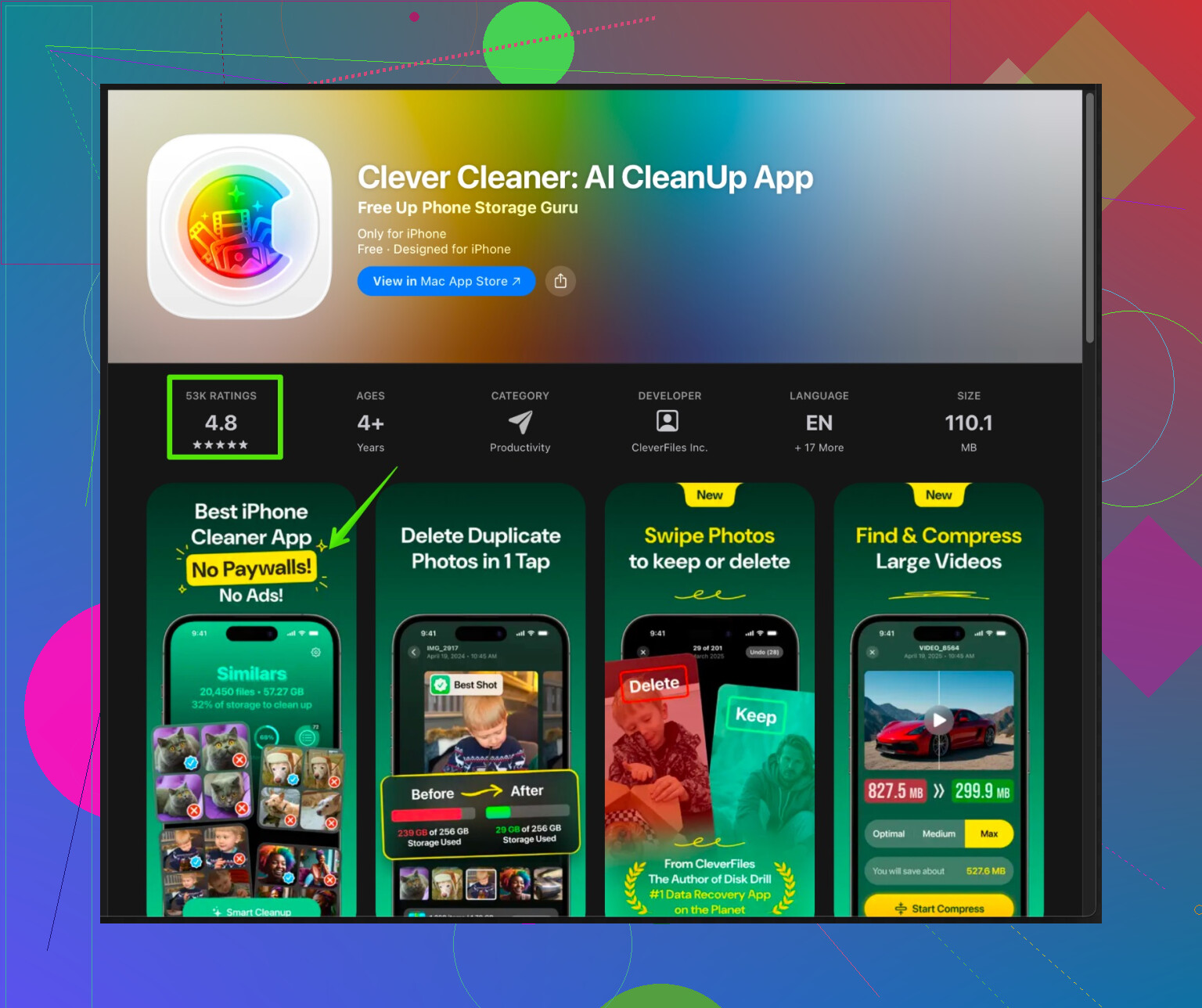
If you keep hitting storage limits or feel your iPhone is cluttered, something like the Clever Cleaner App can help:
- Finds and removes duplicate and blurry photos
- Identifies large videos and junk files
- Frees up storage so iOS and browser caches work more smoothly
You can check it out here:
clean up iPhone storage and boost performance
Not a replacement for cookie controls, but it does cut down on general “phone feels bogged down” issues that people often blame on the browser.
TL;DR game plan:
- Confirm passwords in Settings → Passwords.
- For 1–2 bad sites, clear data only for those sites (Safari AA menu or per‑site settings).
- If problems are recent and widespread, use Chrome/Firefox time‑ranged clears.
- Go full clear in Safari only as a last resort, knowing you’ll re‑login but your saved passwords should still be there.
- Use a storage cleaner like Clever Cleaner if your phone in general feels clogged, not just Safari.