My iPhone is completely full, and now I can’t install the latest iOS update. I’ve already deleted a few apps and photos, but it still says there isn’t enough storage. I need help figuring out how to update an iPhone with no space left without losing important data.
I ran into this on my own iPhone, and the part I missed at first was simple. An iPhone hates being packed to the ceiling. Even without an update, it still burns space on logs, temp files, app junk, search indexing, and the other hidden stuff iOS keeps doing in the background.
Then an update shows up and things get tighter. The phone needs space to pull down the update, unpack it, and shuffle files around during install. I’d try to have 15GB to 25GB open before another attempt. Less than that gets sketchy fast.
TL;DR
If iOS says there isn’t enough room to update, look at two numbers first: the update size and your free storage. After that, cut the biggest storage hogs first. If you still come up short, do the update with a Mac or Windows PC. Last resort, back up the phone, erase it, install iOS clean, then restore your backup.
- Check the update size and your free space.
- Don’t start deleting blind.
- Open Settings > General > Software Update.
- See whether iOS lists the download size.
- Then go to Settings > General > iPhone Storage.
- Wait a bit for the chart to finish loading.
- Look at free space first, then look at what’s eating it.
One catch. The size shown for the update is not the full amount of room your phone needs. If the update says 15GB, having 15GB free usually won’t cut it. The install process needs extra working space.
Clean out photos and videos first
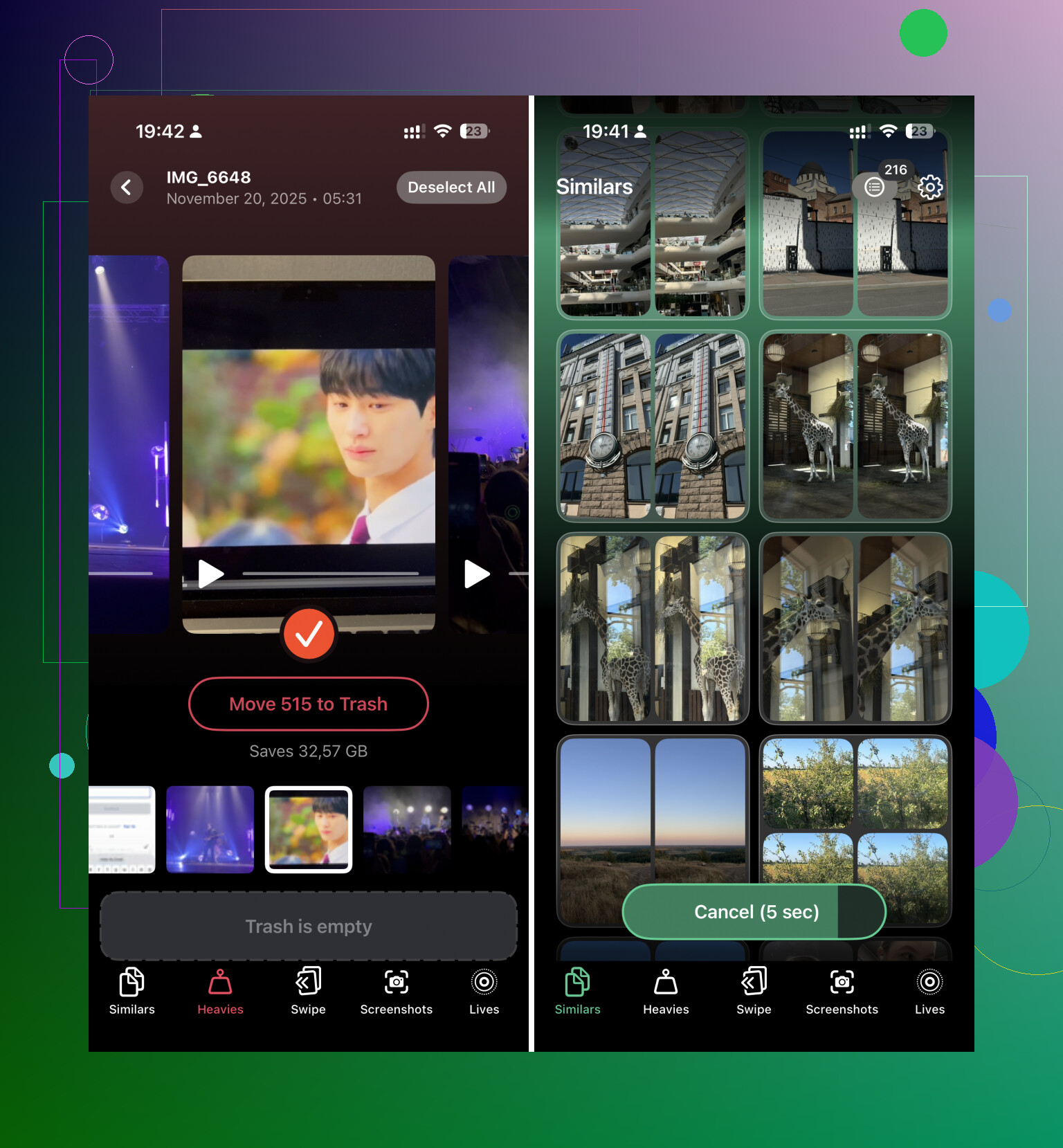
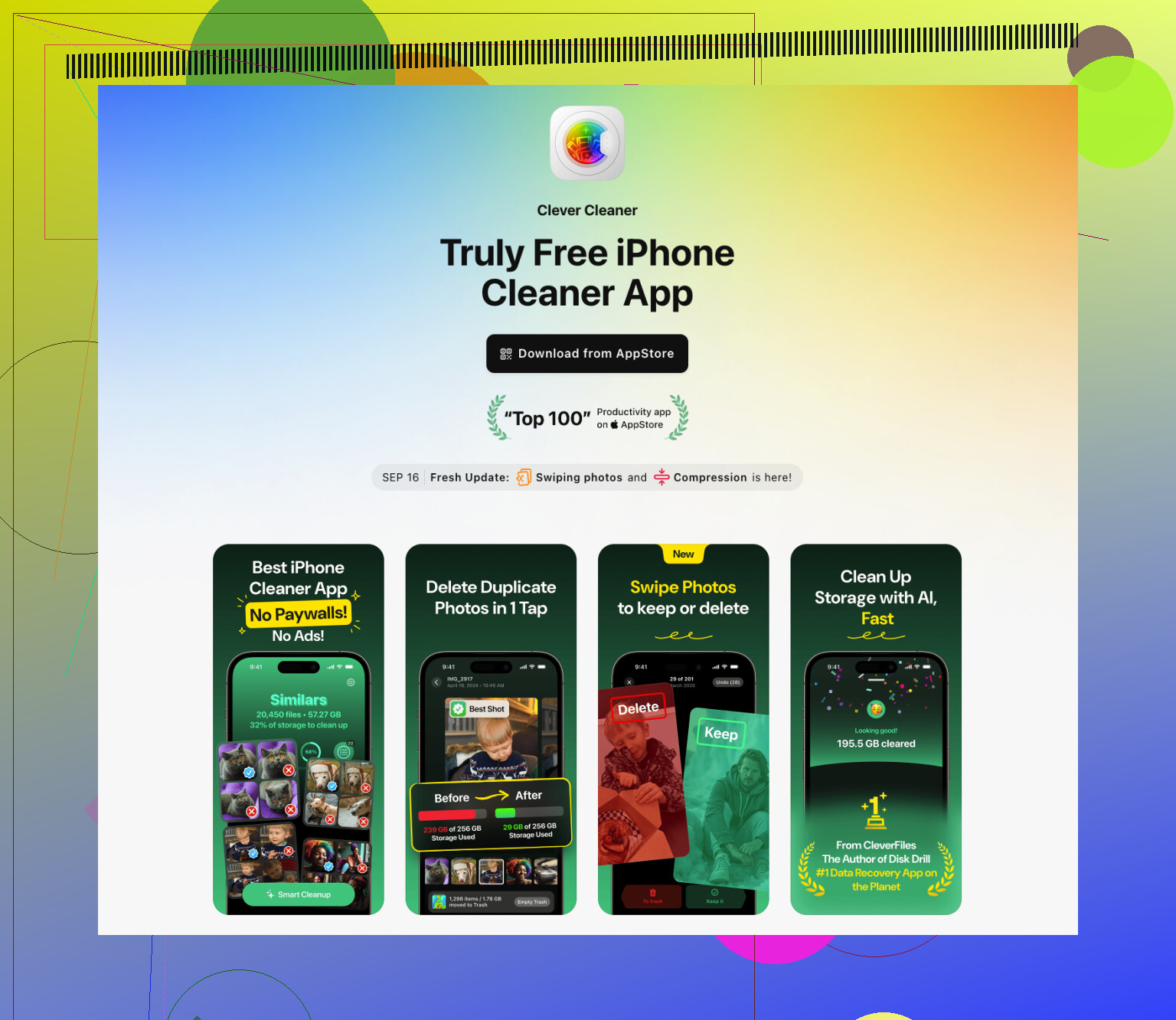
For me, the fastest win was the photo library. Videos, burst shots, duplicates, screenshots, old memes, all of it piles up. Doing it by hand is a slog, so I’d use a cleanup app for this part. I had decent luck with Clever Cleaner because it was quick, free, and didn’t block the basic cleanup stuff behind a paywall.
- Install the app and let it scan your library.
- Open Heavies and check the largest videos and media files.
- Remove what you don’t need.
- Open Similars and clear duplicate or near-duplicate photos. If needed, use the other sorting tools too.
- Then go into Photos > Recently Deleted and hit Delete All.
That last step matters more than people think. Until Recently Deleted is emptied, the space usually doesn’t come back.
Delete apps, don’t offload them
I lean toward deleting apps when I’m trying to force an update through. Offloading leaves behind app data, and in my expereince, app data is often the fattest part.
- Open Settings > General > iPhone Storage.
- Scroll through the apps sorted by size.
- Tap the ones you barely touch.
- Choose Delete App.
You can reinstall later. If you keep the app, you often keep the clutter too.
Check the Files app
This one sneaks up on people. The Files app tends to collect random downloads, PDFs, ZIPs, screen recordings, and junk from old projects.
- Open Files.
- Look in On My iPhone > Downloads.
- Delete stuff you’re done with.
- Check iCloud Drive too if you save files there.
I found old video exports in there once. A few taps, a few GB back.
Trim message attachments
Messages stores more junk than most people expect. Old videos, photos, GIFs, voice notes, PDFs. Years of it.
- Go to Settings > General > iPhone Storage.
- Tap Messages.
- Open the attachment sections. If you see Review Large Attachments, use it.
- Delete the biggest files you don’t care about.
This helps without wiping whole threads, which is nice if you want to keep the chats.
Clear Safari website data
Safari won’t save you 20GB, but I’ve seen it free enough space to matter when the phone was right on the edge.
- Open Settings.
- Go to Apps > Safari.
- Tap Clear History and Website Data.
- Confirm it.
If you still don’t have enough room
At some point, cleanup stops being enough. I’d try one of these next.
- Use a Mac or PC. Plug the iPhone into a Mac and update in Finder, or use iTunes on Windows. The computer handles more of the download and unpacking work, so the phone usually needs less temp space. I’d make a full backup first.
- Back up, erase, restore. This is the ugly option, but it works. Back up the iPhone, wipe it, set it up fresh, install the latest iOS, then restore your backup.
If the phone still won’t update, you’re down to brutal triage. Remove anything you won’t miss. Old videos, giant apps, saved files, offline media, whatever’s taking space. When you’re trying to install a big iOS update, a single extra gigabyte sometimes makes the diffrenece.
4 Likes
Skip the OTA update and do it from a computer. When storage is pinned at 0 or close to it, updating on the phone often fails even after you delete stuff.
Best path:
- Plug your iPhone into a Mac or Windows PC.
- On Mac, open Finder. On Windows, open iTunes or Apple Devices.
- Back up the phone first.
- Hit Update, not Restore.
This uses less temp space on the iPhone. For a lot of people, it works when the on-phone update wont.
A few extra things people miss:
- Restart the iPhone after deleting files. iOS sometimes holds cached space untill reboot.
- Remove any half-downloaded iOS file in Settings, General, iPhone Storage. If you see an iOS update entry, delete it.
- Turn off automatic downloads for streaming apps and delete offline content in Spotify, Netflix, YouTube, Podcasts.
- Mail app cache and old voice memos eat space too. Check both.
I disagree a bit with @mikeappsreviewer on one point. I would not aim for 15GB to 25GB free every time. Nice if you have it, sure. But if you update through Finder or iTunes, you often need a lot less.
If photos are the main problem, Clever Cleaner helps sort large videos, duplicates, and similar shots faster than digging by hand. Also empty Recently Deleted after. People forget ths all the time.
If you want a quick feature walkthrough, this is a solid Clever Cleaner features review and iPhone cleanup guide.
One thing I’d add to what @mikeappsreviewer and @waldgeist said: check for System Data being the real problem. On a full iPhone, that category can balloon with caches, logs, failed update leftovers, and weird temp junk. You can’t directly “clear” all of it, which is peak Apple behavior, but you can shrink it.
What helped me once:
- delete the old iOS download if it’s sitting in Settings > General > iPhone Storage
- reboot the phone after deleting stuff
- sync any important photos/videos to iCloud, Google Photos, or a computer, then remove them locally
- remove downloaded music/podcasts/maps, because those hide in the background and people forget about them
- if Messages is huge, change Keep Messages to 1 Year or 30 Days temporarily
I’ll mildly disagree with the “just keep deleting apps” approach. Sometimes apps are not the main offender. A bloated Photos library, Messages attachments, or System Data can eat way more space than 3 random apps you barely use.
If your photo library is the bottleneck, Clever Cleaner is actually useful for finding duplicate pics, similar shots, and big videos faster than doing it manually. That’s probly the quickest way to carve out several GB if your camera roll is a mess.
Also, if you want more ideas for clearing enough room before updating, this guide on how to stop iPhone storage full alerts for good covers some practical cleanup angles.
If none of that works, I’d skip fighting the phone and update through a computer. OTA updates get real stubborn when storage is basically at 0.
One angle I don’t see stressed enough in the replies from @waldgeist, @cacadordeestrelas, and @mikeappsreviewer: if your iPhone is at absolute zero space, stop using it heavily until you update. Taking more photos, opening social apps, or streaming can immediately refill whatever tiny amount you just freed with caches and temp files.
What I’d do differently:
- Put the phone in Airplane Mode after cleanup.
- Force restart it.
- Leave it charging for a bit.
- Then try the update path you want.
That sometimes keeps background apps from reclaiming space before the install starts.
Also, I slightly disagree with the “delete apps first” idea as the best first move. Games and video apps, yes. But often the sneaky waste is downloaded content inside apps, not the app itself. Netflix downloads, WhatsApp media, Telegram caches, Instagram drafts, Lightroom originals, that kind of stuff.
Another overlooked one: if you use iCloud Photos, turn on Optimize iPhone Storage before deleting half your library. It can shrink local storage without you having to nuke everything manually.
About Clever Cleaner:
- Pros: fast at spotting duplicates, similar shots, and large videos; easier than hunting manually
- Cons: photo-focused, so it won’t solve bloated Messages, app caches, or System Data by itself
So my order would be:
- kill offline downloads
- clear chat attachments/caches inside apps
- optimize photos or use Clever Cleaner for fast media cleanup
- reboot
- keep the phone idle
- then update, preferably from a computer if OTA still refuses
That combo usually works better than just randomly deleting a few apps and hoping iOS behaves.