My iPhone is almost out of storage and it’s running really slow. I’ve deleted a bunch of apps and photos, but the space doesn’t seem to free up much and I’m worried about losing important data. Can anyone walk me through the best way to safely clean up my iPhone storage, including hidden files, caches, and large backups, without messing anything up?
First thing, do a quick backup so you do not stress about losing stuff.
- Back up your iPhone
- Settings > [your name] > iCloud > iCloud Backup > Back Up Now
or - Plug into a computer with Finder / iTunes and do an encrypted backup
Once that is done, clean with a plan.
- Check what eats space
- Go to Settings > General > iPhone Storage
- Wait for it to load
- Look at the list by size. Focus on the worst 3 to 5 apps. Photos, Messages, WhatsApp, TikTok, Instagram, Games usually sit on top.
- Photos cleanup that is safe
- In Photos, delete obvious junk like screenshots, blurred pics, duplicates
- Then open Albums > Recently Deleted and tap Delete All, or the space will not come back for 30 days
- If you use iCloud Photos
Settings > Photos > turn on iCloud Photos
Turn on Optimize iPhone Storage
This keeps full quality in iCloud and smaller ones on your phone.
- Messages and chat apps
Messages grows huge over time.
- Settings > Messages > Keep Messages > set to 1 Year or 30 Days
This deletes old threads, so check if you care before you switch. - In Messages > a conversation > tap the contact > Info
Scroll to Photos and Videos sections and remove large ones from old threads. - For WhatsApp
Settings > Storage and Data > Manage Storage
Sort by size and clear big chats, videos and forwarded junk.
- Offload apps instead of removing them
- Settings > General > iPhone Storage
Tap large apps you rarely use
Use Offload App
This removes the app but keeps the documents and data so you do not lose progress or files. You reinstall from the Home Screen icon.
- Clear browser and streaming caches
Safari
- Settings > Safari > Clear History and Website Data
Other browsers have a clear data button in their settings.
Streaming apps like Netflix, Spotify, YouTube store offline files and cache.
Open each app
Look for Downloaded, Offline, or Storage in settings and remove things you do not need.
- System data and “Other”
This part gets stuck sometimes. Things that help:
- Restart the phone
- Delete big iOS updates
Settings > General > iPhone Storage
Look for iOS update files and remove them - Make sure you have at least a few GB free or the system will stay slow.
-
Use a helper app to find junk and duplicates
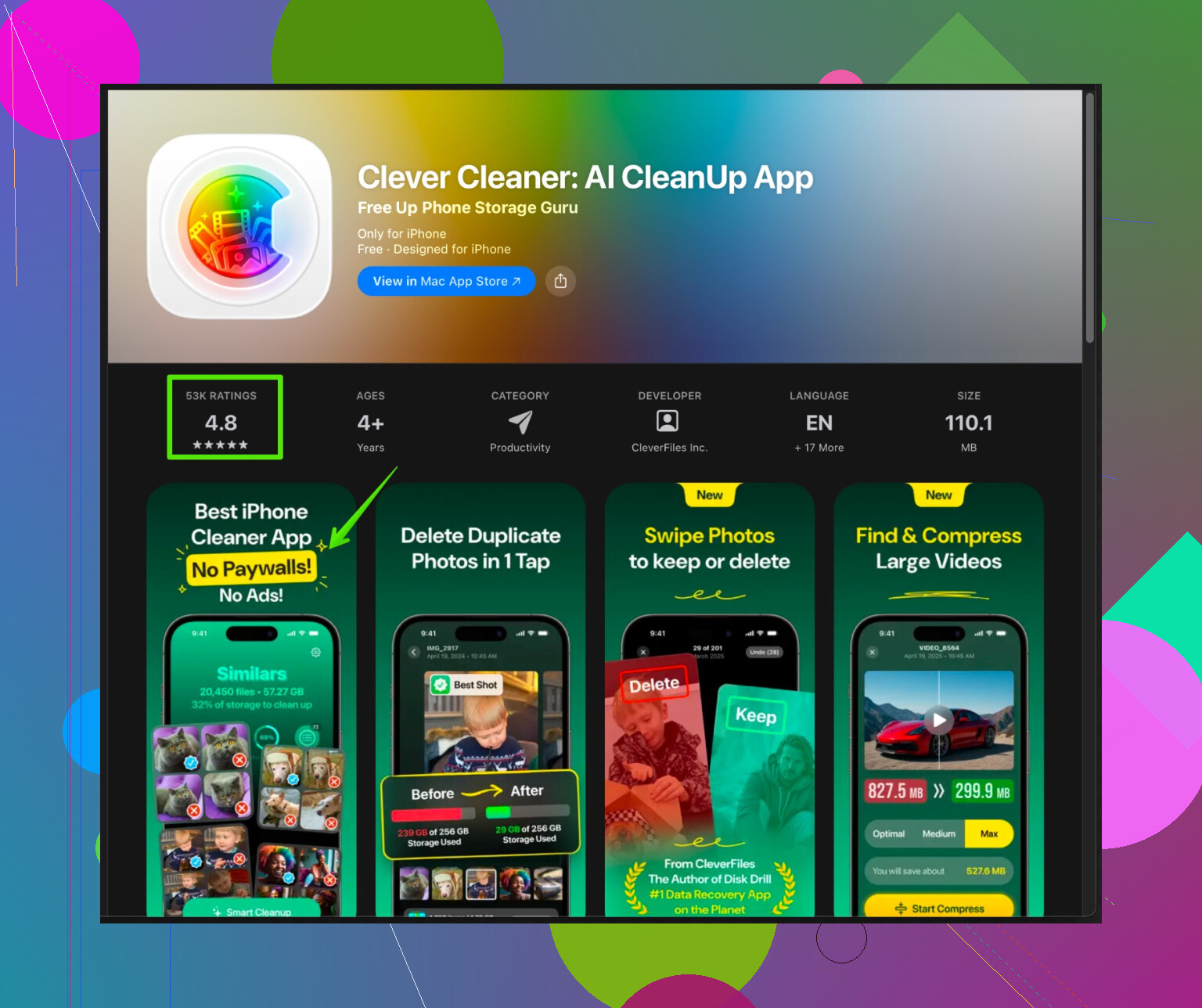
If you have a huge mess of screenshots, duplicate photos, old contacts and similar clutter, an app like the Clever Cleaner App helps sort it fast.
It scans your iPhone for duplicate and similar photos, big videos, useless screenshots, and messy contacts, then suggests things you remove in batches, so you stay in control.
You can check it here
smart storage cleanup for your iPhone
Use it slowly at first. Review each category so you do not wipe something important. -
Final deep reset option
If storage is still weird after cleanup and you have a full backup
- Settings > General > Transfer or Reset iPhone > Erase All Content and Settings
Then restore from your backup
This often shrinks “Other” data and speeds things up, but only do it if you feel ok restoring and waiting a bit.
If you do the steps in this order
- Backup
- iPhone Storage overview
- Photos
- Messages and chats
- Offload big apps
- Clear caches
You should see a clear jump in free space and better performance.
Going to be blunt: if you already deleted “a bunch of apps and photos” and storage didn’t really move, the problem probably isn’t the stuff you think it is. iOS is weird about “Other/System Data,” caches, and hidden junk.
@sognonotturno covered the classic steps really well (backup, iPhone Storage screen, Photos, Messages, offload apps, etc.), so I’ll skip rehashing all that and focus on the stuff that usually confuses people or doesn’t show up clearly.
1. Check what didn’t actually delete
A lot of people do this:
- Delete apps from the Home Screen
- Delete photos from “All Photos”
- Expect storage to jump instantly
But:
- Photos sit in “Recently Deleted” for 30 days (they mentioned that)
- Apps sometimes leave their data behind when you reinstall them or restore from a previous backup
- iOS takes a while to recalc storage; it’s not instant and can lag
What I’d add:
- After a big cleanup, restart your iPhone twice.
Sounds dumb, but iOS often recalculates space properly only after a reboot or two.
2. Attack the hidden hogs most people miss
Stuff that eats storage but doesn’t look obvious:
A. Mail app (if you use Apple Mail)
If you’ve had your email on this phone for years:
- Settings > Mail > Accounts
- Tap each account > Advanced (if you see it)
- Sometimes switching Mail sync to a shorter period can help, but the real trick:
- Temporarily remove the email account from the phone, restart, then re-add it.
That forces Mail to drop a ton of cached copies of old messages/attachments.
I disagree a bit with the idea that you should just rely on the general “iPhone Storage” overview for everything. Mail especially can be bloated but still not shown clearly in that list.
B. Big apps that sync to the cloud
Some apps like:
- Dropbox
- Google Drive
- OneDrive
- Notion / Evernote
can cache stuff locally so it loads faster.
Inside those apps:
- Open their Settings
- Look for “Offline,” “Downloads,” “Cache,” “Make available offline”
- Remove offline folders or clear cache where possible
You’re not deleting stuff from the cloud, only what’s stored locally.
3. iCloud confusion: what’s actually on your phone?
People often think “I turned on iCloud so it should be off my phone.” Not how it works by default.
If you use iCloud Drive, look for:
- Files app > Browse > On My iPhone vs iCloud Drive
Anything under On My iPhone is physically on the device. Move or delete:
- Long-forgotten PDFs
- Old project folders
- Offline movies, audio, etc.
You can move them to iCloud Drive, then they only download when you open them.
4. Old device backups & media in iCloud
This one’s sneaky and messes with people who have multiple Apple devices.
- Settings > [your name at the top] > iCloud > Manage Account Storage > Backups
- Delete backups from old phones you no longer use
Also:
- Same screen > look at “Messages,” “Photos,” “WhatsApp” or other apps that sync to iCloud
This does not fix local storage, but if your iCloud is full, your iPhone sometimes behaves badly with syncs and backups and that can make it feel slower and more cluttered.
5. Be careful with “Erase and Restore” as a magic cure
@sognonotturno mentioned a full erase and restore, which does often shrink System Data. I’d just add a warning:
- If your backup is already bloated with junk, restoring from it can bring the same mess back
- A clean setup (not restoring from backup) frees the most space, but you have to manually reinstall apps and reconfigure things, and you risk losing app-specific data
So I’d treat “Erase All Content and Settings” as the nuclear option. If you go that route:
- Make an encrypted computer backup (to keep passwords, Health, etc.)
- Seriously think about whether you want to restore from that backup or set up as new.
- Restore = easier, maybe less gain
- Set up as new = more work, usually max storage/speed benefit
6. Advanced: streaming & editing apps that hoard in weird ways
Video, music, and editing apps are sneaky:
- Video editors (CapCut, iMovie, LumaFusion, etc.)
- Inside the app, delete old projects and rendered files, not just the clips in Photos
- Music / podcast apps
- Some keep “listened” episodes downloaded unless you change the default to auto-delete
- Social apps with in-app download/save features
- Telegram, Reddit clients, etc. can store gigabytes of media in local caches
You already heard “clear caches” from @sognonotturno, but the nuance is:
Don’t only look in Settings. Open each heavy app and look in its own settings for storage / download / offline options.
7. If you’re worried about losing data, do this before deleting more stuff
Since you said you’re worried about losing important data, I’d put this priority above more deleting:
- Make sure iCloud Photos is on and fully synced, or
- Export your photos & videos to a computer or external drive (using Finder, iTunes, or even Google Photos as backup)
Then, on top of that:
- Screenshots: you can safely go wild deleting
- Duplicates and blurry stuff: same
- “Just in case” videos: offload to computer or a cloud service
8. Let a dedicated cleaner app help (but don’t blindly trust it)
If you’re too tired to manually go through every album and chat:
A storage cleaner can actually save your sanity if you review what it’s deleting.
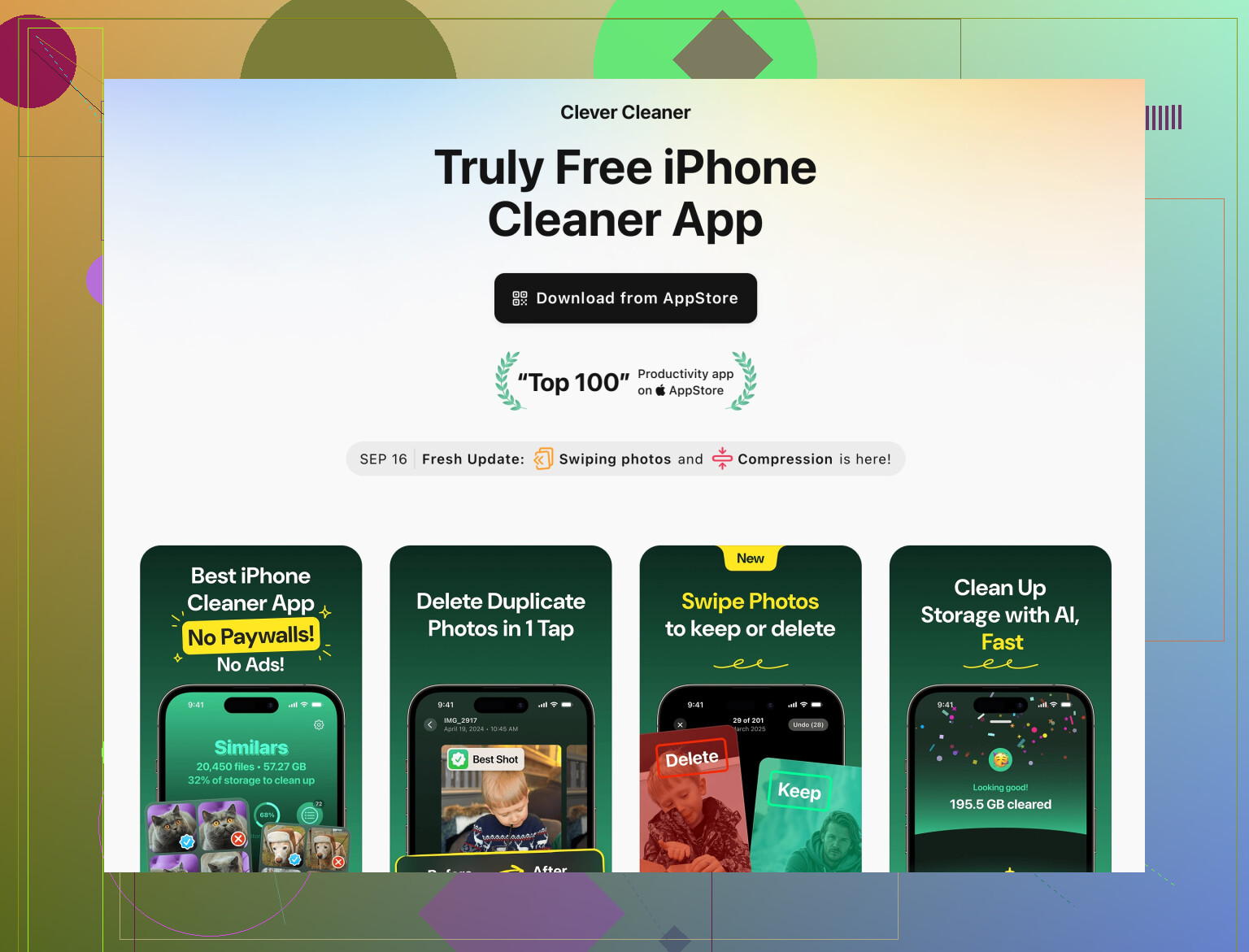
The Clever Cleaner App for iPhone is built for this kind of thing:
- Scans your device for duplicate or similar photos
- Finds big videos that eat space
- Detects useless screenshots
- Helps tidy messy contacts
You keep control and approve what to remove. Just don’t be lazy and hit “delete all” without looking. That’s how people nuke important stuff and then blame the app.
For more details, you can check out smart tools to clean and speed up your iPhone, which breaks down how it optimizes storage and performance.
9. If your phone is still crawling after freeing space
If you manage to free at least 5 to 10 GB and it’s still laggy:
- Check battery health: Settings > Battery > Battery Health & Charging
- If it’s very low and performance management is on, the phone will feel slow regardless of storage
- Make sure you’re on a stable iOS version (not a buggy early major update)
- Turn off unnecessary background stuff:
- Settings > General > Background App Refresh > turn off for apps you don’t need refreshing
Storage and speed are related, but not the same. A dying battery or old hardware can feel “slow” even with free space.
TL;DR version if you’re tired:
- Restart twice after your deletions.
- Clear caches & offline files inside streaming / chat / editing apps.
- Kill bloat in Mail and Files (“On My iPhone”).
- Back up photos somewhere safe, then aggressively clean screenshots, duplicates, and big videos.
- Use something like Clever Cleaner App to speed up the cleanup, but actually review suggestions.
- Only consider erase/restore if all else fails and you’re backed up and patient.
3 Likes
Skip the basics, since @viajeroceleste and @sognonotturno already nailed backup, Photos, Messages, offloading apps, etc. Here are the less obvious angles when you have cleaned “everything” and storage still looks stuck.
1. Stop iOS from silently refilling your storage
A lot of people clean, get space back, and then the phone magically fills again.
Check these:
- Settings > App Store
- Disable automatic video autoplay and in‑app content that preloads.
- Settings > Podcasts / your podcast app
- Turn off automatic downloads or set “Delete played episodes.”
- In social apps (Instagram, TikTok, Reddit, etc.)
- Look for “Download videos in high quality” or “Preload” and turn that off.
Otherwise, your daily use just recreates the same storage mess.
2. Tame background syncing instead of only deleting apps
I slightly disagree with just offloading or removing big apps. That helps once, but if they constantly sync, they will bulk back up.
Inside any app that syncs a lot (note apps, cloud drives, social networks):
- Turn off “Keep offline copy” for giant folders or spaces.
- Log out of services you barely use so they stop caching data.
- In some apps, clearing “recently opened” or “local storage” removes temp data that never shows clearly in iPhone Storage.
This is especially relevant for work apps that sync huge shared folders.
3. System Data stuck at a crazy size
If “System Data” is enormous, wiping the phone and restoring (like @sognonotturno said) helps, but you can try a lighter approach first:
- Backup
- Remove VPN profiles and old configuration profiles
- Settings > General > VPN & Device Management
- Disable any content blockers or ad blockers for a bit
- Hard restart the phone
Profiles and blockers can cause huge cached logs that inflate System Data. Clean those up before going nuclear with a full erase.
4. Use a cleaner, but treat it like a sharp tool
If your Photos and Contacts are a disaster, a dedicated tool is actually worth it, as long as you drive, not autopilot.
Clever Cleaner App is designed exactly for this situation:
- Pros:
- Groups similar and duplicate photos so you are not manually comparing 20 versions of the same selfie.
- Finds bloated videos and useless screenshots quickly.
- Can clean messy contacts (duplicates, incomplete entries).
- Fast way to see what is really heavy without burrowing through every album.
- Cons:
- If you just smash “delete all” because you are tired, you may wipe memories you care about.
- Needs some time on first scan, especially on very full phones.
- Like any cleaner, it cannot read your mind about what is sentimentally important.
Compared to what @viajeroceleste and @sognonotturno suggested, this is more “power tool” than manual sorting. I would run Clever Cleaner App after your main backup and a basic pass through Photos, then slowly approve its suggestions in batches.
Competitors to this approach are basically what they already described: using the built‑in iPhone Storage list and native Photos / Messages cleanup. That is safer but slower. The cleaner app approach is faster but demands that you pay attention.
5. Decide if you want to prevent the problem or just fix it once
If you want this to stop happening every few months:
- Set Messages to 1 year or 30 days, and do the same in WhatsApp / Telegram where you can.
- Make a habit: once a month, open Clever Cleaner App or do a manual Photos sweep for screenshots and duplicates.
- Avoid keeping big offline libraries of podcasts, Netflix episodes, Spotify playlists, etc. on the phone at all times.
Cleaning once works. Setting limits and habits keeps you from ending up here again.