I formatted my SD card by mistake before backing up my photos and videos, and now everything looks gone. I need help figuring out the best way to recover files from a formatted SD card without making things worse, since some of the lost data is really important.
I’d stop using the card right now. I learned this the hard way after formatting one in a camera, then shooting a few more clips on it. Those new files ate into the old ones.
If the format happened recently and you did not write much back to the SD card, your files still have a shot.
What usually happens on cameras, drones, phones, and Windows is a quick format. It wipes the file table, not the photo and video data itself. So the card looks empty to the device, while the old data still sits there until something new replaces it.
So, first step is boring but important. Do not use the card. No photos. No video. No copying random stuff onto it. Put it aside.
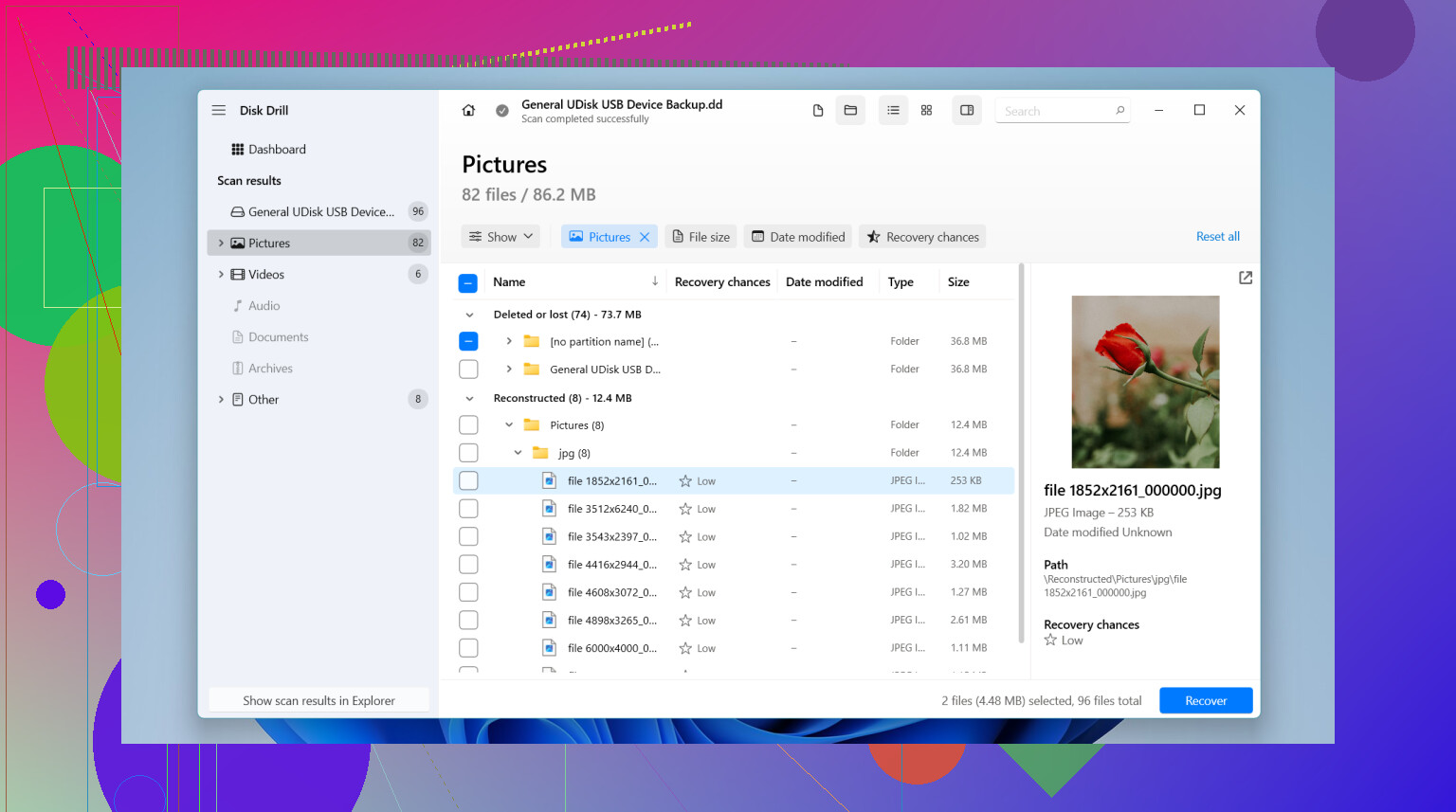
Then I’d move to recovery software. I’d start with Disk Drill. I used it on a formatted microSD from a drone, and it was easier to work through than some of the other tools I tried. The preview helped a lot, since I could see which files were still readable before saving anything. It also includes an Advanced Camera Recovery mode, which matters more when your video files were split up across the card, common with drones, GoPros, and dash cams.
Here’s the basic flow I’d follow:
- Take the SD card out of the device.
- Plug it into your computer with a card reader.
- Install the recovery app on your computer’s internal drive or another disk, never on the SD card.
- Run a scan on the SD card.
- Preview what turns up.
- Save recovered files somewhere else, like your computer or an external drive.
I also tried other options.
Recuva is fine when the case is simple. If you deleted a few files and the card is otherwise healthy, it’s easy to use. Where it fell short for me was formatted cards and broken-up video files.
UFS Explorer is a different beast. It digs deeper and handles ugly cases better, especially when the card has file system damage or partial corruption. I would not hand it to someone who wants a clean, simple UI though. It feels made for people who already know what they’re looking at.
One more thing people skip over. If the card keeps disconnecting, turns painfully slow, throws read errors, or the computer does not see it at all, stop with software. Same if it starts acting weird in ways that feel physical. At that point I’d look at a recovery lab. Repeated scan attempts on a failing card can make a bad situation worse.
1 Like
If the format was quick, your odds are still decent. Full format is rougher, but even then I would not assume the files are gone.
I agree with @mikeappsreviewer on one thing first. Stop touching the card. Where I differ is this, I would make an image of the SD card before running multiple scans if your PC reads it fine. A byte-for-byte copy gives you one safe working copy, and you recover from that instead of stressing the original card over and over. On Linux or macOS, ddrescue is the usual pick. On Windows, some recovery tools include imaging too.
A few points people miss:
- Check if your camera brand has hidden backup indexes or companion apps. Sometimes thumbnails or low-res proxies still exist.
- If photos matter more than videos, sort recovery by file type first. JPEG and RAW often recover cleaner than MP4 after format.
- Keep recovered files on a different drive. Not on the SD card. Ever.
- If filenames are gone, sort by file signatures and timestamps. It gets messy fast, but it works.
For software, Disk Drill is a solid place to start because it handles SD cards well and previews results cleanly. If Disk Drill finds your files but names are lost, recover first, organize later. Speed matters more than tidiness here.
If the card shows 0 bytes, asks to format again, or disconnects mid-read, skip home methods and send it to a lab. That stuff gets worse fast.
Also, this topic is easier to find under something like formatted SD card photo and video recovery after accidental format. I found this discussion useful too:
recovering photos after formatting an SD card
Do the image first if you have the option. It saves headaches later, trust me, I learned taht one the dumb way.
First thing, I slightly disagree with the “scan it right away” vibe from @mikeappsreviewer. If the card is readable, I’d clone or image it first, then work off the copy. That gives you a fallback if one app crashes, hangs, or the card starts going flaky mid-process. @caminantenocturno mentioned that part, and imo that’s the safer play.
Also, check the type of format. A quick format usually leaves a much better chance than a full overwrite format. And if this was done inside a camera, sometimes the folder structure gets rebuilt in a weird way, so don’t assume “empty card” means truly empty.
One thing I’d add that hasn’t been stressed enough: try recovery on a desktop USB card reader if possible, not a cheap adapter or the camera itself. Bad readers cause weird read errors and people blame the card.
For software, Disk Drill is a solid pick for formatted SD card recovery, especially if you need photo and video preview before restoring. I’d also sort results by file type first, recover the most important stuff, then worry about names/folders later. Priorities matter when time is ticking.
If videos are super important and came from a GoPro, drone, or dash cam, be prepared for some files to recover partially. That’s normal, not always user error.
Also worth skimming: SD card recovery tutorial for formatted photos and videos
If the card keeps asking to be formatted again, runs hot, or drops off the system, stop DIY stuff. That’s lab territory, no joke.