I need help with WD external hard drive recovery after my drive suddenly stopped showing up on my computer. It has years of family photos on it, and I’m worried about losing them for good. I’m looking for the safest way to recover photos from a WD external hard drive without causing more damage.
I’ve messed with a bunch of WD My Passport drives, and “my files vanished” usually did not mean the data was dead. More often, I found a damaged file system, a broken partition entry, or plain old accidental deletion. The drive itself was still fine.
First thing I’d do is check whether Windows still sees the drive.
Open Disk Management and find the WD My Passport in the disk list. At this point, I wouldn’t care much about the drive letter. I’d look at two things instead: does Windows detect the device, and does the listed capacity look close to what the drive should be?
If the size looks right, I’d take it as a decent sign. Even when Windows shows RAW, Unallocated, or throws up a format prompt, recovery often still works because the hardware is responding. Different story if the drive never shows up, drops connection over and over, or starts making weird sounds. I’ve seen clicks and spin-up failures turn into hardware cases fast.
Once the drive is visible, stop writing anything to it. I mean it. If the files were deleted not long ago, or the partition suddenly stopped opening, any new write to the disk risks overwriting data you still had a shot at recovering.
Before you throw recovery software at it, check for copies somewhere else. I’ve seen people spend half a day scanning a drive, then realize the missing folders were already sitting in OneDrive, Google Drive, or Dropbox. Worth five minutes. Saves a lot of pain.
If no backup turns up, I’d go straight to recovery software.
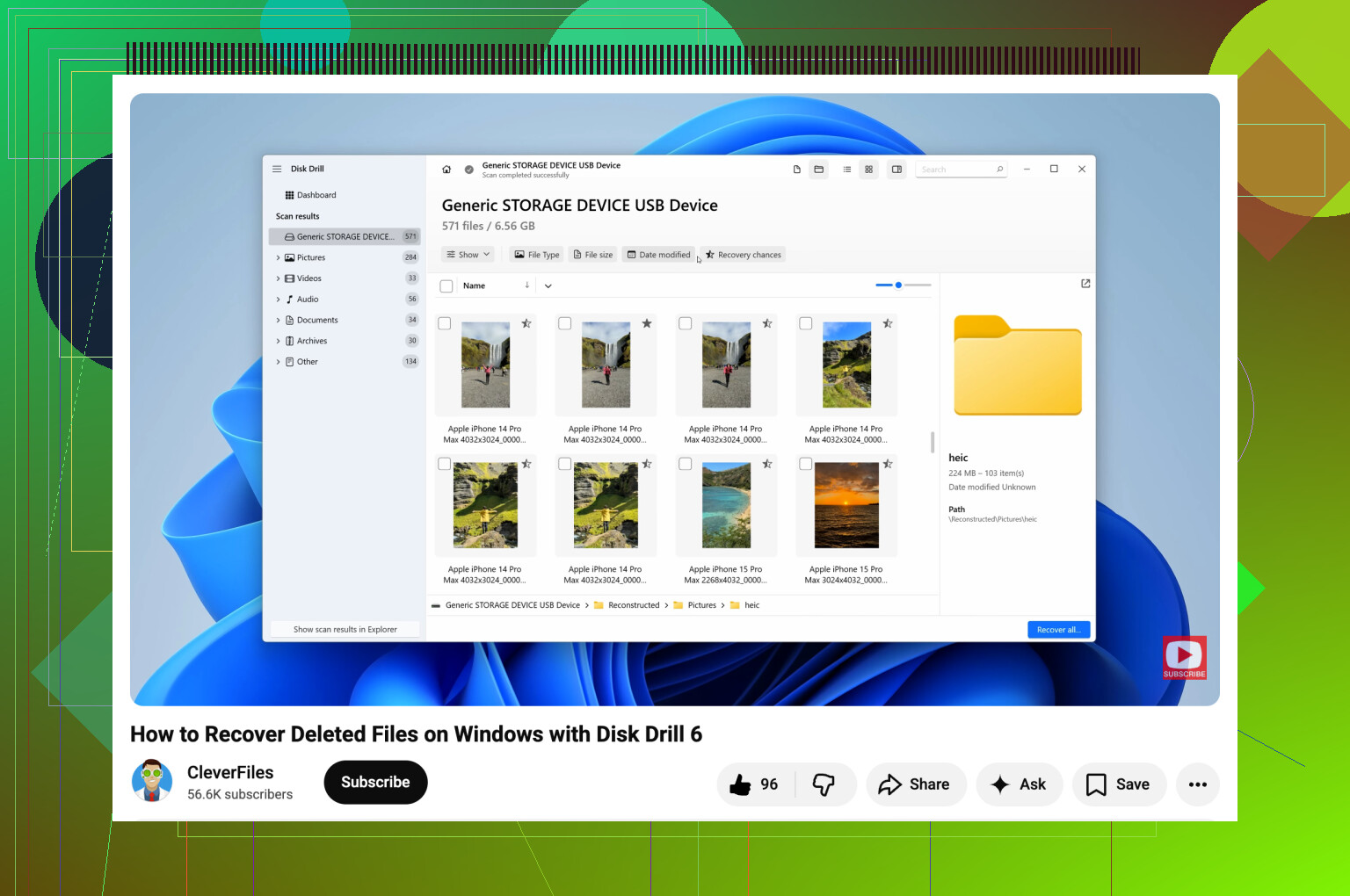
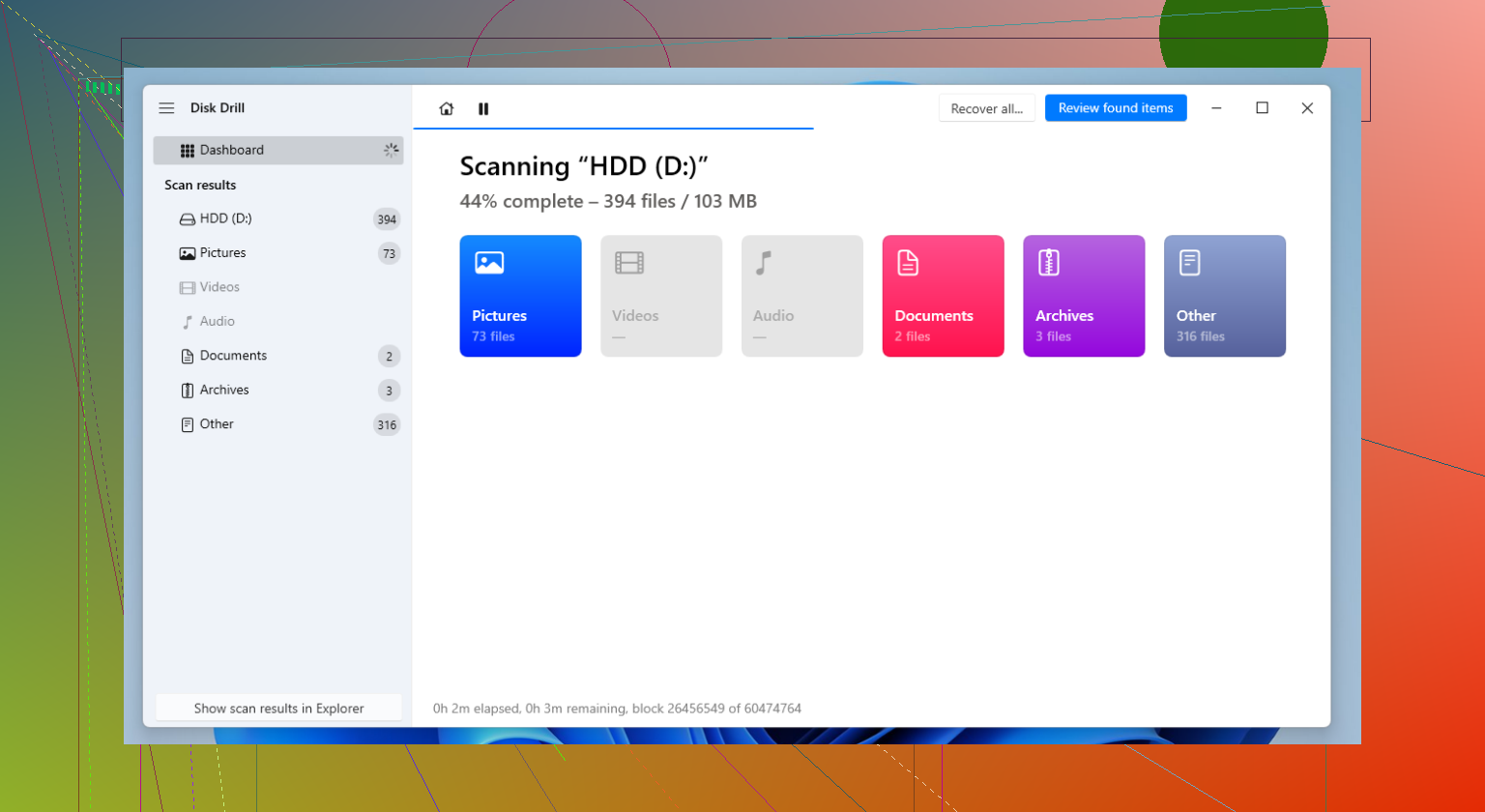
For WD My Passport drives, Disk Drill is one of the tools I’ve had better luck with. It handles deleted files, formatted partitions, and RAW volumes without much fuss. It also works well with NTFS and exFAT, which is what I run into most on these drives. The preview feature helps too. If a photo, video, or doc opens in preview, I usually feel a lot better about the odds.
What I do:
- Install the software on your computer, not on the WD drive.
- Plug in the My Passport and wait for the software to detect it.
- If the drive is flaky, make a byte-for-byte backup first and scan the image instead of the original disk.
- Run a full scan.
- Go through the found files and preview the important ones.
- Recover everything to a different drive.
After you pull your files off, set up backup before trusting the drive again. External drives are fine for storage. I still wouldn’t keep the only copy of anything important on one. File History, Acronis, cloud sync, whatever fits your setup. One extra copy turns a bad day into an annoying hour.
1 Like
If the WD drive stopped showing up at all, I’d be a little more cautious than @mikeappsreviewer on one point. I would not spend too long testing random cables, ports, and replugging it 20 times. If the drive is failing, extra power cycles are not your freind.
What I’d do first:
- Try one other USB cable and one other computer.
- Listen to the drive. Clicking, beeping, spin-stop-spin means stop.
- Check Device Manager, not only Disk Management. If it shows there as a USB mass storage device or WD bridge, the enclosure board might still talk even if the file system does not.
- If the bare drive is inside a WD enclosure with hardware encryption, do not shuck it right away. Many WD externals encrypt through the USB board. Remove the drive from the case and your data may look scrambled.
If the drive shows some sign of life, make an image first. R-Studio or HDDSuperClone are strong picks for weak drives. Then scan the image with Disk Drill. I like Disk Drill more for photo recovery and previewing JPG, HEIC, PNG, MOV, MP4. That matters for family pics, since file names and folders are often a mess after recovery.
If the drive does not detect anywhere, or makes noises, skip software. Go to a pro lab. Expensive, yep. Still cheaper than losing years of photos forever.
Also, this helped a friend of mine when sorting out a Windows external drive issue: easy Windows hard drive recovery guide
Main rule, recover to a different drive. Dont write back to the WD.
I mostly agree with @mikeappsreviewer and @viajantedoceu, but I’d add one thing they only touched on indirectly: if these are irreplaceable family photos, treat this as a preservation job first, recovery second.
Meaning: don’t keep plugging the WD external hard drive in over and over hoping it magically appears. A lot of people do that, and sometimes that’s exactly how a weak drive turns into a dead one. I know some folks say “just try a bunch of ports,” but honestly after 1 different cable and 1 different computer, I’d stop messing with it.
What I’d do:
- Check if the drive gets warm and spins normally
- See if it appears in BIOS/UEFI, not just Windows
- If Windows freezes when you connect it, that’s a bad sign
- If the drive is visible even briefly, clone/image it first if possible
- Do recovery work from the clone, not the original
That part matters a lot. People jump straight into scanning, but imaging a sketchy drive can save your bacon.
If the drive is detected and stable enough, Disk Drill is a solid option for WD external hard drive recovery, especially for family photos because previewing JPG, PNG, HEIC, MOV, and MP4 helps you figure out what’s actually recoverable before saving anything. Install it on your internal drive, scan the WD, and recover files to another storage device only. Not back onto the same drive. Kinda obvious, but people still do it.
If you want a readable walkthrough before using it, this Disk Drill recovery guide for external hard drives is probly more useful than random marketing fluff.
One more thing people miss: some WD enclosures handle encryption through the USB board. So if you were thinking of opening the case and connecting the bare drive directly, don’t do that blindly. You can turn a recoverable situation into a confusing one real fast.
If the drive clicks, beeps, disappears constantly, or never shows capacity correctly, skip DIY software and go to a real recovery lab. That’s the expensive answer, yeah, but also the least dumb one when the data actually matters.
One small disagreement with @viajantedoceu, @vrijheidsvogel, and @mikeappsreviewer: if the WD drive is mounting and unmounting in a loop, I would not even bother with a full recovery scan first. I’d check SMART health with something like CrystalDiskInfo if the enclosure still exposes it. If SMART shows reallocated sectors, pending sectors, or bad read values climbing, that tells you the drive is degrading and your priority should shift fast.
A couple of extra things people forget:
- Check Event Viewer in Windows for disk, ntfs, or storahci errors right when you plug it in
- If the drive letter is missing but the volume is there, do not format it just because Windows suggests it
- If File Explorer hangs but Disk Management still loads, that often points to media trouble, not just a simple partition issue
- If this is a desktop WD with its own power adapter, test the adapter voltage before assuming the disk itself is dead
On Disk Drill specifically, it’s a decent choice once the drive is stable enough to read.
Pros:
- easy preview for photos and videos
- good at finding common media formats
- simpler to sort through recovered files than some heavier tools
Cons:
- not my first pick for a physically weak drive
- deep scans can be slow on large externals
- file names and folder structure are not always preserved if metadata is damaged
So my order would be:
- Confirm whether the drive is electrically alive
- Check health if possible
- Clone if there are any read issues
- Run Disk Drill on the clone
- Save recovered photos to another disk, never back to the WD
If the drive is silent, clicking, or vanishes mid-read, skip DIY and go lab route. That’s the point where software usually just burns time.