I accidentally deleted photos and videos from my SD card while moving files, and I need help figuring out the fastest way to recover them before anything gets overwritten. These are important personal files, so I’m looking for safe SD card file recovery tips, trusted software, or steps that actually work.
I’ve been there, and yeah, deleting a whole set of photos off an SD card feels awful. The one good part is this: deletion usually removes the file system entry, not the photo data itself. The card marks those spots as free space, and your images often sit there untouched until new data lands on top of them.
Before you install anything, I’d check a few simple things first.
- Stop using the SD card now. This applies in every case. Pull it out of the camera, phone, or reader. If you keep shooting photos or recording video, you risk overwriting the deleted files.
- Check Trash or Recycle Bin. This only matters if the SD card was connected to a Windows PC or Mac when the deletion happened.
- Look for cloud copies. If the card was used in an Android phone, or in a computer with sync turned on, your photos might still exist in Google Photos, Dropbox, OneDrive, or a similar service.
- Try a different card reader or USB port. I’ve seen cards look half-empty because the connection was bad. Sometimes the files were fine, the reader wasn’t.
If none of those help, recovery software is the next move. One thing I would not do is run repair tools like CHKDSK on Windows or First Aid on macOS. Those tools are for file system repair, not photo recovery. On a damaged or recently deleted card, they sometimes make the situation worse.
If you want the easiest route, I’d start with Disk Drill. I used it once on a camera card after a bad delete, and it was the least annoying option I tried. It also includes an Advanced Camera Recovery mode aimed at camera storage, which helps with SD card scans.
What I’d do, step by step:
- Install Disk Drill on your Windows PC or Mac.
- Put the SD card into a dedicated card reader, then connect the reader to your computer.
- Do not connect the camera itself by USB. In my case, direct camera connection was less reliable for a proper low-level scan.
- Open the app, pick the SD card from the device list, and start the scan.
- Wait for the scan to finish. You should be able to preview found images inside the program. If the preview opens cleanly, the file is usually recoverable in good shape.
- Select the photos you want back, then recover them.
- Save everything to your computer’s internal drive, not to the same SD card. Writing recovered files back onto the card is how people lose the rest for good.
If you want other options, there are a few, though each one has some baggage.
PhotoRec and Windows File Recovery are free. The catch is usability. They’re more command-line tools than normal apps, so you’ll spend time typing commands instead of clicking through a clean interface. PhotoRec also tends to strip away original filenames and folder layout, which turns recovery into a sorting job afterward. I did this once with a few hundred photos. It was a mess, no joke.
If you only have an Android phone, DiskDigger exists, but results are often limited unless the phone is rooted. Without root, people often end up recovering thumbnails or cached junk instead of the full image files.
If your photos matter, I’d use a desktop tool and move slowly. No new writes to the card. No repair tools. Recover to another drive. Those three things matter more than people think.
3 Likes
Fastest path is this.
Stop using the SD card. Eject it. Do not copy, shoot, format, or run repair tools on it. Every write cuts your odds.
I agree with most of what @mikeappsreviewer said, but I would add one thing first. If the files were deleted during a move on a computer, check the destination folder too. A failed move often leaves some files copied over even when the source looks empty. Search by file extension, JPG, MP4, MOV, and sort by date. People skip this and waste time.
After that, make an image of the SD card before scanning if the files matter a lot. This takes a few extra mins, but it protects you if the card is flaky. On Linux or Mac, dd works. On Windows, USB Image Tool or similar. Then scan the image, not the card. Safer.
For recovery, Disk Drill is a solid pick because it previews photos and videos fast and handles SD cards well. R-Studio is another strong option if Disk Drill misses files, esp for damaged file systems. Recuva is quick for simple deletes, but it falls off hard with formatted cards or broken metadata.
Two practical tips people miss:
- Recover to your computer or another drive, never back to the SD card.
- If filenames matter, prioritize tools that read the file system first. Signature carving is fast, but you often lose names and folders. That part is annoying as hell.
If your card came from a phone, look for hidden .Trash, DCIM, or app cache folders too. I’ve seen vids still sitting there.
Also, this is a decent quick explainer on recovering deleted files from an SD card, watch this SD card file recovery video.
If you post whether the card was used in a camera, Android phone, Windows PC, or Mac, people here can narrow the best tool faster.
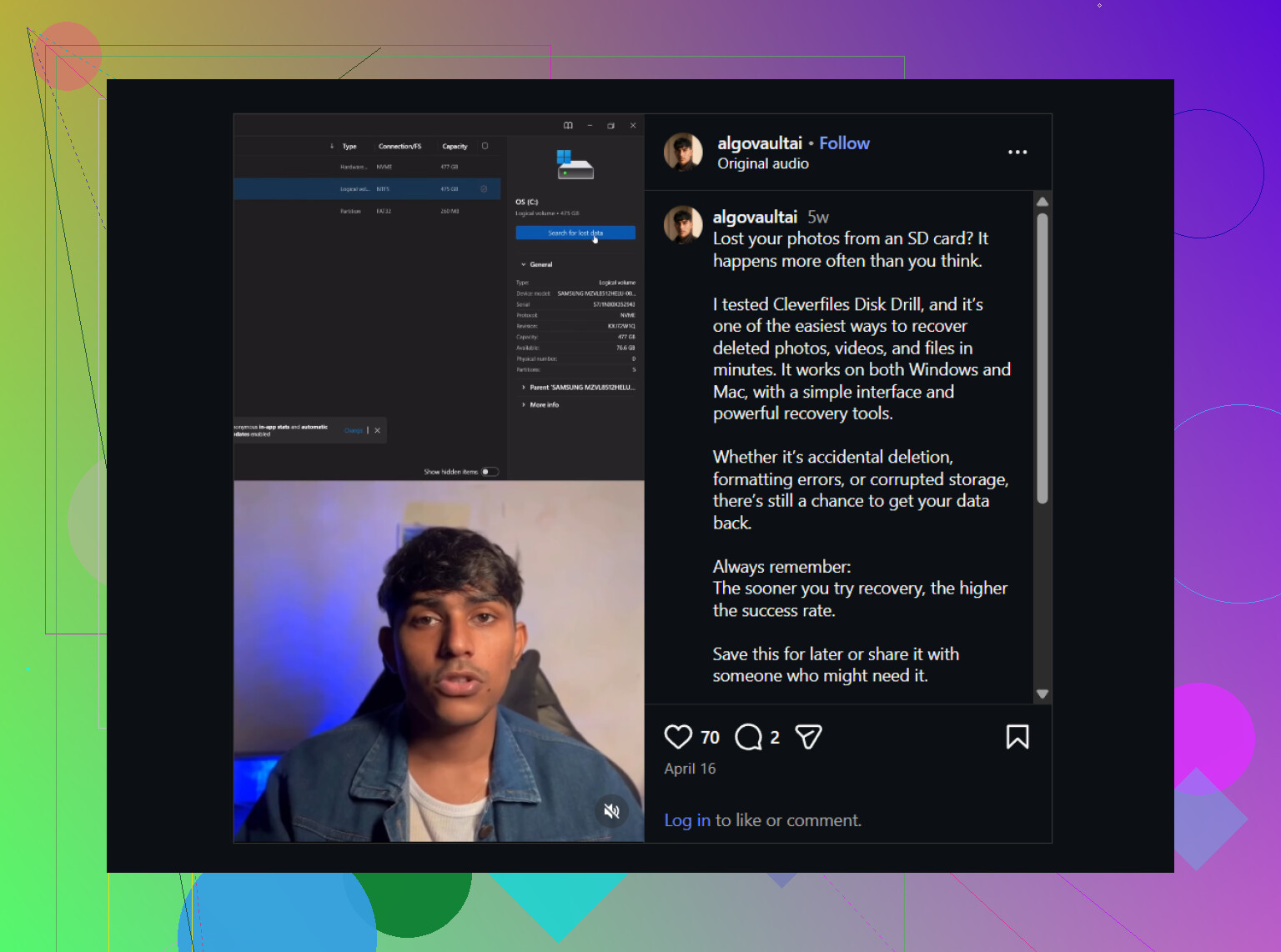
Fastest recovery move, in my opinon, is not actually scanning first. It’s locking the situation down first.
@mikeappsreviewer and @nachtdromer covered the obvious recovery flow, but I’d disagree a little on urgency vs speed. If these are really important personal photos/videos, the fastest safe path is:
- Slide the SD card’s write-protect switch to Lock if it has one.
- Use a proper USB card reader, not the phone/camera.
- If the card is acting weird, clone it first.
- Then scan with Disk Drill.
That lock switch matters more than people think. It prevents accidental writes from Windows/macOS junk processes, thumbnail caching, all that dumb stuff.
Also check whether your “move” was actually a copy-then-delete operation that failed halfway. Search the computer by size/date, not just filename. A lot of “deleted” files are sitting in some temp or destination folder.
For actual recovery, Disk Drill is probly the quickest normal-person option because previews save time. If previews show your JPG/MP4/MOV files correctly, recover those first and ignore the rest. Start with the largest/most important videos because partial overwrites kill video faster than photos.
One more thing people skip: if the card was used in a camera, stop putting it back in the camera to “see if files reappear.” Cameras love updating database files. Tiny write, huge regret.
If you want more real-world camera SD card recovery discussion, this thread is useful: best Reddit advice for recovering deleted SD card pictures
If you say whether it’s exFAT, FAT32, Android, GoPro, DSLR, etc, the answer gets way more specific.

One thing I’d add to @nachtdromer, @byteguru, and @mikeappsreviewer: check the card’s health before you trust any recovery result. If the SD card disconnects, shows 0 bytes, gets very hot, or reads insanely slow, stop DIY attempts after one pass. That points to hardware failure, and repeated scans can make a dying card worse.
My slight disagreement with the “clone first no matter what” advice: if the card is stable and you need speed, a quick preview scan can tell you in minutes whether the files are still there. If it looks flaky, then yes, image it first.
What helps most with photos/videos:
- Recover the most important file types first: JPG, CR2, NEF, ARW, MP4, MOV
- Ignore junk/system files until later
- Compare recovered file sizes with what your camera/phone normally creates
On Disk Drill specifically:
Pros
- Fast preview for common photo/video formats
- Easy to filter by type and date
- Good for SD cards and simple accidental deletes
Cons
- Deep scans can still take a while on large cards
- File names/folders may be lost if metadata is damaged
- Paid recovery for full use, which annoys some people
If Disk Drill misses stuff, that usually means either overwrite happened or the file system got mangled enough that you need a heavier tool. But for fast triage, it’s a sensible first shot.
Also, if the deleted videos were fragmented, don’t judge success just by thumbnail preview. A video can preview the first seconds and still be corrupted later. Recover one test file and play it all the way through.