My external drive suddenly stopped mounting on my Mac, and Disk Utility shows com.apple.diskmanagement.disenter error 53249. I’m worried about losing my files and I’m not sure if this is a serious disk issue, a macOS problem, or something I can fix safely. Looking for help troubleshooting this error and recovering access to the drive.
I hit this on a Mac after yanking an external SSD too fast. Disk Utility saw the drive, but it stayed grayed out and kept throwing the com.apple.DiskManagement.disenter error. From what I saw, macOS knew the device existed, but something in the mount process was jammed.
Most times, I found it came down to one of these:
- The drive got unplugged without ejecting
- The file system took damage
- macOS got stuck trying to repair it in the background
This is the order I would go in.
Start with the stuck repair job
One thing macOS does after a messy disconnect is run fsck in the background. It is supposed to check and repair the file system. Nice idea. Bad when it hangs, because your drive sits there like a brick and never mounts.
Open Terminal and run:
sudo pkill -f fsck
Hit Return. Type your password. You will not see the password appear on screen, which always feels a bit dumb the first time, but yes, that is normal.
If the disk pops up right after this, stop messing with it and copy your files off now. If it mounts read-only, same advice. Treat it like a warning shot.
Run First Aid from the top down
Disk Utility hides parts of the drive layout unless you tell it not to. Open Disk Utility, click View, then pick Show All Devices.
After that, run First Aid in this order:
- Physical drive
- Container, if one shows up
- Volume
I learned this the annoyng way. Running it only on the visible volume sometimes misses damage higher up the chain. If First Aid reports directory issues, B-tree errors, or header problems, I would run it again once or twice. I have seen repeat passes change the result.
Try a clean user session
Sometimes the disk is fine enough, and macOS is the thing acting weird. I had one case where the drive would not mount in my account, then mounted in another user with no drama.
So I would:
- Log out of your account
- Log back in
- If needed, test from another macOS user account
If it works there, your main profile might have some busted preference, permission issue, or a weird session process hanging around.
Look at Time Machine
This one catches people off guard. If the drive was ever used for Time Machine, macOS might still be trying to interact with it behind the scenes.
I would go into System Settings, turn off automatic Time Machine backups for the moment, then try mounting the disk again. I have seen background backup stuff keep a disk busy longer than expected.
When it still refuses to mount, switch from repair to recovery
There is a point where repeated repair attempts stop helping. If the drive keeps throwing mount errors, I would stop trying to ‘fix’ it in place. More writes, more repair passes, more poking around, none of that feels smart once the file system is unstable.
At that stage, I would try recovery first.
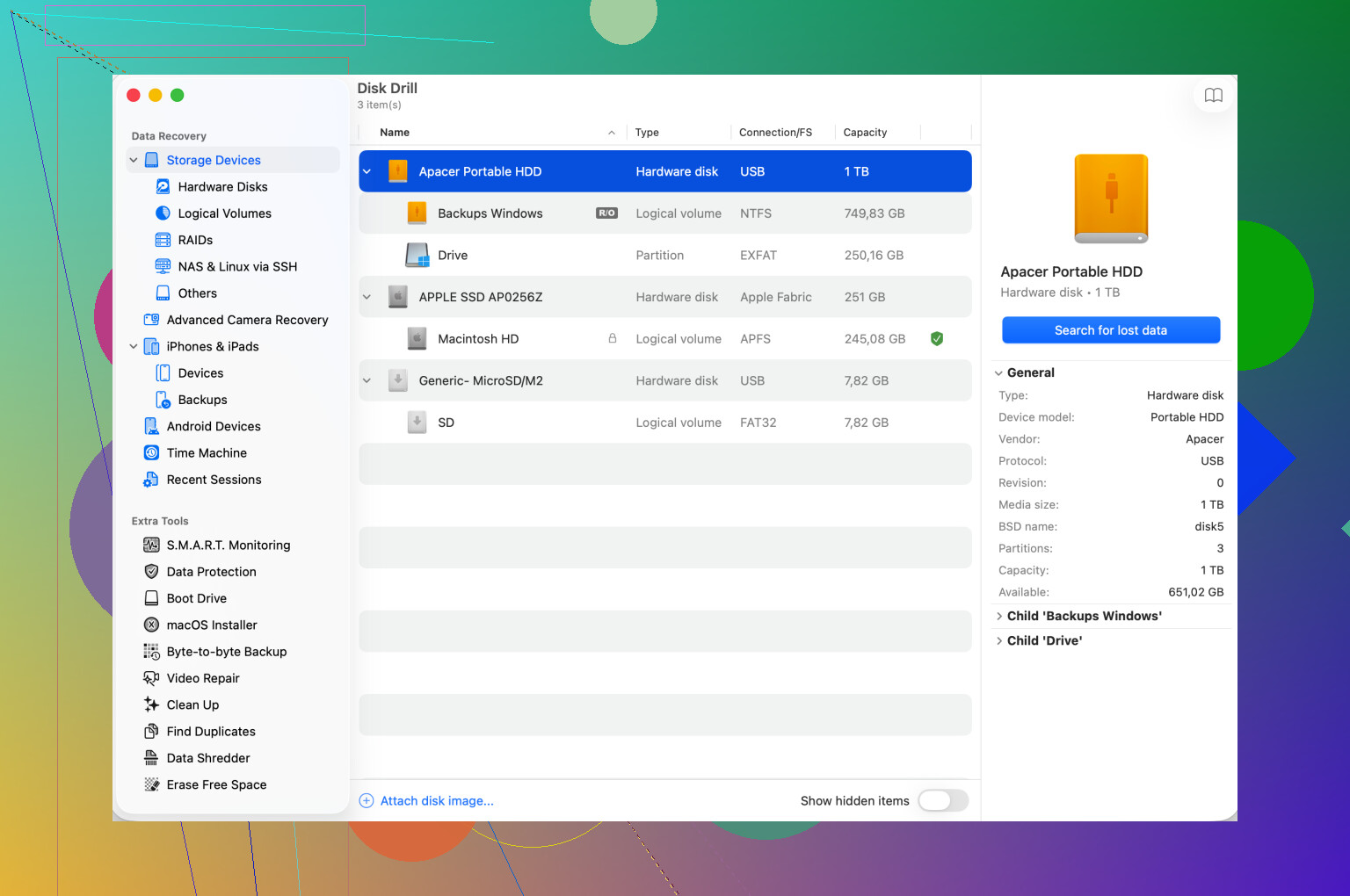
Disk Drill is one option. It scans the disk without needing macOS to mount it normally. In my case, tools like this were useful because they worked around the broken mount process and went after the raw data layout instead. If you recover files, save them to a different healthy drive. Do not send them back onto the problem disk.
Erase it after your data is safe
Once your files are off, wipe the drive and rebuild it.
In Disk Utility:
- Select the physical disk, not only the volume
- Click Erase
- Pick the format based on where you use it
What I would choose:
- APFS for Mac-only use
- Mac OS Extended Journaled for older Mac setups
- exFAT if the drive needs to move between macOS and Windows
If the drive lives mostly with your Mac, formatting it on the Mac tends to go smoother.
The main mistake I see is people hammering First Aid over and over, hoping the next pass turns broken into healthy. Sometimes it does not. I would get the files off first, then erase, then test the drive again. And yeah, always eject it before unplugging. One sloppy disconnect is all it takes.
1 Like
Error 53249 is bad enough to take serioiusly, but it does not always mean the drive is dying. A lot of cases point to a mount failure, not instant hardware death. macOS sees the disk, then fails when it tries to attach the file system.
I agree with parts of what @mikeappsreviewer said, but I would not keep poking First Aid over and over if your files matter. Repeated repair attempts write to the disk. If the file system is damaged, more writes are not your freind.
What I’d check first is the hardware side.
-
Swap the cable.
Bad USB cables cause weird mount errors more often than people think. -
Change the port.
Plug it directly into the Mac. Skip hubs and docks. -
Test on another Mac.
If it mounts there, your macOS install or settings are the issue. -
Check System Information.
Apple menu, About This Mac, System Report, USB or Thunderbolt. If the drive shows there with the right size, the Mac sees the hardware. -
Run this in Terminal:
diskutil list
If the disk appears but the volume does not mount, the file system is likely the problem.
If the drive clicks, spins down, disappears, or reports the wrong size, I’d worry more about hardware failure.
If your files are important, switch fast to recovery. Disk Drill is a solid option for unmountable external drives because it scans the disk without relying on Finder to mount it first. Save recovered files to a different drive.
If you want user feedback before installing it, read real Disk Drill user reviews and ratings.
If recovery works, erase the disk after. If erase fails too, the drive itself is toast.

Error 53249 is not an automatic death sentence, but it’s also not one of those “meh, reboot later” Mac errors. It usually means macOS can see the external drive but won’t complete the mount. So I’d rate it as serious enough to stop experimenting if the files matter.
I mostly agree with @mikeappsreviewer and @chasseurdetoiles, but one thing I’d add is this: check the drive’s SMART / health status if the enclosure supports it. Disk Utility sometimes hides the useful clue in plain sight. If SMART says Failing or the drive keeps reconnecting, that shifts this from “mount issue” to “possible hardware trouble” pretty fast.
Also, try mounting it manually in Terminal instead of relying on Disk Utility’s button:
diskutil list
find the external volume identifier, then:
diskutil mountDisk /dev/diskX
or
diskutil mount /dev/diskXsY
If Terminal gives a more specific error, that helps narrow it down. Disk Utility is kinda lazy with details sometimes.
Another thing people skip: if it’s an old spinning HDD in a cheap USB enclosure, the enclosure itself may be the problem, not the disk. A failing SATA-to-USB bridge can trigger mount errors even when the actual disk is still readable. In plain english, external drive mounting errors on macOS can also happen because of failing disk hardware, a bad enclosure, or unstable USB connections.
If the data matters, don’t keep forcing repairs. Use Disk Drill to scan the unmountable external drive and recover files to another disk first. After that, erase and retest.
Also worth a read: expert help for external hard drive not mounting issues.
Short version: bad enough to take seriously, not proof the drive is dead, and yes, data recovery should probably come before more poking arond.
I’m a little less optimistic than @chasseurdetoiles and @waldgeist on one point: if this error appeared suddenly on a drive that used to work fine, I’d also consider a power problem, not just file system damage. Some bus-powered external drives pull right to the edge of what a Mac port or hub delivers, and mount failures can start before the disk fully drops offline.
A couple checks that complement what @mikeappsreviewer covered:
- Try the drive after a full shutdown, not just restart.
- If it is a desktop external, verify the power adapter, not only the USB cable.
- If it is an SSD enclosure, feel whether it gets unusually hot. Thermal flakiness can look like a mount error.
- In Console, filter for
diskmanagementdorkernelright after plugging it in. Sometimes you’ll see I/O errors or bridge resets that Disk Utility never shows.
Also, if the drive is encrypted, especially APFS encrypted, 53249 can show up when the container is visible but unlock fails. That can make the disk look more broken than it actually is.
My rule is simple: if the drive is detected consistently but refuses to mount, stop treating it like a normal repair job and treat it like a data-preservation job. That means clone or recover first, then experiment later. Disk Drill is reasonable for that because it can read from disks that Finder won’t mount.
Pros of Disk Drill:
- easy to use
- can scan unmountable drives
- good preview support before recovery
Cons:
- deep scans can take a long time
- recovery quality depends on how damaged the file system is
- not the cheapest option compared with tools like R-Studio or EaseUS
So, serious? Yes. Guaranteed dead drive? No. But I would definitely act like the disk is on probation.