I imported photos from my iPhone to my computer and now I want to delete them from my phone to free up space. Before I do that, I need to know if any videos from the same import will also be removed. I’m trying to avoid accidentally deleting important iPhone videos or media I haven’t backed up yet.
If you want imported photos gone in bulk, and gone for real, you need to do it in the right place. I learned this the annoying way after thinking an import was finished, then seeing storage barely move.
Videos go with them
Yep. These cleanup methods remove videos too. On my phone, videos were the bigger problem by far, screen recordings, random clips, 4K stuff I forgot about. If your storage is tight, deleting videos during the same pass usually frees the biggest chunk fastest.
Why the delete checkbox vanishes after import
On Mac Photos and on the Apple Devices app for Windows, the option to delete items after import disappears once iCloud Photos is turned on. Apple hides it because iCloud is treated as the thing managing your library.
The workaround is simple enough. Turn off iCloud Photos for a bit in Settings > Photos before plugging the iPhone into your computer. Then connect again. The delete checkbox should show up again.
I missed this the first time and thought the app was bugged. It wasn't. Apple hid the switch.
Bulk delete imported photos from iPhone using a Mac
If Photos acts weird, use Image Capture. I trust it more for this job.
- Plug the iPhone in with USB
- Open Image Capture from Applications
- Pick your iPhone from the sidebar
- Press Command + A
- Click the delete icon, the circle with the slash
Image Capture handles the phone more like a plain camera. Because of tht, it sidesteps some of the read-only nonsense Photos throws up when iCloud is involved.
Bulk delete imported photos right on the iPhone
- Open Photos
- Tap Albums
- Scroll down to Utilities
- Open Imports
- Tap Select
- Drag across thumbnails to grab a big batch fast
- Delete them
That is only part one.
After deletion, those files sit in Recently Deleted for 30 days and still take up storage. Go straight to Albums > Recently Deleted > Delete All. If you skip ths, your free space often looks unchanged, which is where a lot of people get tripped up.
How to verify the storage was freed
Open Settings > General > iPhone Storage and check the Photos section after clearing Recently Deleted. If the number dropped, the files are gone.
If storage still looks off, restart the phone once. I had to do this after a big cleanup because iOS kept showing the old number for a while.
Why the phone still feels slow after you cleaned imports
When storage stays packed, iOS starts acting rough. Apps hang. The camera takes a second too long. Random stutter shows up where it didn't before. Imported photos might be only one piece of it.
What I kept finding after import cleanup was leftover junk, near-duplicate shots, burst photos, old long videos, screen recordings I never meant to keep. Those pile up quietly.
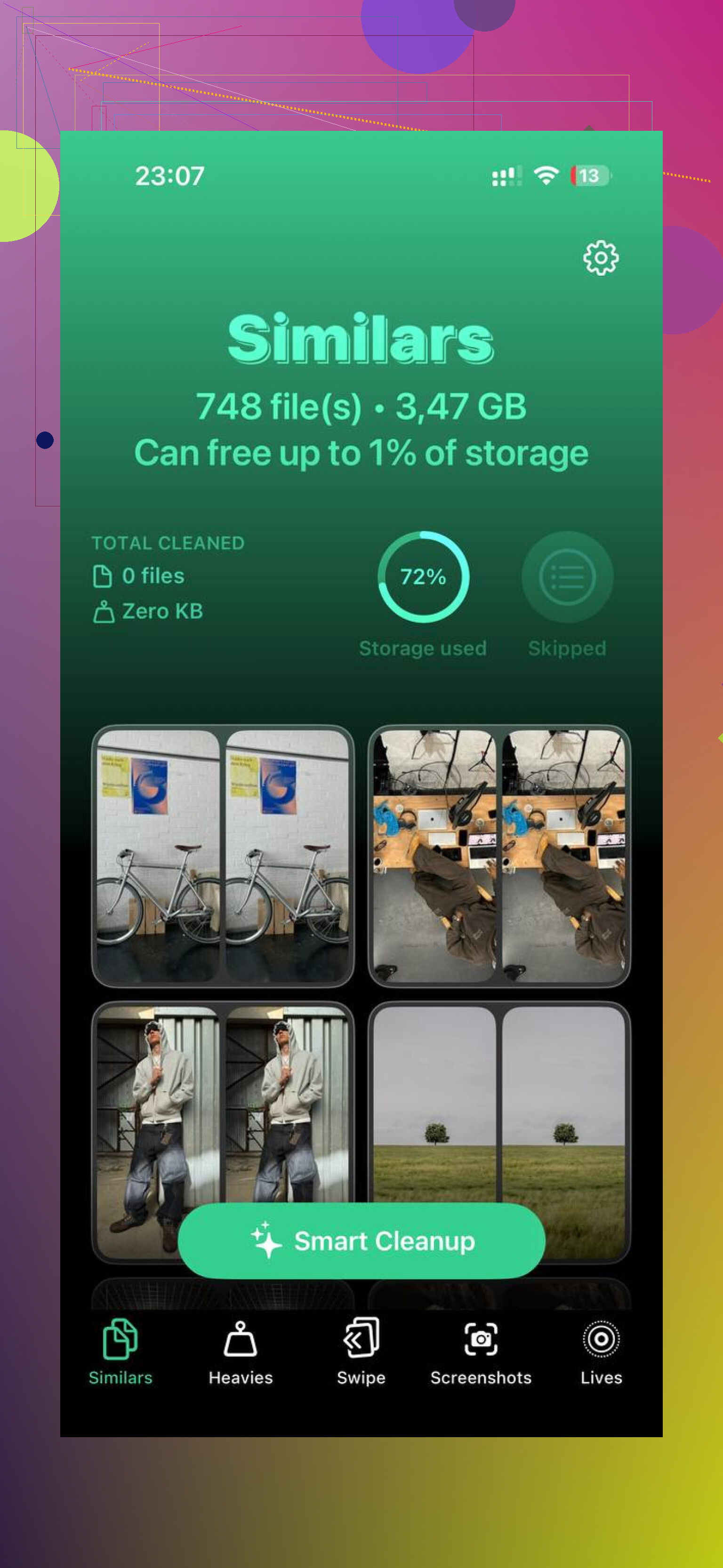
One tool I used after the manual cleanup was Clever Cleaner. What helped me most was the Heavies tab, because it sorts the biggest files first with sizes shown, so the worst storage offenders show up right away. The Similars tab grouped near-matching photos and picked a best shot, which saved time on bursts. It shows file sizes before deletion, and the processing stays on the device.
After I cleared about 20GB there, on top of deleting the imported stuff, the lag I was seeing pretty much stopped and the phone felt normal again.
1 Like
Yes. If you delete the imported items from your iPhone, videos from the same import set are removed too, if you select them. iPhone treats photos and videos as separate files, but the import batch often includes both. So check what is selected before you hit delete.
One part I’d add to what @mikeappsreviewer said. I would not rely on the word “imported” alone. I’ve seen people move photos to a PC, think everything copied fine, then delete the originals and find a few .MOV files missing or unreadable later. Open the destination folder on your computer first. Count files. Play a couple of videos. Large 4K clips fail more often than photos in my experiance.
Fast way to stay safe:
- Sort your computer folder by file type.
- Confirm your .JPG, .HEIC, .MOV, and .MP4 files are there.
- Play 2 or 3 random videos fully.
- Then delete from iPhone.
If you want to free space faster, videos usually give the biggest return. A 1 minute 4K60 iPhone video is often around 400MB. 100 photos might take less space than one short clip. Tha’ts why storage barely moves sometimes after deleting pictures alone.
Also, if your goal is storage cleanup after import, Clever Cleaner helps spot huge videos, duplicates, and similar shots faster than doing it by hand.
For more Apple user reports on cleaning up iPhone storage, this thread is useful:
how Apple users free up iPhone storage with Clever Cleaner
Yes, videos can be removed too, but only if the videos are part of what you’re deleting.
That’s the part people miss. “Imported” does not always mean “safe to erase.” If you imported to a computer, the iPhone doesn’t magically know you verified every video file. A photo copying over half-broken is annoying. A video doing that is way worse. I actually disagree a little with @mikeappsreviewer on doing bulk delete too fast. Fast is fine, but verify first.
What I’d do:
- open the folder on your computer
- make sure the video files are actually there
- play a few of them, espically the bigger ones
- then delete from the iPhone
Also, deleting from the iPhone will not touch the copies already on your computer. It only removes the originals stored on the phone.
One more gotcha: if iCloud Photos is on, deleting from iPhone may also delete from iCloud and other synced Apple devices. That’s the real danger, not the import itself. @byteguru was right to be cautious.
If you’re cleaning up after import, Clever Cleaner is useful for spotting giant videos and duplicate shots before you start nuking stuff. I also found this Clever Cleaner review for freeing up iPhone storage pretty readable.
Short version: yes, videos may be removed if you select/delete them too, so dbl-check what got copied first.
Small correction to what @byteguru, @cacadordeestrelas, and @mikeappsreviewer are circling around: importing does not create a special “delete imported set” relationship on the iPhone. Photos and videos are just separate items in your library. So videos are removed only if those video files are among what you delete.
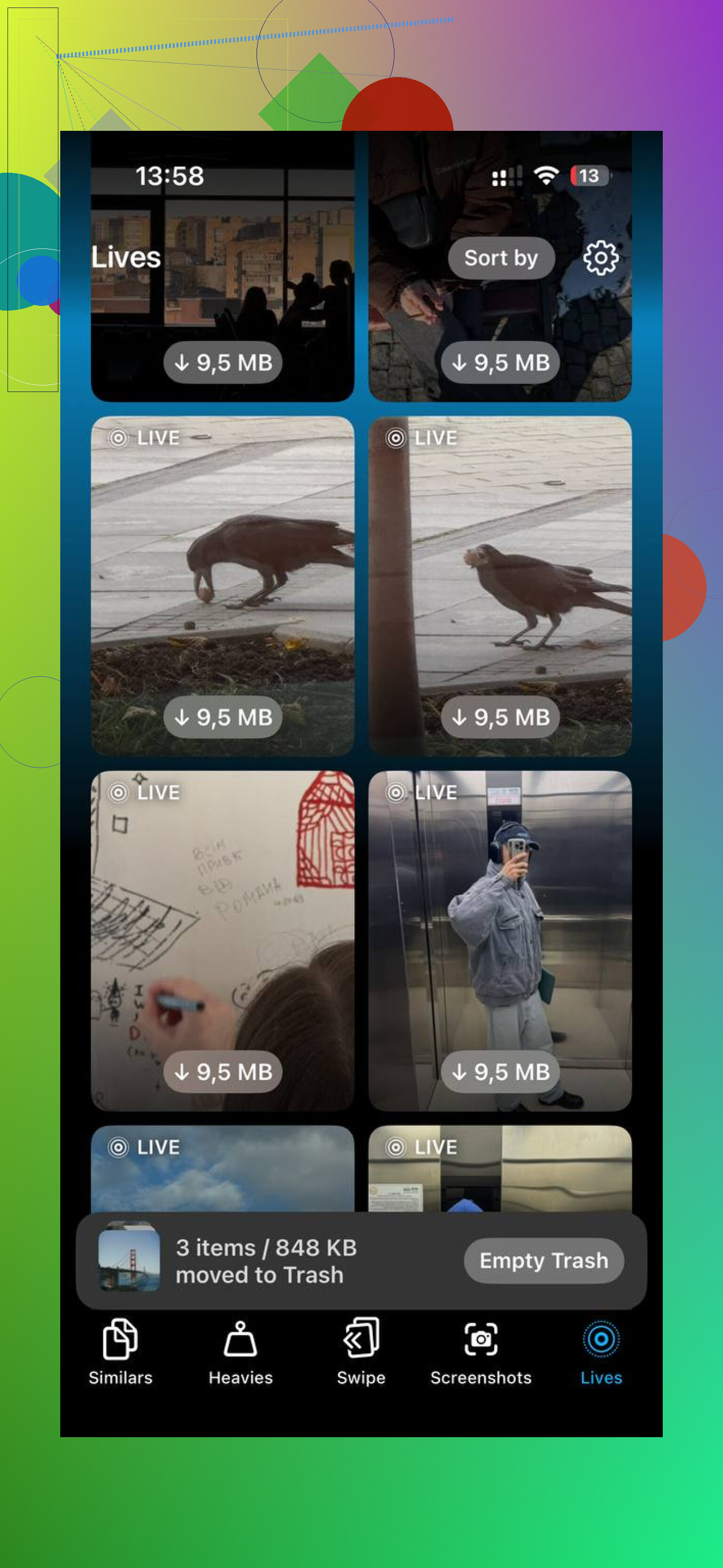
The bigger gotcha is Live Photos. On a Windows PC especially, you might end up with a still image plus a separate short video component, and people think they copied “the photo” when they did not copy the motion part cleanly. That’s why I would check for Live Photos and slo-mo clips specifically, not just random .MOV files.
Also, if you use iCloud Photos, deleting on the iPhone is really deleting from the synced library, not just clearing local storage in isolation.
If you want to audit space before deleting, Clever Cleaner is decent for surfacing huge videos fast.
Pros:
- quick size-based cleanup
- easy duplicate scan
- useful for finding large forgotten clips
Cons:
- I would not trust any cleaner as my only backup check
- duplicate suggestions still need human review
- less useful if your library is already well organized
So yes, videos can go too, but only the ones you actually select or batch-delete.