I moved photos from my CompactFlash card to my PC, and now some of the files are missing or won’t open. I’m worried they may have been removed or corrupted during the transfer, and I still need the images. What are the best ways to recover data from a CF card after transferring files to a computer?
I ran into this with a CF card a while back, and the worst move was trying random repair stuff before pulling the files off. If this happened to your card, I’d treat it like read-only right now.
So, no new shots. No format. No repair tool. Don’t copy anything onto it. A CF card often looks empty when the files are still there, sitting in flash storage, while the file table is what got scrambled. Once you write over those blocks, your odds drop fast.
First check the simple stuff
I’d start with hardware before touching recovery software.
- Use a real CF card reader
- Skip the camera USB cable
- Try a different USB port
- Try another card reader if you have one
After that, look for the card in Disk Management on Windows or Disk Utility on macOS. It does not need to mount cleanly. What matters is whether the system sees it at all, and whether the capacity looks right. If the card shows up with the expected size, recovery tools usually still have something to scan.
If you do not have a backup
I’d go straight to recovery software instead of testing ten half-fixes from old forum posts. My usual pick for CF cards is Disk Drill.
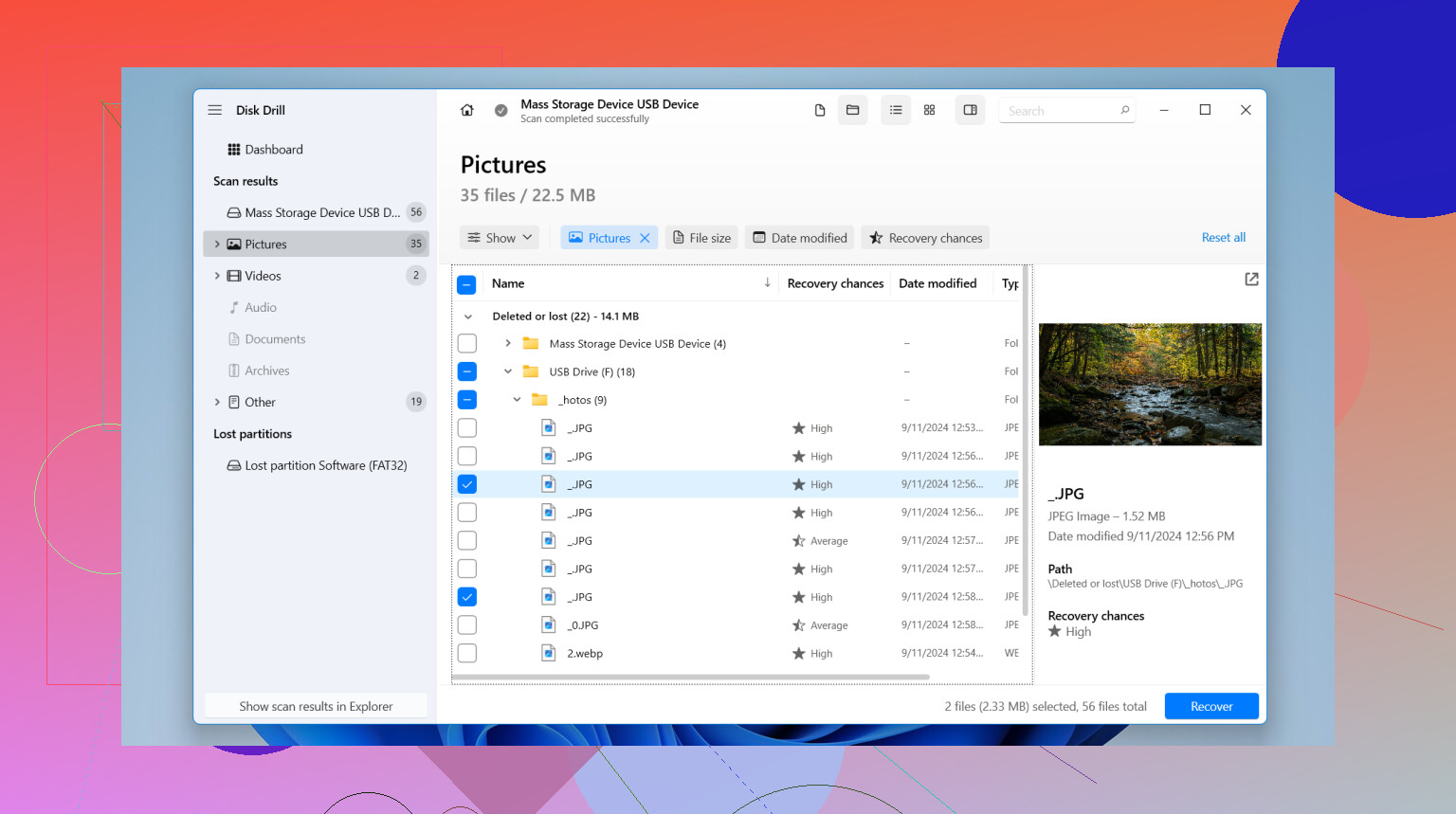
Why I used it, simple reason. The layout is easier to deal with, it reads FAT32 and exFAT fine, and it tends to do well with camera media. CF cards often hold RAW files and long video clips, so preview matters. Being able to inspect files before recovery saved me from restoring a pile of junk with broken headers and useless names.
What I’d do, step by step
- Pull the card and leave it out of the camera. Wait until recovery is done before using it again.
- Connect it with a card reader. Direct reader access works better than going through the camera.
- Open Disk Drill and pick the CF card. Double check the device name so you don’t scan your system drive by mistake.
- Make a byte-for-byte image first if the card seems unstable. If it disconnects, freezes, or reads inconsistently, image it and scan the image instead.
- Run a full scan.
- Let the scan finish. Stopping early sometimes misses reconstructed or lost files.
- Preview files before restoring them. I’d open a few photos and clips first so you know what is intact.
- Recover to another drive. Save to your computer or an external disk. Never put recovered files back onto the same CF card.
Other tools people bring up
PhotoRec deserves a mention. It’s free, and it digs through damaged file systems better than you’d expect. The tradeoff is mess. Filenames are often gone, folder structure is gone too, and sorting the output gets annoying fast.
UFS Explorer is solid if you know your way around recovery software and don’t mind a more technical interface. I’ve seen people get good results with it, though I wouldn’t hand it to someone who wants the shortest path from dead card to saved photos.
For a normal CF card failure, I’d still start with Disk Drill. Less friction, fewer wrong turns.
One thing I would not do
If Windows or macOS pops up a format prompt, ignore it for now. That message only means the system failed to read the card in its current state. It does not mean formatting is safe. I made this mistake once on an old card, and yeah, it made the cleanup harder.
Recover first. Back up the recovered files somewhere else. Only then deal with formatting or reusing the card.
1 Like
Yes, if the files were moved and not copied, recovery from the CF card is still possible until new data overwrites the old blocks.
I mostly agree with @mikeappsreviewer on stopping all writes to the card. Where I differ is this, check the PC side too before assuming the card failed. A lot of ‘missing’ photos are sitting in a bad transfer folder, half-copied, or renamed by import software.
What I’d do first:
- Check the destination folder on your PC with Details view. Sort by file size. Zero KB or tiny RAW files mean transfer corruption.
- Compare file counts on card vs PC.
- Try opening the bad files in a differrent viewer, not Photos. Use IrfanView, XnView, or your camera maker’s RAW tool.
- Run a checksum test if you still have some matching files. If copies differ, the transfer path was the problem, not the card.
If the card still shows the old used space, deleted data often remains recoverable. Disk Drill is a solid pick for scanning CF cards because it handles common camera file systems well and previews images before recovery. I’d recover to another drive, then compare recovered files against the broken PC copies.
If recovered photos open but PC copies do not, the transfer failed. If neither opens, file damage happened earlier.
Also, this video is worth a look if you want a simple walkthrough: step by step video guide for recovering deleted files from an SD card
One more thing, if these are critical client shots, skip DIY after one clean scan attempt. Repeated scans on a dying card are a bad ideaa.
If the files were moved instead of copied, then yes, the CF card may still be your best shot. But I’d add one thing to what @mikeappsreviewer and @jeff said: don’t assume every “won’t open” file is actually missing data. Sometimes the file is there, but the header got mangled during transfer, or Windows cached the copy badly and you’re judging a broken PC copy, not the original.
A few checks I’d do that are a little different:
- Look at the CF card’s used space. If it still shows roughly the same space used as before, that’s a decent sign the data blocks are still there.
- On the PC, try copying one of the “bad” files to another folder or drive and open it there. I’ve seen weird permission/caching nonsense make files act dead when they weren’t.
- For RAW files, test in the camera manufacturer’s software first. Windows Photos is kinda useless with some formats tbh.
- If you have hex-level corruption in only a few files, recovery software may bring back cleaner originals than the transferred versions.
I slightly disagree with doing too much poking around in the OS if the card is acting flaky. If it disconnects even once, stop messing with it and image it first. That part matters more than people think.
For actual recovery, Disk Drill is a pretty practical choice for CompactFlash card recovery because it can scan the card deeply, preview recoverable photos, and restore them somewhere safe. The preview bit is huge, because file names can lie and previews usually don’t. If the scan finds good previews, your odds are way better than you think.
Also, don’t “repair” the card yet. No chkdsk, no format, no camera reinitialize. That stuff can make a bad day worse real fast.
If you want a simple walkthrough, this is decent: how to recover deleted videos from an SD card step by step
One more honest note: if the photos are really important and the CF card is making odd noises, dropping connection, or reading super slow, DIY can turn into regret prety fast. That’s where I’d stop after one careful scan attempt.
If the files were moved, not copied, I’d actually worry a bit more about the PC storage than the CF card at first. Small disagreement with the “go straight to recovery” angle: sometimes the target drive has file system issues, cloud-sync interference, or antivirus lockups that leave photos present but unreadable.
What I’d check that hasn’t been stressed enough:
- Look in Recycle Bin and the import app’s own folder structure
- Check if the destination drive has errors with SMART or a quick disk health tool
- See whether filenames/extensions changed, especially RAW files
- Test the “broken” files on another PC before declaring them corrupt
If the CF card is still untouched, yes, recovery is possible. But safest move is to image the card first, then work from the image. That lowers the risk if the card is unstable.
For software, Disk Drill is reasonable here.
Pros:
- easy preview of photos
- good with camera cards
- less painful than PhotoRec for normal users
Cons:
- not the cheapest option
- deep scans can lose original names/folders
- if the card has hardware failure, software only goes so far
@jeff, @sognonotturno, and @mikeappsreviewer are right about avoiding writes and not formatting. I’d just add: verify whether the PC copy failed first, because that changes the whole diagnosis.