My USB flash drive suddenly stopped opening and now my computer says it needs to be formatted before I can use it. It has important photos, work documents, and personal files that I really need to recover. I’m looking for the best USB flash drive data recovery methods or software that can help restore files from a corrupted or unreadable drive without making things worse.
Take a breath first. A messed up USB stick does not always mean your files are dead. I’ve seen plenty of cases where the storage was still there, but the file system was trashed, so Windows stopped reading it like a normal drive.
The order matters a lot here. Recover your stuff first. Try repairs after.
So I would not format it yet. I would not run CHKDSK yet. I would not throw random “fix USB” tools at it. And don’t copy new files onto it. Those steps sometimes make the drive mount again, sure, but they also change the structure on disk. If recovery is your goal, that is a bad trade.
What I’d check first
Plug it in and see how Windows reports it. Open Disk Management and look for three plain things:
- Does the USB show up at all?
- Does the listed size look right?
- Does it show a normal file system, or does it say RAW or unallocated?
If the stick appears and the capacity looks correct, I’d take that as a decent sign. You still might recover files yourself. If it does not appear, keeps reconnecting, shows some nonsense size, or gets hot fast, I’d start thinking hardware problem. And yeah, those cases go downhill quick.
I’d also test another USB port and another computer. Not as a repair, only as a quick sanity check. I’ve had ports act flaky, and I’ve seen one PC refuse a drive while another at least detected it. If the behavior stays the same everywhere, the stick is the problem, not your setup.
Do recovery before repair
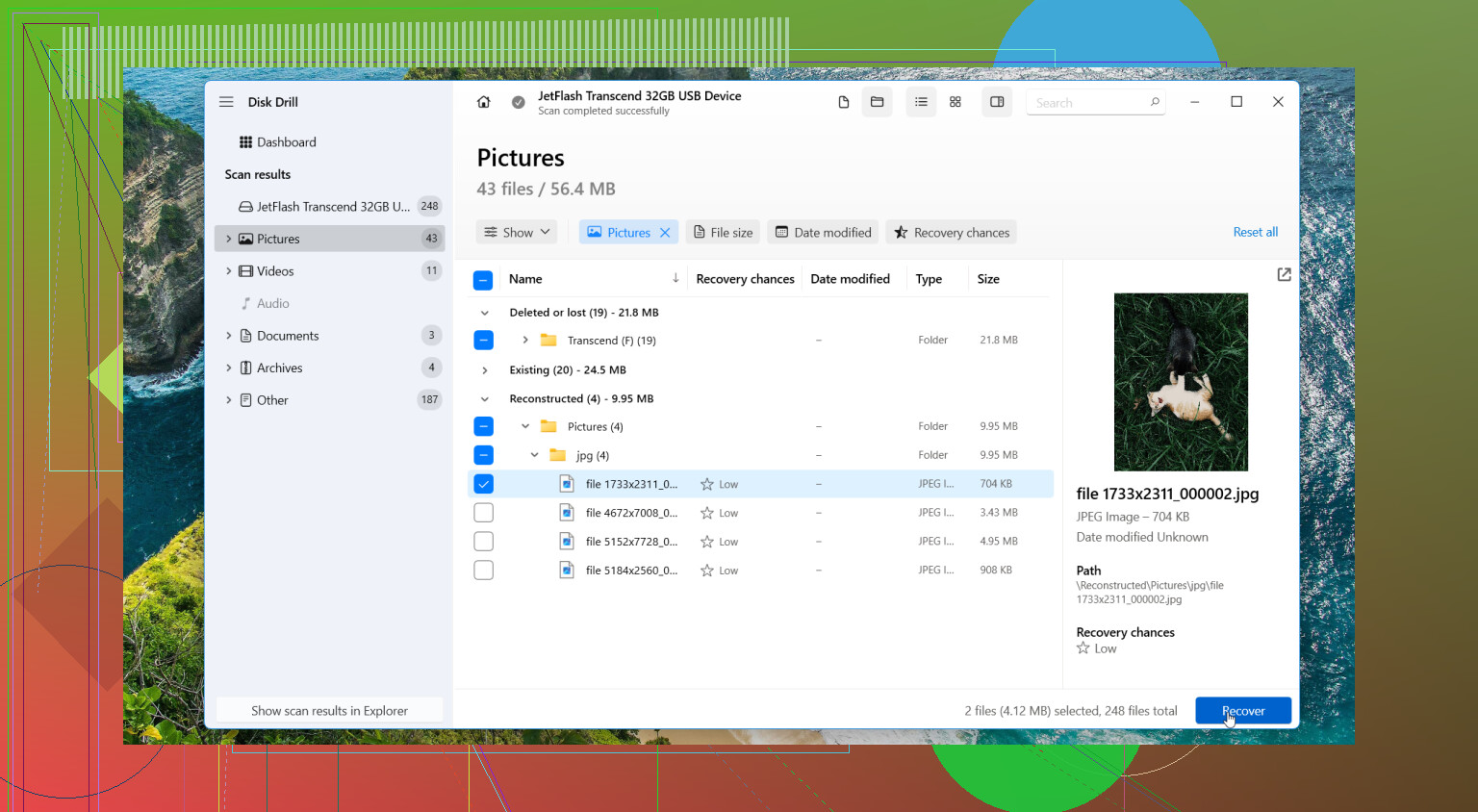
If the USB is still detected, I’d go straight to recovery software before trying to “fix” anything. One option is Disk Drill. The reason people use it in cases like this is simple. It scans damaged, RAW, and unreadable drives without depending only on the broken file system. The preview feature helps too, since you get some proof of what is still there before dumping hours into recovery.
If I were doing it, I’d make an image first and scan the image, not the original USB.
Safer workflow
- Install Disk Drill on your computer. Do not install it on the bad USB.
- Connect the USB stick.
- Open Disk Drill and pick Byte-to-byte Backup.
- Select the corrupted USB.
- Save the image file to a different drive with enough free space.
- When the image finishes, return to Storage Devices.
- Attach the saved disk image.
- Scan the image instead of scanning the USB itself.
- Preview what shows up.
- Recover the files to another drive, not back onto the USB.
I’d do it this way because shaky flash drives tend to get worse under stress. A full image gives you a frozen copy of the drive as it exists right now. If the stick dies later, you still have something to work from. I learned this one the hard way a while back, and yeah, I wish I had done the image first.
Only after your files are safe
Once the important data is off, then I’d try cleanup steps.
Start small. If the drive is visible in Disk Management but missing from File Explorer, assign a new drive letter. If detection comes and goes, reinstall the USB device in Device Manager and reconnect it. Windows Error Checking or CHKDSK goes here, after recovery, not before. If none of it helps, reformat the stick to exFAT or NTFS and test it with throwaway files.
When I’d stop trusting the drive
I’d replace the USB if any of this keeps happening after a format:
- corruption comes back
- files vanish again
- copy jobs fail
- the drive disconnects at random
- the reported size looks wrong
Flash storage wears out. Cheap sticks fail more often than people think. Once one starts acting weird twice, I stop using it for anything I care about. Not worth the headache.
When DIY is the wrong move
I’d skip home recovery attempts and look at a data recovery service if the USB is bent, cracked, not detected anywhere, heats up fast, keeps dropping connection every few seconds, or holds files you cannot afford to lose. In those situations, repeated scans and repair tries tend to make the mess worse.
1 Like
If Windows says “format the drive,” treat the USB like read-only from this point. @mikeappsreviewer is right about avoiding CHKDSK first. I only differ on one part. I don’t always start with repairs or even a full image if the stick is unstable and keeps dropping. In some cases, a quick file recovery scan first gets the important stuff before the device falls off the bus again.
A few practical checks.
If Disk Management shows RAW, your files often still exist. RAW usually means file system damage, not instant wipe.
If the capacity shows 0 bytes, random size, or the drive disconnects every few seconds, think hardware fault.
If Linux sees the drive better than Windows, booting a live USB and copying files from there sometimes works. I’ve had this save photos twice.
For software, Disk Drill is one of the better file recovery tools for corrupted USB flash drives because it handles RAW partitions well and previews files before recovery. Save recovered files to your PC or another external drive, not back to the bad stick. If Disk Drill finds your folder tree, stop experementing and pull the critical files first.
One more thing people skip. Check Event Viewer for disk errors like bad blocks or controller resets. If you see repeated I/O errors, stop rescanning over and over. That wears the drive out faster.
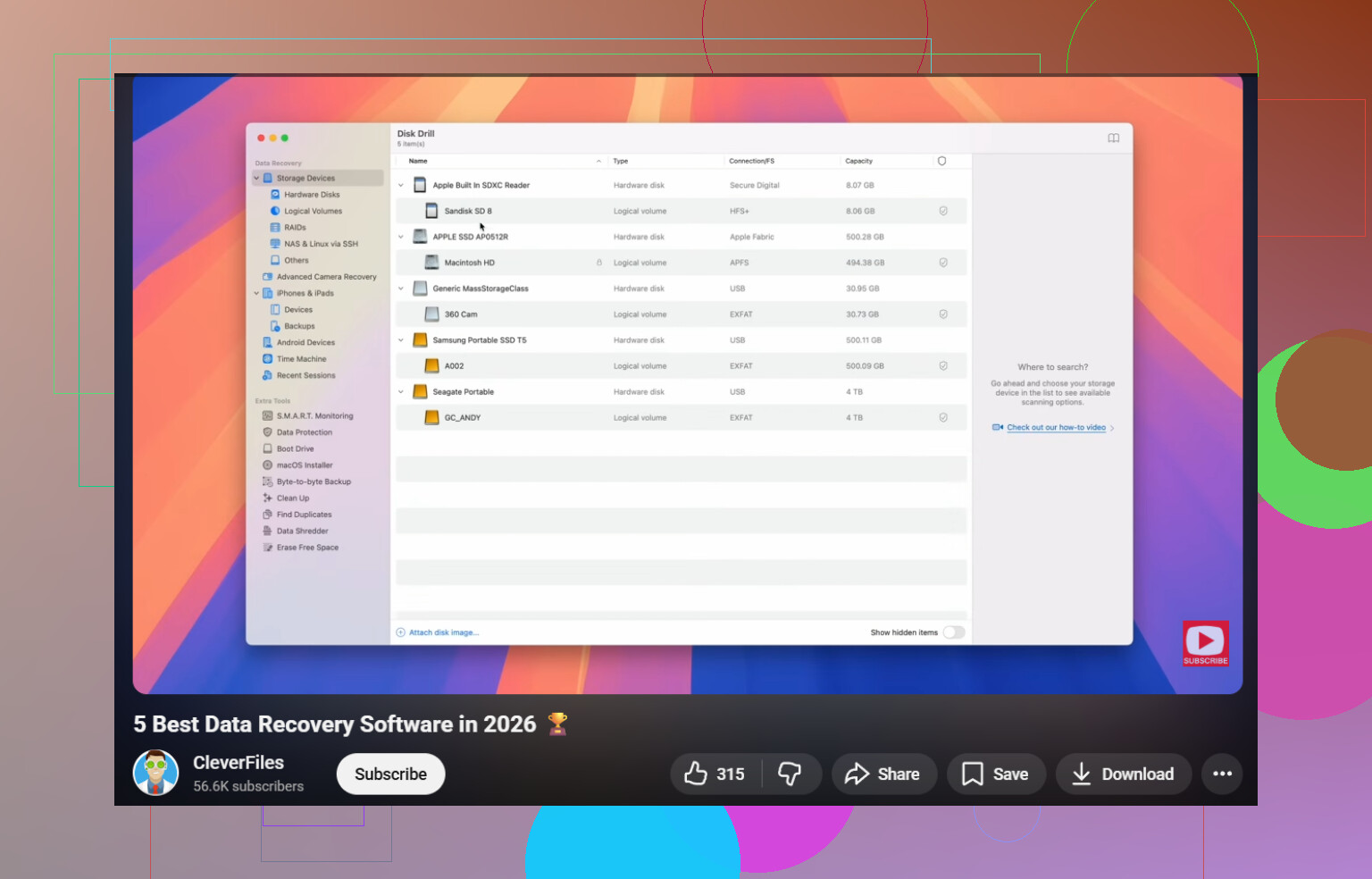
If the files matter a lot, pro recovery beats home trial-and-error. If they matter somewhat, try software first. For a decent overview of the best data recovery software for 2026, this video is useful: watch this data recovery software roundup
After recovery, reformat and test. If it fails once more, toss it. USB sticks lie untill they die.
Don’t format it. That popup is Windows basically saying “I can’t read the file system,” not “your files are definitely gone.” Small but important diffrenece.
I agree with @mikeappsreviewer on one thing big time: recovery first, repairs later. I also kinda agree with @boswandelaar, but I’m a little less eager to keep poking a flaky USB on and off different systems if it’s already acting unstable. Every reconnect can be the one where it just quits.
What I’d add that they didn’t really stress enough is this: listen to the drive’s behavior. If it mounts quietly and stays visible, software recovery is worth trying. If it vanishes mid-scan, reports the wrong size, or suddenly slows to a crawl, stop treating this like a normal logical corruption case. That starts sounding more like failing hardware than just a busted file table.
If it is still detected consistently, Disk Drill is a solid choice for corrupted USB recovery because it can scan unreadable or RAW flash drives and sort files by type when the original folder structure is messed up. I’d focus on the irreplaceable stuff first: photos, docs, project files. Don’t waste time recovering old installers and junk.
One thing I do disagree with a bit: not every case needs a giant full-image-first workflow. If the stick is weak and disconnecting, sometimes a direct pass for the most important files is smarter before it dies completely. Imaging is ideal, sure, but “ideal” and “what the dying USB allows” are not always the same thing.
Also, if you want a quick read before doing anything destructive, this is useful: best first steps for recovering files from a corrupted USB drive
Short version:
- do not format
- do not save anything new to it
- avoid CHKDSK at first
- recover to another drive
- use Disk Drill if the USB is still showing up
- if the device keeps disconnecting or gets weirdly hot, stop DIY stuff
Best SEO-friendly summary would be: recover files from a corrupted USB flash drive before formatting by using data recovery software, checking whether the drive shows as RAW, and avoiding repair tools until your important files are copied somewhere safe.
And yeah, after you get the files off, retire that stick. USB flash drives are cheap right up until they nuke your weekend.
I’d add one thing the replies from @boswandelaar, @techchizkid, and @mikeappsreviewer only touched lightly: check SMART-like USB behavior by copying a single large file versus lots of small ones if the drive still mounts at all. If one big copy starts then stalls forever, while tiny files fail instantly, that often points to controller or NAND trouble, not just a damaged file system.
I slightly disagree with the “always image first” crowd. On a sick flash drive, a full image can be the most stressful thing you do. Sometimes a selective recovery pass is the safer bet.
For software, Disk Drill is reasonable here.
Pros:
- handles RAW/unreadable USB drives well
- file preview helps verify recoverability
- can recover by file signatures when folders are gone
Cons:
- deep scans can be slow
- results may lose original filenames/folders
- not magic if the USB controller is failing
My rule: if the drive stays connected, try Disk Drill and grab the most important files first to another disk. If it disconnects, shows nonsense capacity, or gets hot, stop and consider pro recovery. Afterward, retire the stick.